

SSH Client
If you're running Windows 11 — the latest version of Windows at the time of writing — then, you already have access to the Windows Terminal app. If for some reason you do not, I recommend installing it, as you really don't need Putty to complete these exercises.
 Microsoft Corporation
Also, in most recent versions of Windows, the ssh.exe client and related binaries should already be installed and ready for use. Below, I've provided some examples of the most basic SSH syntax for connecting to the challenges.
ssh username@127.0.0.1SSH using IP address
ssh username@domain.tldSSH using FQDN
Trebek 0 -> 1
trebek1:trebek1ssh -o 'StrictHostKeyChecking=no' trebek1@trebek.underthewire.techUse the StrictHostKeyChecking=no option to skip the key verification prompt
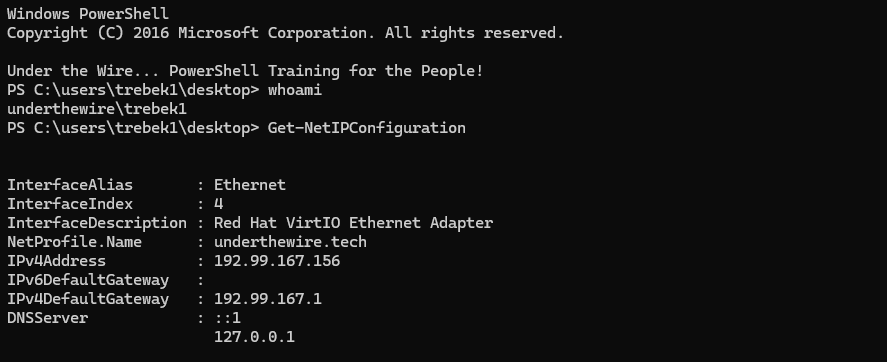
Trebek 1 -> 2
The password for trebek2 is the name of the script referenced in a deleted task as depicted in the event logs on the desktop.
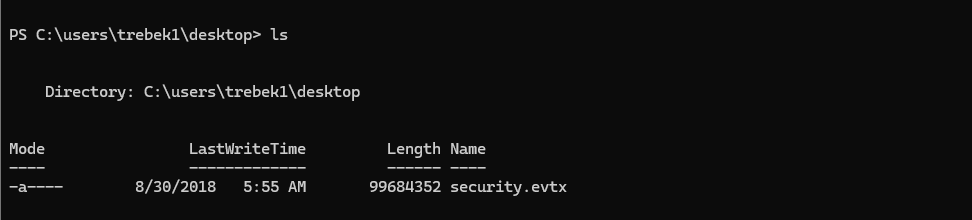
.evtx files, I had piped the Get-WinEvent data to Where-Object, but I don't like that strategy, because it degrades performance. This is because, you first have to collect all of the data and then pipe it to Where-Object to then filter all of said data on a specific $_.Message property.This is significantly slower than using
-FiltlerXPath where the filtering is happening at run time before piping.To make efficient use of the -FilterXPath parameter, the best course of action is to search for the event ID that is generated when deleting a scheduled task.
 vinaypamnani-msft
$evt = Get-WinEvent -Path .\security.evtx -FilterXPath "*[System[EventID=4699]]"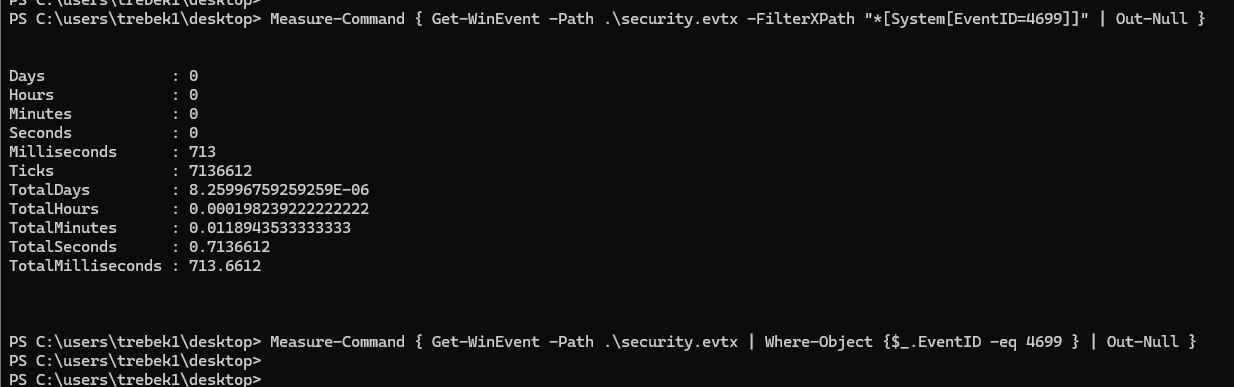
-FilterXPath parameter. Piping to Where-Object took so long (more than a minute) that I just cancelled it.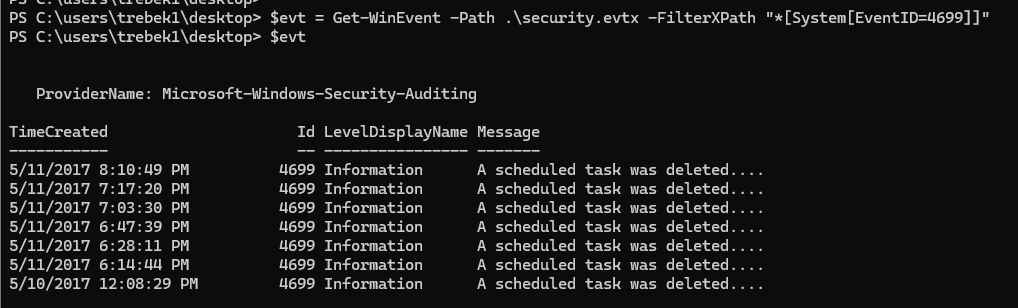
$evt.Message
$evt[-1].Message.Split("`n")Select the last log event and its Message property. Then, split the blob of text into an array of strings with .Split("`n")
$evt[-1].Message.Split("`n")[-12]
[xml]$evt[-1].Message.Split("`n")[-12]
[xml] so we can process it like an object([xml]$evt[-1].Message.Split("`n")[-12]).Arguments.Split('\\')[-1].Split('\.')[0].ToLower()Finally, extract the string from the Arguments property and use the .Split() method to slice it at the \ first, then at the . and choose the script name.

mess_cleanerPassword for trebek2
exitExit the challenge
Trebek 2 -> 3
The password for trebek3 is the name of the executable associated with the C-3PO service PLUS the name of the file on the user’s desktop.
ssh trebek2@trebek.underthewire.techNo longer need the additional option, since the host key has already been added to the known hosts list
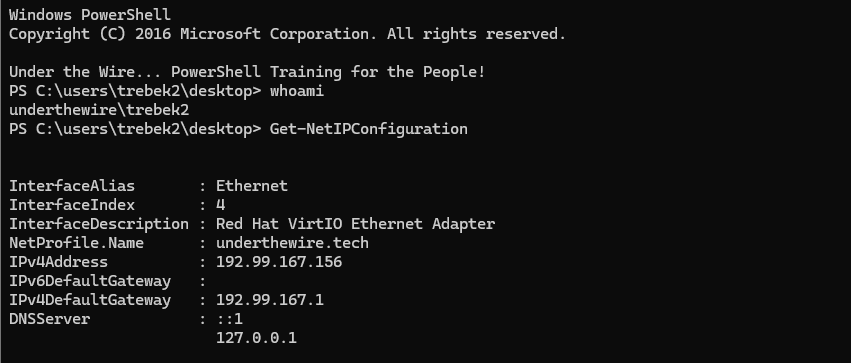
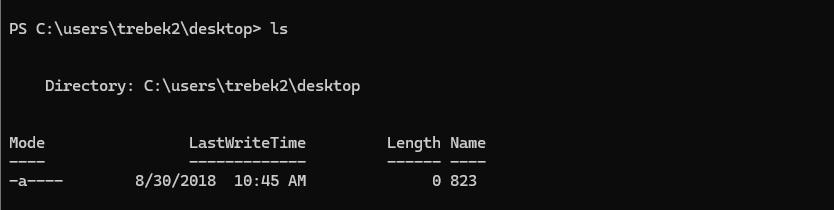
Get-Service cmdlet does not return the binary path, so we need to query a lower level interface such as CIM or WMI to get those details.Also, with PowerShell, if a cmdlet exposes a
-Filter option, it's much better to use that than piping to Where-Object as you want the filtration to apply during cmdlet runtime, not after piping a ton of data to the next command.Get-CimInstance Win32_Service -Filter 'Name like "C-3PO"' | Select-Object *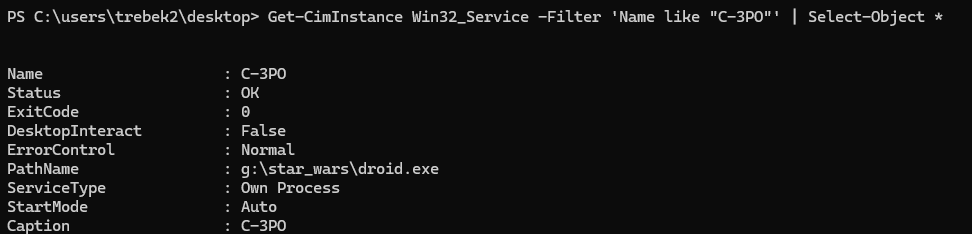
PathName property(Get-CimInstance Win32_Service -Filter 'Name like "C-3PO"').PathName.Split("\\")[-1].Split("\.")[0].ToLower() + (ls -File).Name.ToLower()Similar solution to above, where we use .Split() to extract the file name, then + concatenate with the file name on the Desktop.

droid823Password for trebek3
exitExit the challenge
Trebek 3 -> 4
The password for trebek4 is the IP that the user Yoda last logged in from as depicted in the event logs on the desktop PLUS the name of the text file on the user’s desktop.
ssh trebek3@trebek.underthewire.tech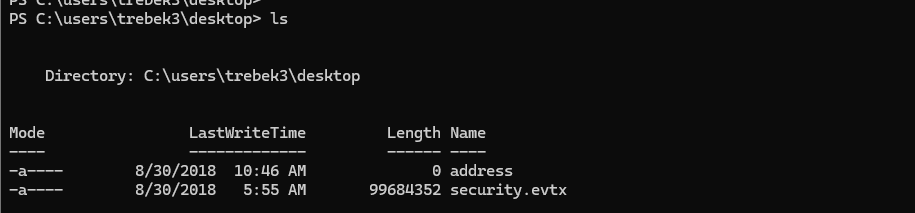
-FilterXPath parameter to drill down.

$evt = Get-WinEvent -Path .\security.evtx -FilterXPath "*[System[(EventID=4624)]] and *[EventData[Data[@Name='TargetUserName'] and (Data='Yoda')]]"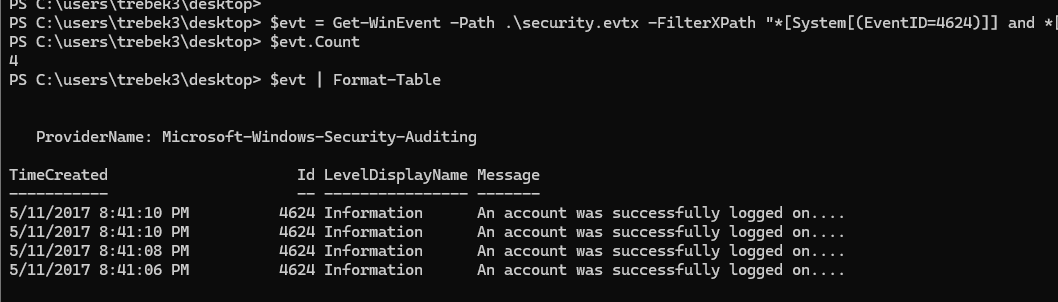
XPath filter to target only events with username YodaThe events appear to be sorted by TimeCreated with the most recent event at the top of the list.
$evt[0].Message.Split("`n")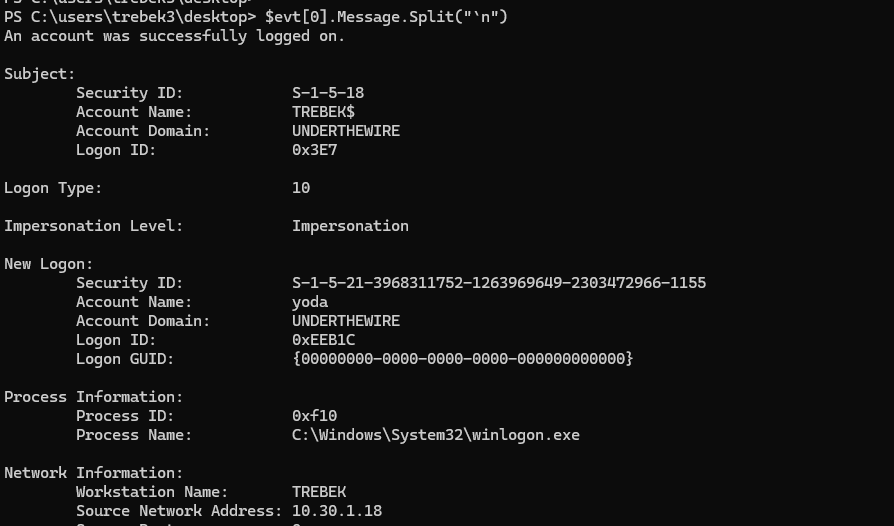
0, then split the blob of text into an array of strings$evt[0].Message.Split("`n")[25].Split(':')[-1]
$evt[0].Message.Split("`n")[25].Split(':')[-1].Trim()
$evt[0].Message.Split("`n")[25].Split(':')[-1].Trim() + (ls -Exclude '*.evtx').Name.ToLower()One-liner to output the password for trebek4
10.30.1.18addressPassword for trebek4
exitTrebek 4 -> 5
The password for trebek5 is the last execution date of Microsoft Access PLUS the name of the text file on the user’s desktop.
ssh trebek4@trebek.underthewire.tech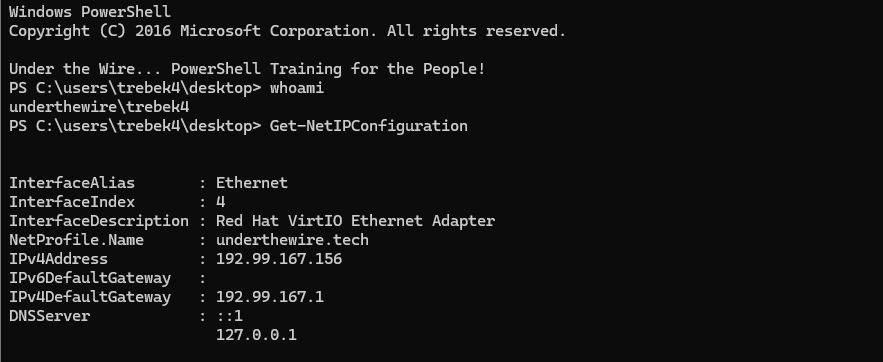
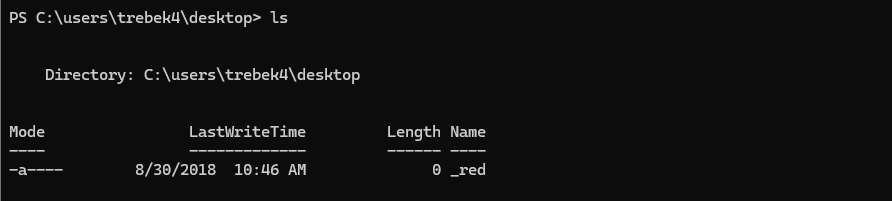
Win32_Product, Win32_InstalledProduct, $env:ProgramFiles, $env:ProgramFiles(x86). But nothing turned up with a timestamp.I asked ChatGPT for some ideas of other places to look for timestamps relating to binaries that are no longer installed and it suggested
C:\Windows\Prefetch.Get-ChildItem "C:\Windows\Prefetch" -Filter '*access*'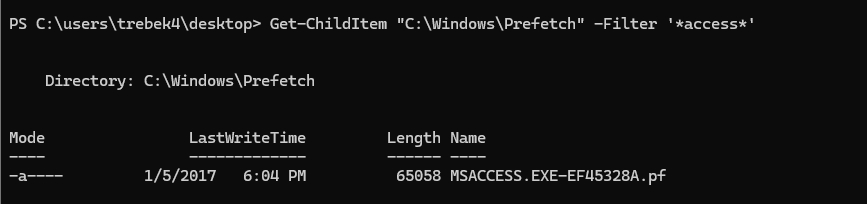
(Get-ChildItem "C:\Windows\Prefetch" -Filter '*access*').LastAccessTime.ToString('MM/dd/yyyy') + (ls -File).Name.ToLower()One-liner to output password for trebek5
01/05/2017_redPassword for trebek5
exitTrebek 5 -> 6
The password for trebek6 is the name of the executable that is starting at 3/23/2017 8:08:53 PM via the Software Protection service as depicted in the event log on the desktop.
ssh trebek5@trebek.underthewire.tech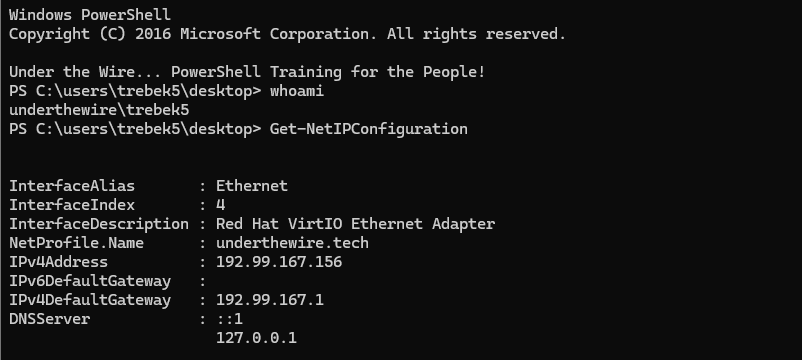
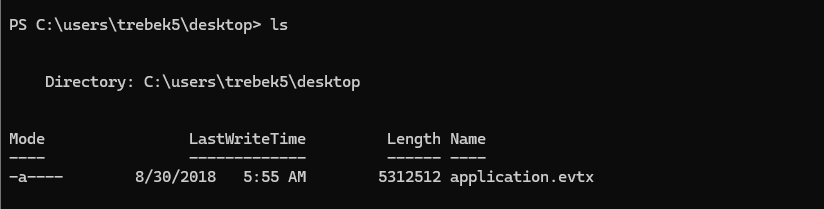

Google search I used to find some event IDs
 Deland-Han
Doing some research, these appear to be the event IDs that pertain to the Software Protection Service

Seems like the event IDs we want to target are going to be:
9001638416394
$evt = Get-WinEvent -Path .\application.evtx -FilterXPath "*[System[(EventID=900)]] or *[System[(EventID=16384)]] or *[System[(EventID=16394)]]"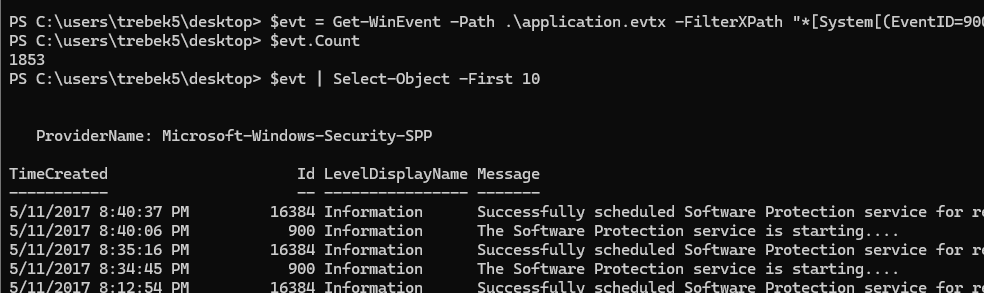
$evt.Where({$_.TimeCreated -eq (Get-Date '3/23/2017 8:08:53 PM')})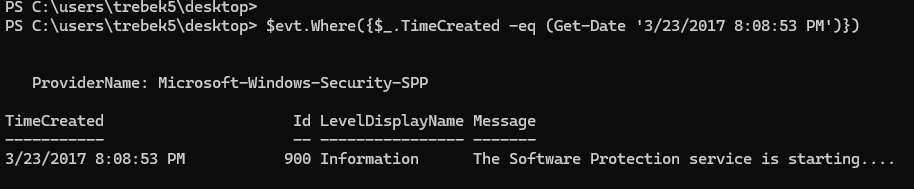

$evt.Where({$_.TimeCreated -eq (Get-Date '3/23/2017 8:08:53 PM')}).Message.Split("`n")[-1].Split('=')[1].Split('\.')[0]Final solution to do some string manipulation and output the program name without the file extension
wlmsPassword for trebek6
exitTrebek 6 -> 7
The password for trebek7 is the total number of DLLs within the “C:\program files\adobe\” folder and it’s subfolders PLUS the name of the file on the desktop.
ssh trebek6@trebek.underthewire.tech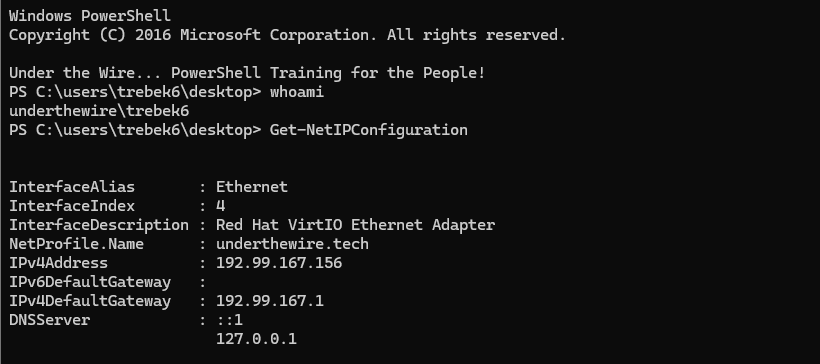
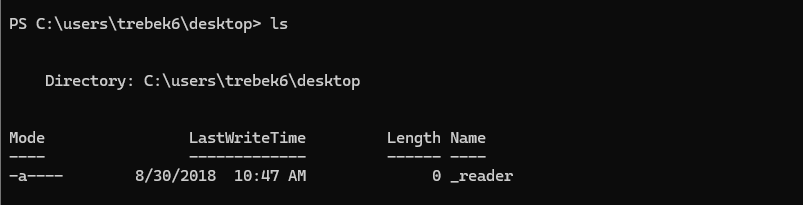
(Get-ChildItem -Recurse -Filter '*.dll' 'C:\program files\adobe\').Count.ToString() + (ls -File).Name.ToLower()One-liner to output the password for trebek7
40_readerPassword for trebek7
exitTrebek 7 -> 8
The password for trebek8 is the name of the program set to run prior to login if sticky keys are activated PLUS the name of the file on the desktop.
ssh trebek7@trebek.underthewire.tech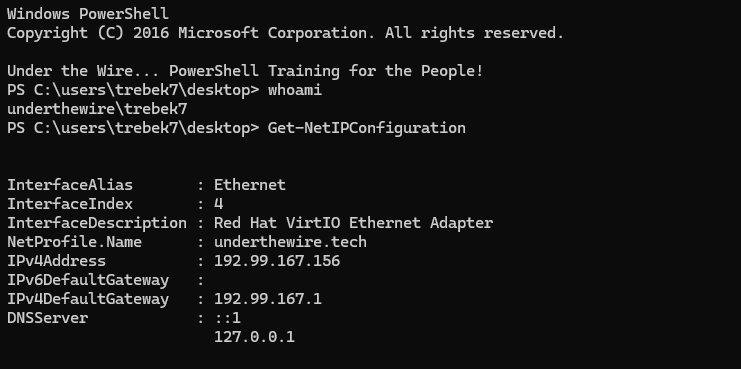
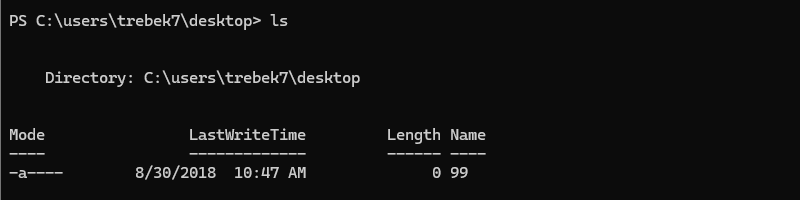
Get-Item 'HKCU:\Control Panel\Accessibility\StickyKeys'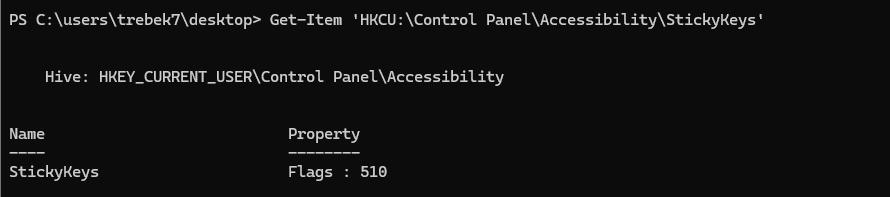
510 indicates it is enabled.sethc.exe binary is activated when press the SHIFT key multiple times. This is an old bypass I used when recovering systems where the password is unknown (and not encrypted with BitLocker as you'd need the key for that as well).Boot into a recovery disk, backup
sethc.exe to sethc.exe.bak and copy cmd.exe to sethc.exe. Then, when the computer boots, tap the SHIFT key a bunch of times and the command prompt launches.Get-Item 'HKLM:\SOFTWARE\Microsoft\Windows NT\CurrentVersion\Image File Execution Options\sethc.exe' | Get-ItemProperty
(Get-Item 'HKLM:\SOFTWARE\Microsoft\Windows NT\CurrentVersion\Image File Execution Options\sethc.exe' | Get-ItemProperty).Debugger.Split("\.")[0] + (ls -File).Name.ToString()One-liner to output password for trebek8
han_solo99Password for trebek8
exitTrebek 8 -> 9
The password for trebek9 the first 8 bytes of the file located on the desktop. Combine the answer together with NO spaces.
ssh trebek8@trebek.underthewire.tech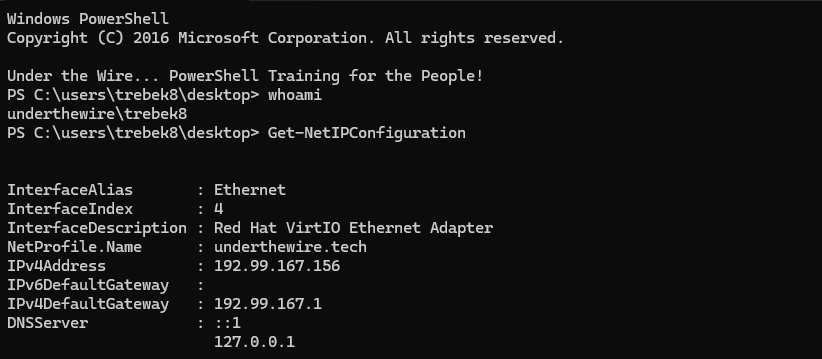
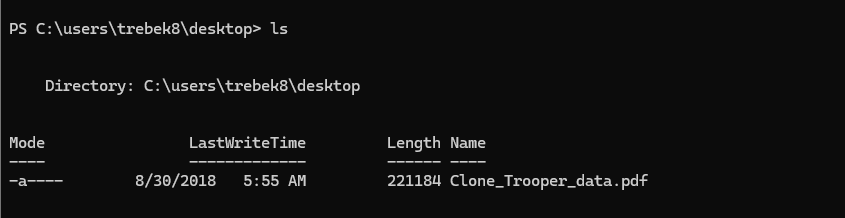
-join[System.IO.File]::ReadAllBytes((ls .\Clone_Trooper_data.pdf).FullName)[0..7]Use .NET reflection to read the file bytes and select the first 8 bytes, starting at index 0, then -join to merge into a string.
779014403000Password for trebek9
exitTrebek 9 -> 10
The password for trebek10 is the name of the potentially rogue share on the system PLUS the name of the file on the desktop.
ssh trebek9@trebek.underthewire.tech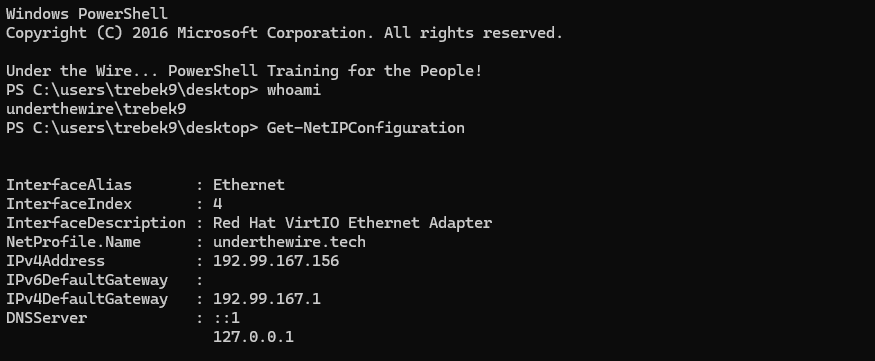
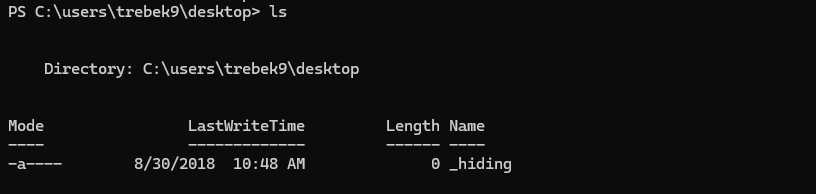
Get-SmbShare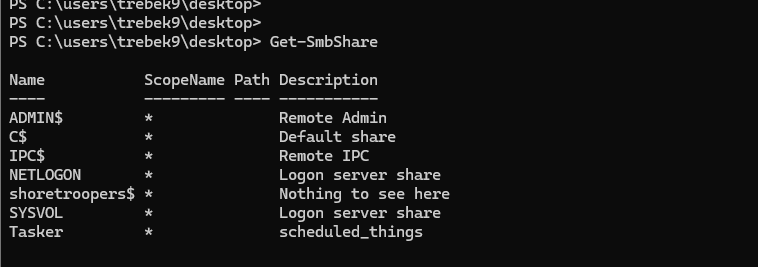
shoretroopers$ and there most definitely is something to see here(Get-SmbShare -Name 'shoretroopers$').Name.ToLower() + (ls -File).Name.ToLower()One-liner to output password for trebek10
shoretroopers$_hidingPassword for trebek10
exitTrebek 10 -> 11
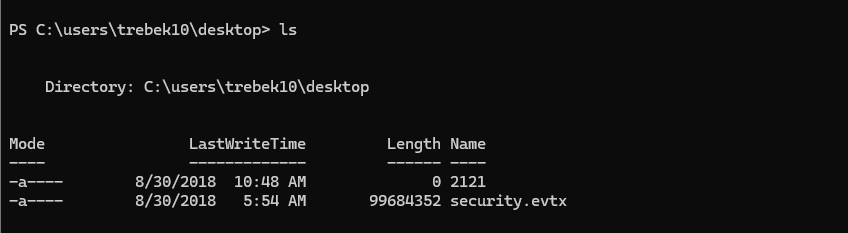
The password for trebek11 is the last name of the user who enabled Obi-Wan Kenobi’s account as depicted in the event logs on the desktop PLUS the name of the file on the desktop.
ssh trebek10@trebek.underthewire.tech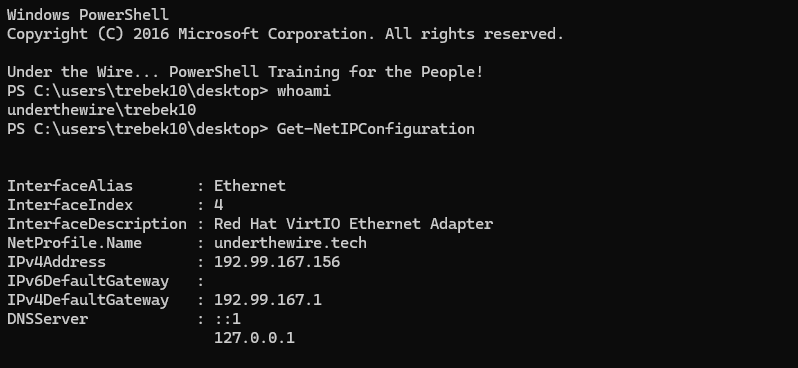
 vinaypamnani-msft
Doing some research, event 4722 is the ID to filter on for user account enablement
$evt = Get-WinEvent -Path .\security.evtx -FilterXPath "*[System[EventID=4722]]"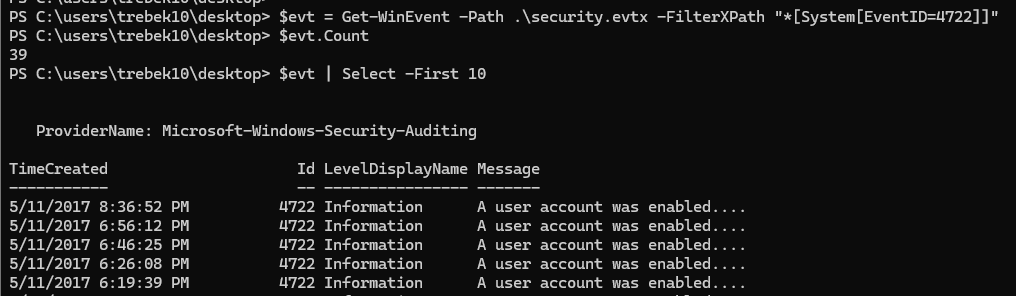
-FilterXPath parameter for speedy lookups and drill down further on messages.$evt.Where({$_.Message -like '*obi*'})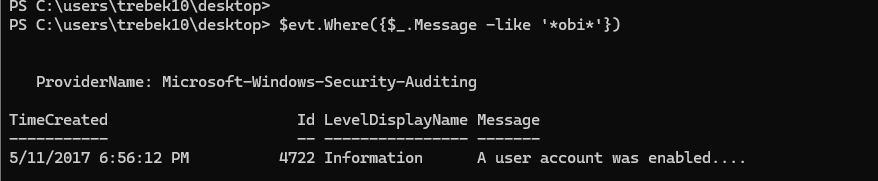
$evt.Where({$_.Message -like '*obi*'}).Message.Split("`n")[4]
$evt.Where({$_.Message -like '*obi*'}).Message.Split("`n")[4].Split(":")[1].Trim().Split("\.")[1]
$evt.Where({$_.Message -like '*obi*'}).Message.Split("`n")[4].Split(":")[1].Trim().Split("\.")[1].ToLower() + (ls -Exclude '*.evtx').Name.ToLower()One-liner to output the password for trebek11
ackbar2121Password for trebek11
exitTrebek 11 -> 12
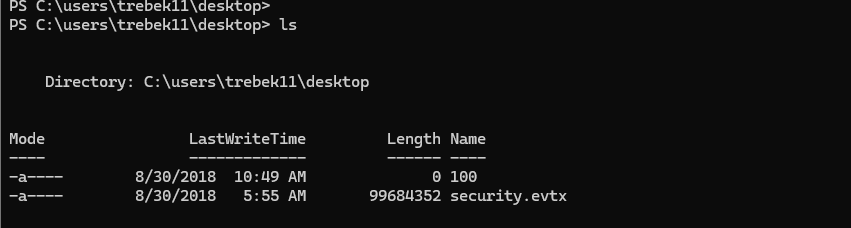
The password for trebek12 is the username of the user who was created on 11 May 17 at 26 minutes after the hour, as depicted in the event logs on the desktop PLUS the name of the file on the desktop.
ssh trebek11@trebek.underthewire.tech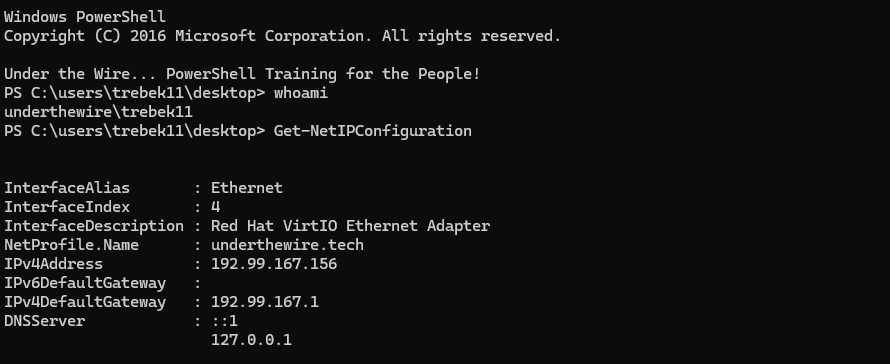
 vinaypamnani-msft
Doing some research, event ID 4720 is the one to target
$evt = Get-WinEvent -Path .\security.evtx -FilterXPath "*[System[EventID=4720]]"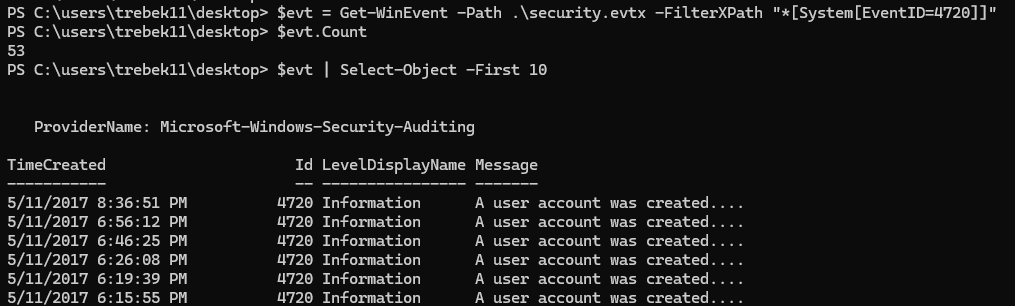

.TimeCreated property is an object of type DateTime. Therefore, we can use this to our advantage to query specific properties.
DateTime object$evt.Where({$_.TimeCreated.Day -eq 11 -and $_.TimeCreated.Minute -eq 26})
Month -eq 5$evt.Where({$_.TimeCreated.Day -eq 11 -and $_.TimeCreated.Minute -eq 26}).Message
$evt.Where({$_.TimeCreated.Day -eq 11 -and $_.TimeCreated.Minute -eq 26}).Message.Split("`n")[10].Split(":")[1].Trim()
$evt.Where({$_.TimeCreated.Day -eq 11 -and $_.TimeCreated.Minute -eq 26}).Message.Split("`n")[10].Split(":")[1].Trim().ToLower() + (ls -Exclude '*.evtx').Name.ToLower()One-liner to output the password for trebek12
general.hux100Password for trebek12
exitTrebek 12 -> 13
The password for trebek13 is the username of the user who created the user Lor San Tekka as depicted in the event logs on the desktop PLUS the name of the file on the desktop.
ssh trebek12@trebek.underthewire.tech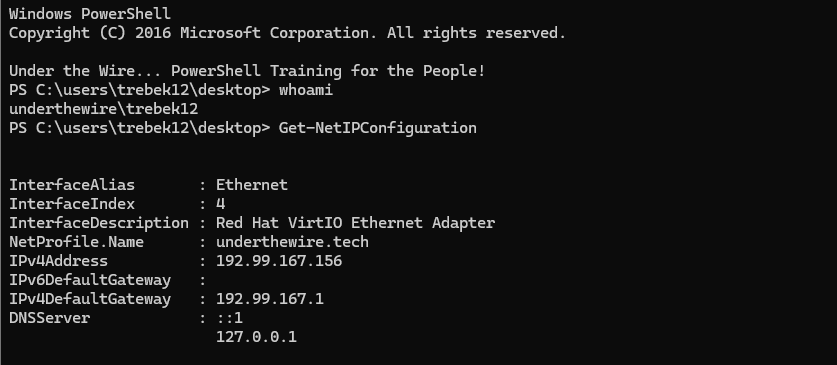
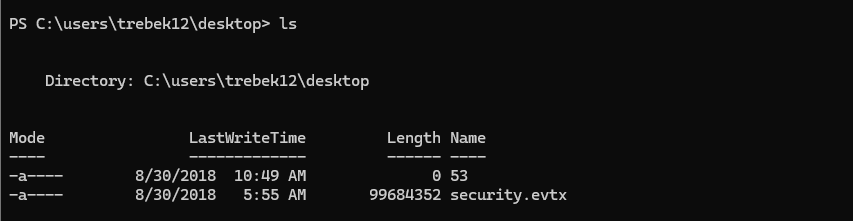
$evt = Get-WinEvent -Path .\security.evtx -FilterXPath "*[System[EventID=4720]]"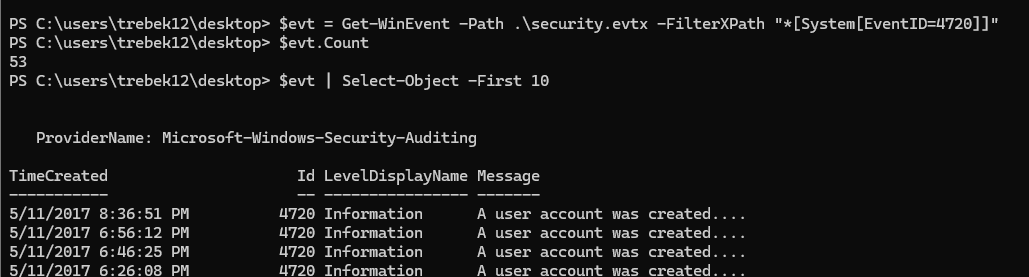
$evt.Where({$_.Message -like '*Lor*'})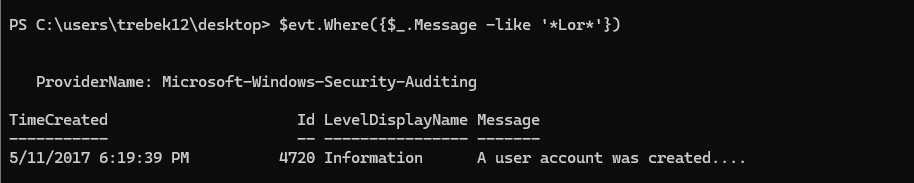
$evt.Where({$_.Message -like '*Lor*'}).Message
$evt.Where({$_.Message -like '*Lor*'}).Message.Split("`n")[4]
$evt.Where({$_.Message -like '*Lor*'}).Message.Split("`n")[4].Split(":")[1].Trim().ToLower() + (ls -Exclude '*.evtx').Name.ToLower()One-liner to output the password for trebek13
poe.dameron53Password for trebek13
exitTrebek 13 -> 14
The password for trebek14 is the last name of the user who has an encoded PowerShell command in their City property PLUS the name of the file on the desktop.
ssh trebek13@trebek.underthewire.tech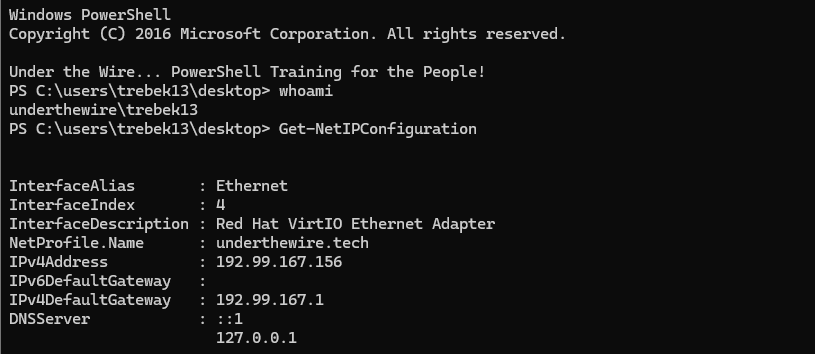
Get-ADUser -Filter * -Properties City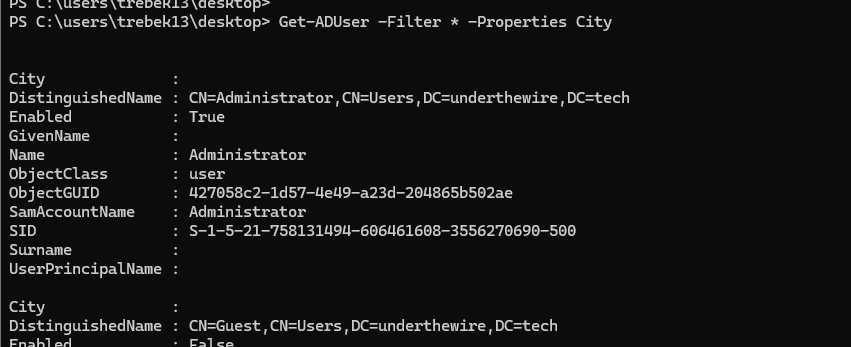
City property(Get-ADUser -Filter * -Properties City).Where({$_.City})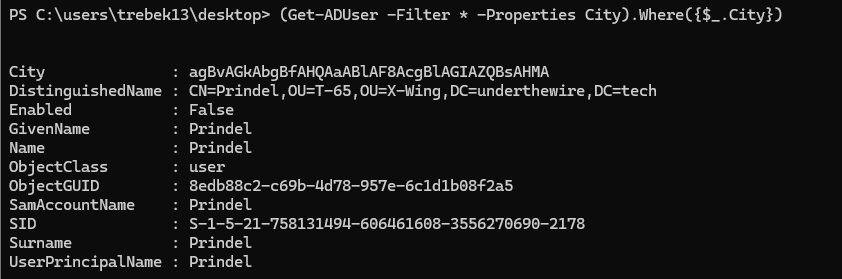
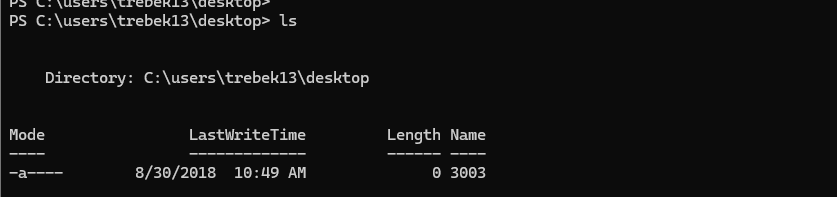
.Where({$_.City}) filter selects only users where the City attribute contains any data at all. There is only one user with a City attribute containing data.(Get-ADUser -Filter * -Properties City).Where({$_.City}).Surname.ToLower() + (ls -File).Name.ToLower()Select the Surname of the user, make it lowercase, and concatenate with the file name
prindel3003Password for trebek14
exitTrebek 14 -> 15
The password for trebek15 is the output from decoding the PowerShell code found in the account properties of the user account from the previous level PLUS the name of the file on the desktop.
ssh trebek14@trebek.underthewire.tech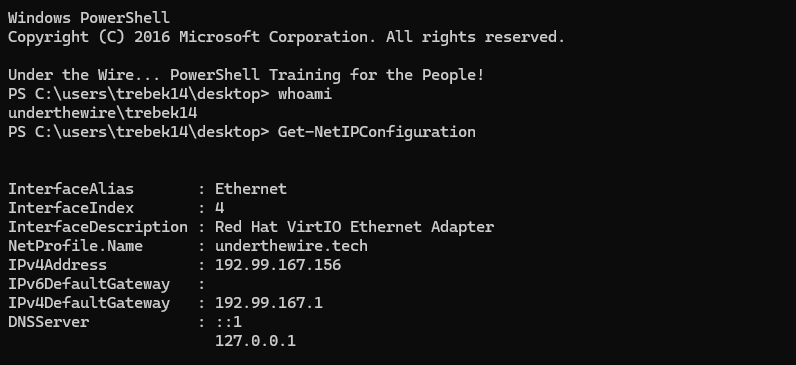
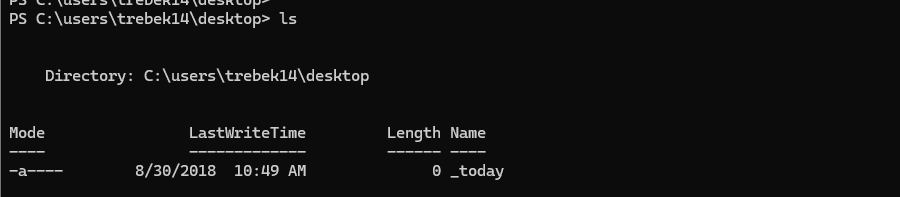

City property contains base64-encoded dataThe process to convert a base64 string back to UTF-8 data is effectively:
- Convert the base64 string back to raw bytes
- Encode the raw bytes as UTF-8 characters
(Get-ADUser -Filter * -Properties City).Where({$_.City}).City.ForEach({[Convert]::FromBase64String($_)})
.Where({}) filter to remove them.(Get-ADUser -Filter * -Properties City).Where({$_.City}).City.ForEach({[Convert]::FromBase64String($_).Where({$_ -ne 0A})})
(Get-ADUser -Filter * -Properties City).Where({$_.City}).City.ForEach({[System.Text.Encoding]::UTF8.GetString([Convert]::FromBase64String($_).Where({$_ -ne 0}))}).ToLower() + (ls -File).Name.ToLower()What we've done here is wrap the [Convert]::FromBase64String($_).Where({$_ -ne 0}) inside of [System.Text.Encoding]::UTF8.GetString()

$targetFile = Get-ChildItem -File -Path 'C:\users\trebek14\desktop'
$userWithCity = Get-ADUser -Filter * -Properties City | Where-Object {$_.City}
$base64String = $userWithCity.City
$base64ToBytes = [Convert]::FromBase64String($base64String) | Where-Object {$_ -ne 0}
$bytesToUTF8String = [System.Text.Encoding]::UTF8.GetString($base64ToBytes)
$bytesToUTF8String.ToLower() + $targetFile.Name.ToLower()
exit