

SSH Client
If you're running Windows 11 — the latest version of Windows at the time of writing — then, you already have access to the Windows Terminal app. If for some reason you do not, I recommend installing it, as you really don't need Putty to complete these exercises.
 Microsoft Corporation
Also, in most recent versions of Windows, the ssh.exe client and related binaries should already be installed and ready for use. Below, I've provided some examples of the most basic SSH syntax for connecting to the challenges.
ssh username@127.0.0.1SSH using IP address
ssh username@domain.tldSSH using FQDN
Oracle 0 -> 1
oracle1:oracle1ssh -o 'StrictHostKeyChecking=no' oracle1@oracle.underthewire.techUse the StrictHostKeyChecking=no option to skip the key verification prompt
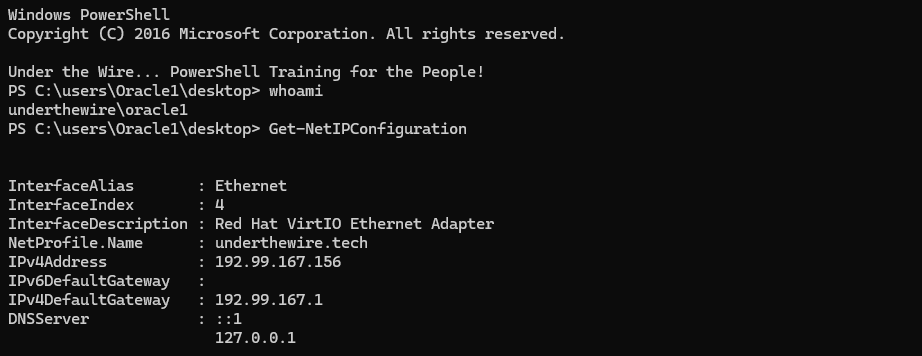
Oracle 1 -> 2
The password for oracle2 is the timezone in which this system is set to.
Get-TimeZone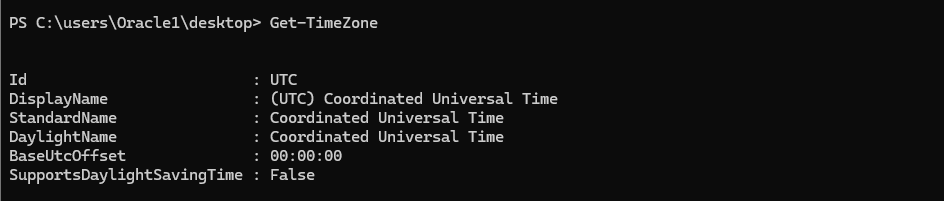
(Get-TimeZone).Id.ToLower()Output password for oracle2
utcPassword for oracle2
exitExit the challenge
Oracle 2 -> 3
The password for oracle3 is the last five digits of the MD5 hash, from the hashes of files on the desktop that appears twice.
ssh oracle2@oracle.underthewire.techNo longer need the additional option, since the host key has already been added to the known hosts list
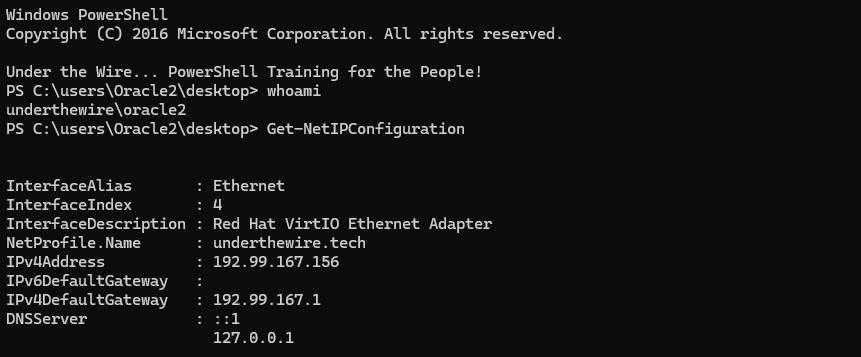
Get-ChildItem -File | Get-FileHash -Algorithm MD5 | Sort-Object HashFirst, output all of the MD5 hashes of the files on the desktop


# Sort and store all MD5 hashes in a variable
$allHashes = Get-ChildItem -File |
  Get-FileHash -Algorithm MD5 |
  Sort-Object Hash |
  Select-Object -ExpandProperty Hash
Start of the solution. Store a sorted list of the hashes in a variable.

.IndexOf() method tells you which index the hash occurs in the array12 of the $allHashes array to return the target hash. We know since the array is sorted the next index -- 13 -- will be the identical hash.# Pipe to Where-Object
# Get the current index o
$allHashes | Where-Object {$allHashes[$($allHashes.IndexOf($_))] -eq $allHashes[$($allHashes.IndexOf($_) + 1)]}A little bit of a messy solution, but I want to be able to turn this into a one-liner
$($allHashes.IndexOf($_)) takes the current piped item -- $_ -- and gets the index of it. $($allHashes.IndexOf($_) + 1) does the same thing but adds one to the value.The idea being here that we want to match eventually on the value in
$allHashes[12] -eq $allHashes[13], except we're using the Where-Object pipeline to programmatically compute this.
# Store the duplicate hashes in a variable
$duplicates = $allHashes | Where-Object {$allHashes[$($allHashes.IndexOf($_))] -eq $allHashes[$($allHashes.IndexOf($_) + 1)]}
# Select one of the two matches
$firstMatch = $duplicates[0]
# Output the last 5 characters to lowercase
$firstMatch.Substring(($firstMatch.Length - 5), 5).ToLower()
See comments for clarification
$allHashes = Get-ChildItem -File | Get-FileHash -Algorithm MD5 | Sort-Object Hash | Select-Object -ExpandProperty Hash ; $allHashes = Get-ChildItem -File | Get-FileHash -Algorithm MD5 | Sort-Object Hash | Select-Object -ExpandProperty Hash ; $duplicates = $allHashes | Where-Object {$allHashes[$($allHashes.IndexOf($_))] -eq $allHashes[$($allHashes.IndexOf($_) + 1)]} ; $firstMatch = $duplicates[0] ; $firstMatch.Substring(($firstMatch.Length - 5), 5).ToLower()Final solution rewritten as a one-liner

2f5c4Password for oracle3
exitExit the challenge
Oracle 3 -> 4
The password for oracle4 is the date that the system logs were last wiped as depicted in the event logs on the desktop.
ssh oracle3@oracle.underthewire.tech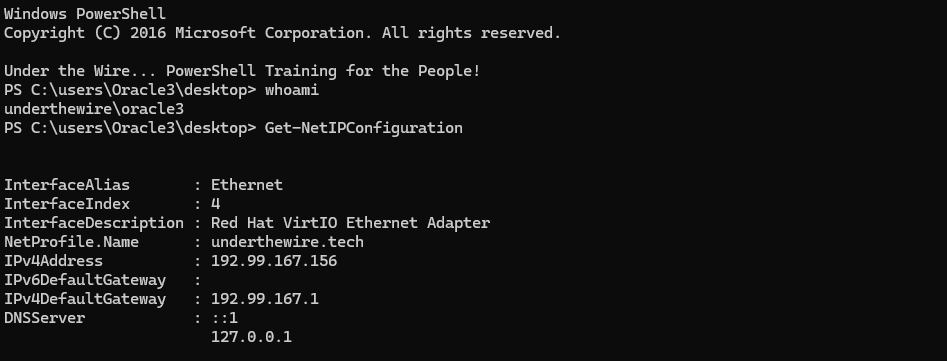
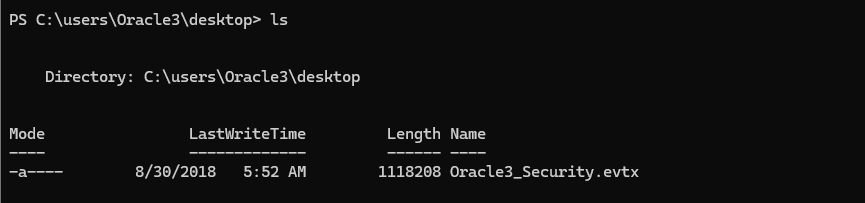
Get-WinEvent -Path .\Oracle3_Security.evtx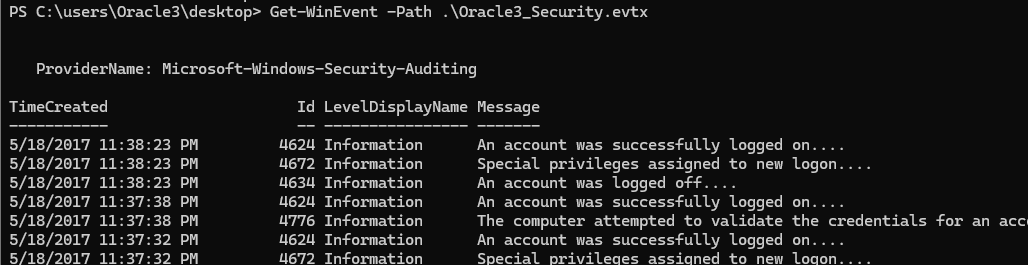
Get-WinEvent -Path .\Oracle3_Security.evtx | Where-Object {$_.Message -like '*clear*'}
TimeCreated property is a DateTime object, which allows us some flexibility when formatting the date the log was created. You can verify this by running (Get-WinEvent -Path .\Oracle3_Security.evtx | Where-Object {$_.Message -like '*clear*'}).TimeCreated.GetType().Name(Get-WinEvent -Path .\Oracle3_Security.evtx | Where-Object {$_.Message -like '*clear*'}).TimeCreated.ToString('MM/dd/yyyy')One-liner to output password for oracle4
05/09/2017Password for oracle4
exitOracle 4 -> 5
The password for oracle5 is the name of the GPO that was last created PLUS the name of the file on the user’s desktop.
ssh oracle4@oracle.underthewire.tech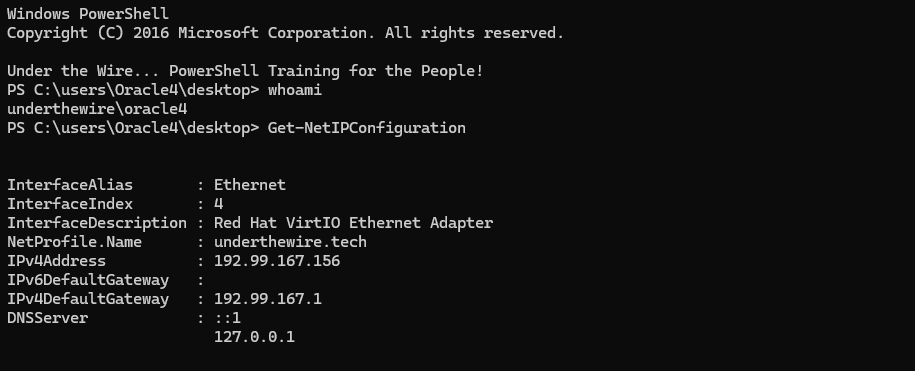
Get-GPO -All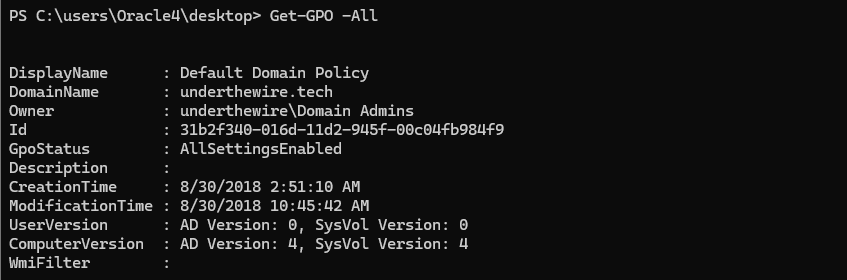
Get-GPO -All | Sort-Object CreationTime -Descending | Select-Object -First 1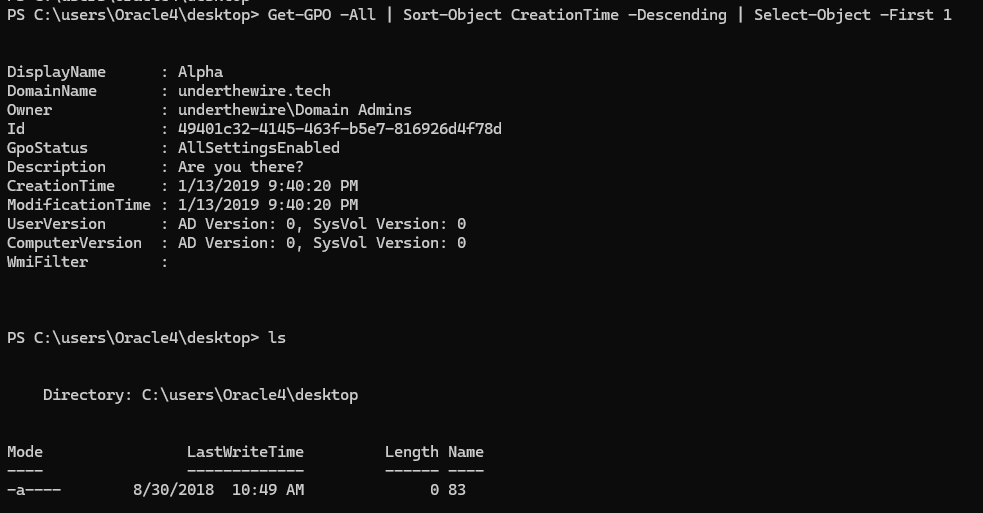
(Get-GPO -All | Sort-Object CreationTime -Descending | Select-Object -First 1).DisplayName.ToLower() + (ls -File).Name.ToLower()One-liner to output password for oracle5
alpha83Password for oracle5
exitOracle 5 -> 6
The password for oracle6 is the name of the GPO that contains a description of “I_AM_GROOT” PLUS the name of the file on the user’s desktop.
ssh oracle5@oracle.underthewire.tech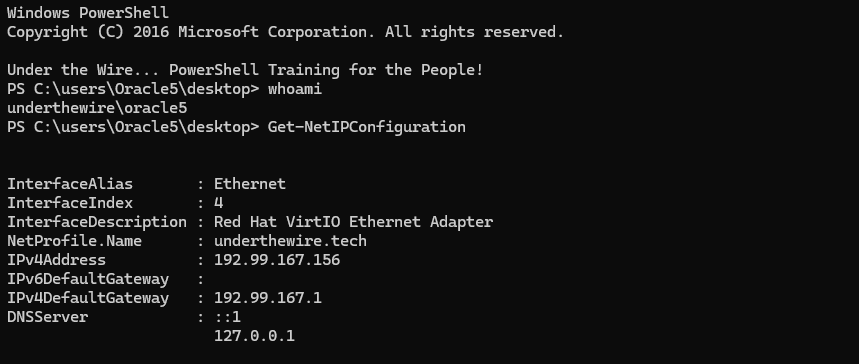
Get-GPO -All | Where-Object {$_.Description -eq 'I_AM_GROOT'}Similar solution to oracle4
(Get-GPO -All | Where-Object {$_.Description -eq 'I_AM_GROOT'}).DisplayName.ToLower() + (ls -File).Name.ToLower()One-liner to output password for oracle6
charlie1337Password for oracle6
exitOracle 6 -> 7
The password for oracle7 is the name of the OU that doesn’t have a GPO linked to it PLUS the name of the file on the user’s desktop.
ssh oracle6@oracle.underthewire.tech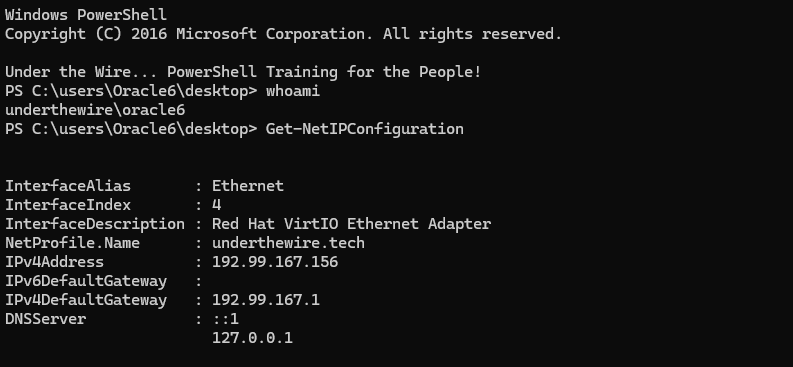
Get-ADOrganizationalUnit -Filter 'Name -notlike "Groups"' -Properties * | Get-MemberWe are to exclude the Groups OU. Pipe to Get-Member to find GPO property

gpLink is the property we're looking for(Get-ADOrganizationalUnit -Filter 'Name -notlike "Groups"' -Properties * | Where-Object {-not $_.gPLink}).Name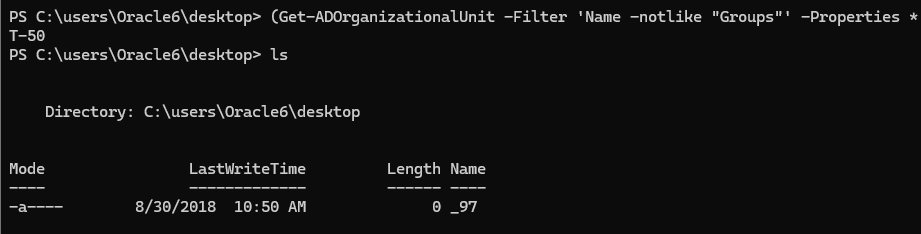
(Get-ADOrganizationalUnit -Filter 'Name -notlike "Groups"' -Properties * | Where-Object {-not $_.gPLink}).Name.ToLower() + (ls -File).NameOne-liner to output password for oracle7
t-50_97Password for oracle7
exitOracle 7 -> 8
The password for oracle8 is the name of the domain that a trust is built with PLUS the name of the file on the user’s desktop.
ssh oracle7@oracle.underthewire.tech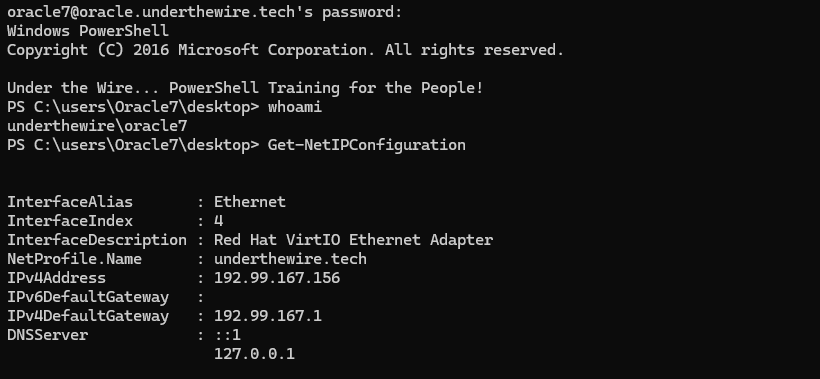
Get-ADTrust -Filter *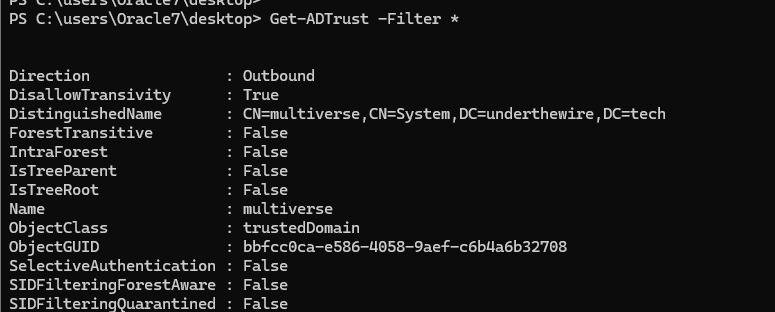
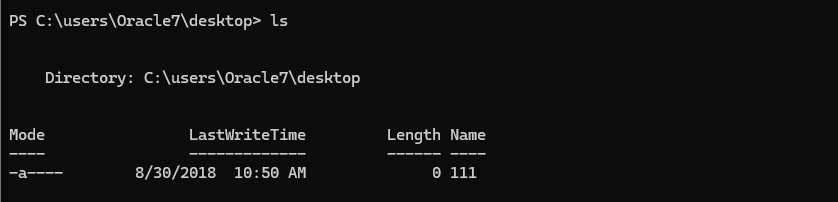
(Get-ADTrust -Filter *).Name.ToLower() + (ls -File).Name.ToLower()One-liner to output password for oracle8
multiverse111Password for oracle8
exitOracle 8 -> 9
The password for oracle9 is the name of the file in the GET Request from www.guardian.galaxy.com within the log file on the desktop.
ssh oracle8@oracle.underthewire.tech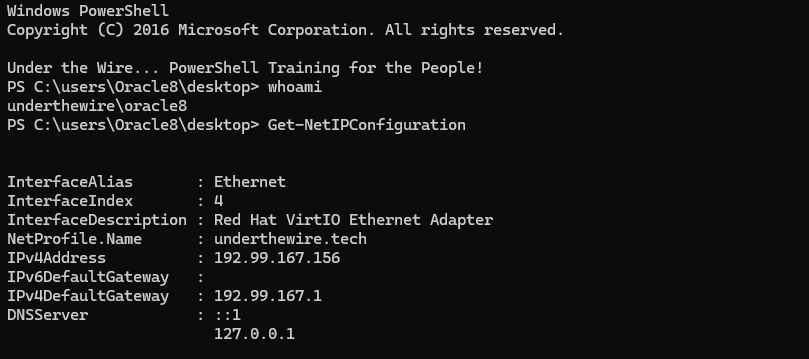
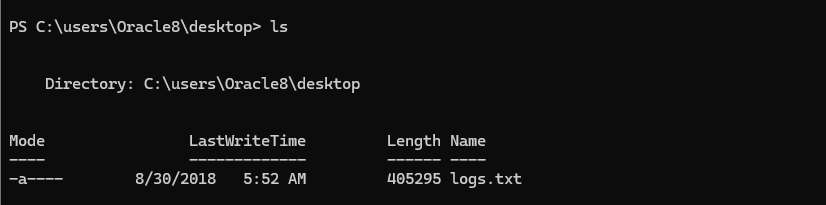
HTTP GET request to www. subdomain, but this does not exist, so just match on the next level up -- guardian.galaxy.com.(cat .\logs.txt | Select-String 'guardian.galaxy.com').ToString()
(cat .\logs.txt | Select-String 'guardian.galaxy.com').ToString().Split('/')[4].Split('\.')[0].ToLower()One-liner to output the password for oracle9
I'll explain in a series of bullet points:
- Using the
/character as a delimiter to split on, this means any/in the string, so.- Index
0would be28 - Index
1would beJul - Index
2would be1995:13:03:55 -0400] "GET - And so on... but we select index
4—star-lord.gif HTTP/1.0" 200 786
- Index
- Then we split on any
.in that substring and choose index0which isstar-lord. - We don't really need
.ToLower()there, but adding it for good form to ensure we meet the requirements
star-lordPassword for oracle9
exitOracle 9 -> 10
The password for oracle10 is the computer name of the DNS record of the mail server listed in the UnderTheWire.tech zone PLUS the name of the file on the user’s desktop.
ssh oracle9@oracle.underthewire.techGet-Command Get-*dns*Find the command to enumerate DNS records

Get-DnsServerResourceRecord is probably the one we wantGet-DnsServerResourceRecord -ZoneName 'underthewire.tech'Tabbing through the parameters, -ZoneName is what we want


MX record at the bottom of the list(Get-DnsServerResourceRecord -ZoneName 'underthewire.tech' -RRType MX).HostName.ToLower() + (ls -File).Name.ToLower()One-liner to output password for oracle10
utw_exch9229Password for oracle10
exitOracle 10 -> 11
The password for oracle11 is the .biz site the user has previously navigated to.
ssh oracle10@oracle.underthewire.tech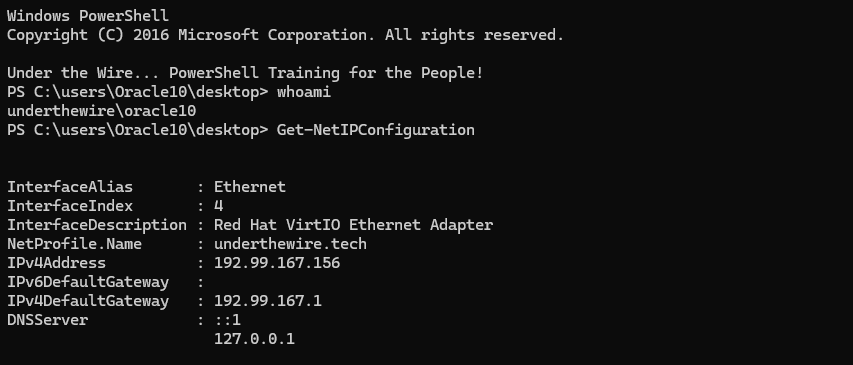

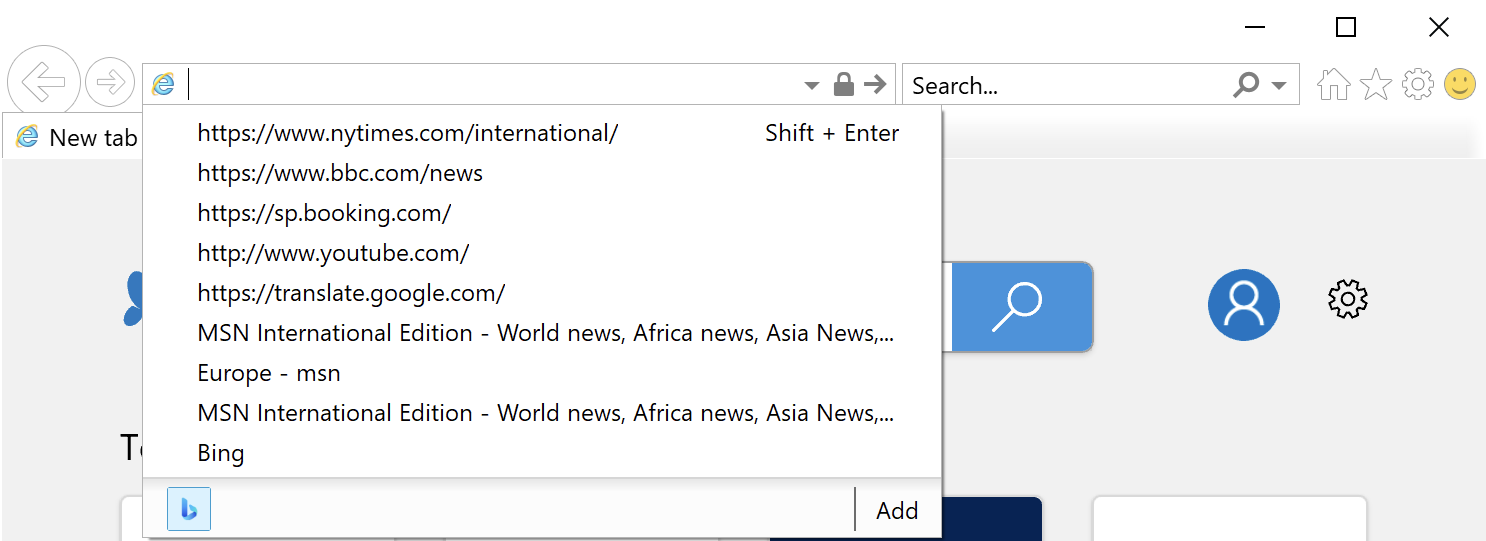
Get-Item 'HKCU:\Software\Microsoft\Internet Explorer\TypedURLs'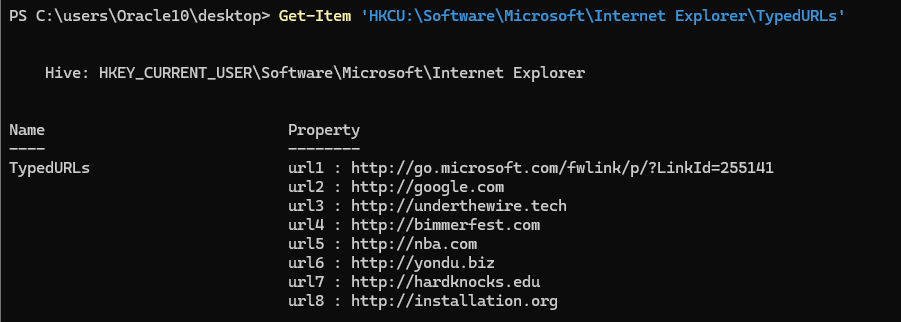
(Get-Item 'HKCU:\Software\Microsoft\Internet Explorer\TypedURLs' | Get-ItemProperty).url6.Split('/')[2].Split('\.')[0]One-liner to output password for oracle11
yonduPassword for oracle11
exitOracle 11 -> 12
The password for oracle12 is the drive letter associated with the mapped drive that this user has.
ssh oracle11@oracle.underthewire.tech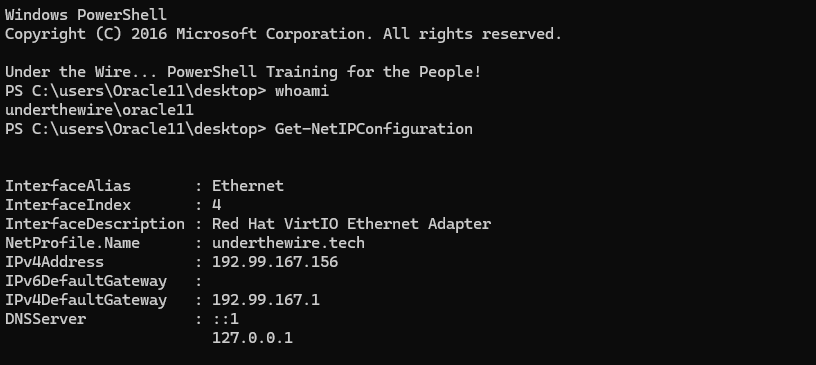
Get-SmbMapping
(Get-SmbMapping).LocalPath.Split(':')[0].ToLower()Output password for oracle12
mPassword for oracle12
exitOracle 12 -> 13
The password for oracle13 is the IP of the system that this user has previously established a remote desktop with.
ssh oracle12@oracle.underthewire.tech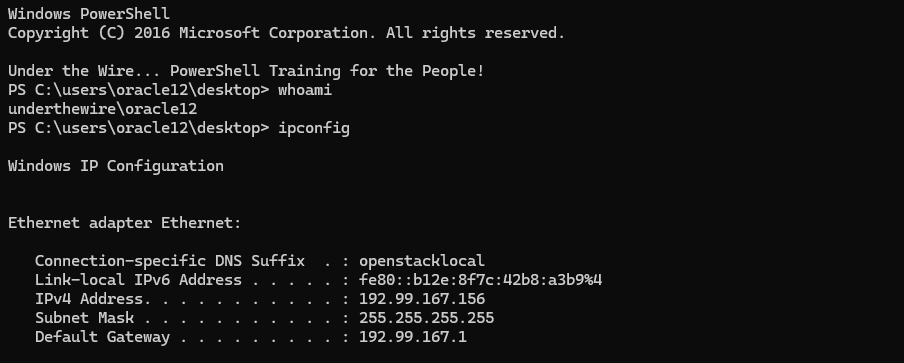
Get-NetIPConfiguration not permitted due to CIM permissions issueGet-ChildItem 'HKCU:\Software\Microsoft\Terminal Server Client'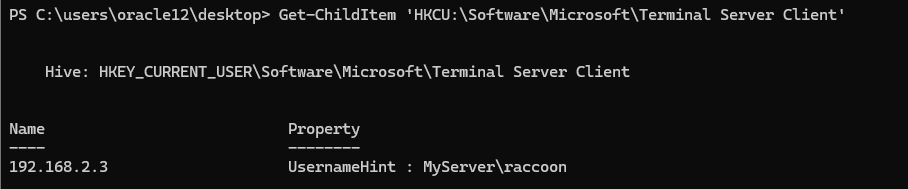
Get-ChildItem 'HKCU:\Software\Microsoft\Terminal Server Client' | Get-ItemProperty | Select-Object -ExpandProperty PSChildNameOutput the IP address, which is the password for oracle13
192.168.2.3Password for oracle 13
exitOracle 13 -> 14
The password for oracle14 is the name of the user who created the Galaxy security group as depicted in the event logs on the desktop PLUS the name of the text file on the user’s desktop.
ssh oracle13@oracle.underthewire.tech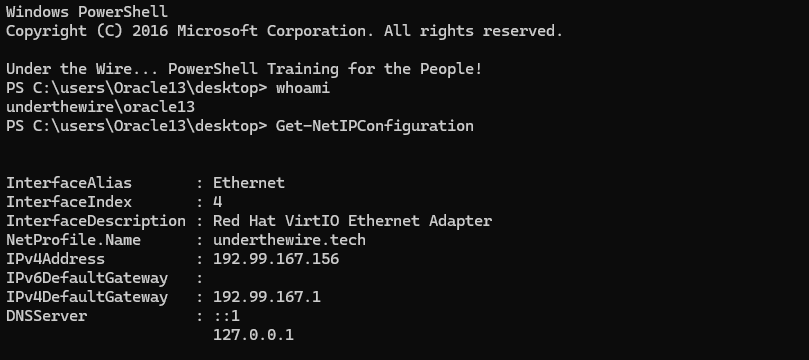
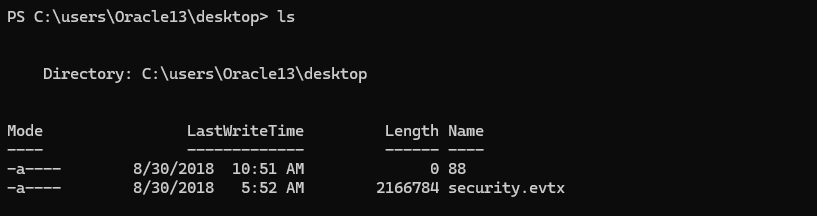
secuirty.evtx is the event log to be inspectedGet-WinEvent -Path .\security.evtx | Where-Object {$_.Message -like '*group*created*'}
Get-WinEvent -Path .\security.evtx | Where-Object {$_.Message -like '*group*created*'} | Select-Object -ExpandProperty Message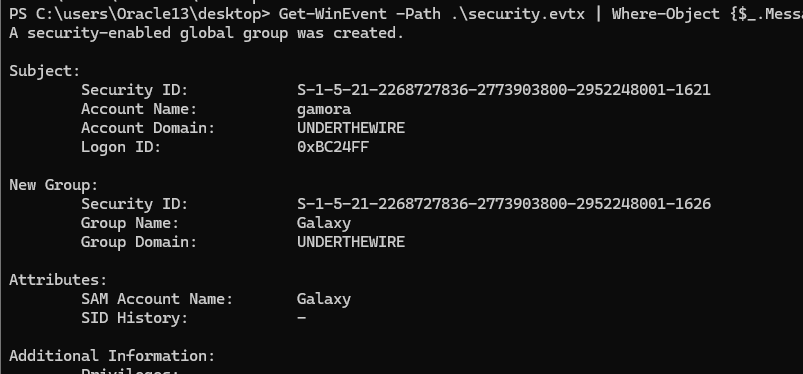
(((Get-WinEvent -Path .\security.evtx | Where-Object {$_.Message -like '*group*created*'}).Message[0].Split("`n") -match '^\s+Account Name*').Split(':')[1] -replace '\s').ToLower() + (ls -Exclude '*evtx').Name.ToLower()One-liner to output password for oracle14
I'll explain the command in a series of bullet points:
- Work your way inside-out from the innermost enclosure
- That would be the
Get-WinEvent -Path .\security.evtx | Where-Object {$_.Message -like '*group*created*'}.- Then we wrap in parentheses and select the
.Messageproperty- Index
0— which is the first message as identified before - Then
.Split("`n")because we want to split the blob of text into individual lines to filter - Then, we
-matchon theAccount Nameline and split on:and choose index1— which is the username - Finally, we
-replace '\s'to remove any whitespace
- Index
- Then we wrap in parentheses and select the
- Lastly, we concatenate
+on the file name that does not end in.evtx - And, we ensure everything is lowercase
gamora88Password for oracle14
exitOracle 14 -> 15
The password for oracle15 is the name of the user who added the user Bereet to the Galaxy security group as depicted in the event logs on the desktop PLUS the name of the text file on the user’s desktop.
ssh oracle14@oracle.underthewire.tech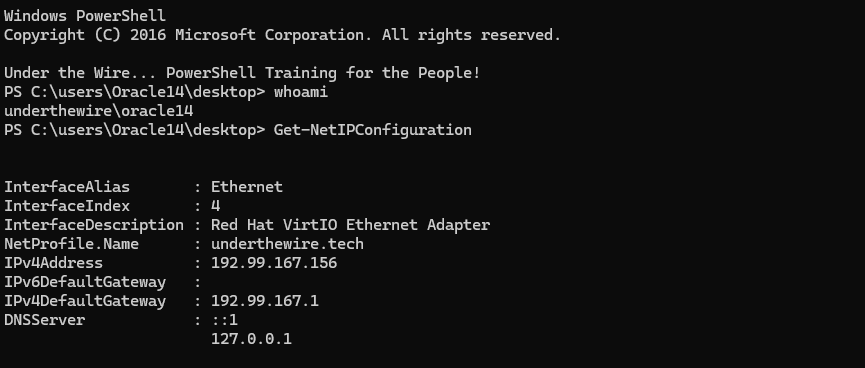
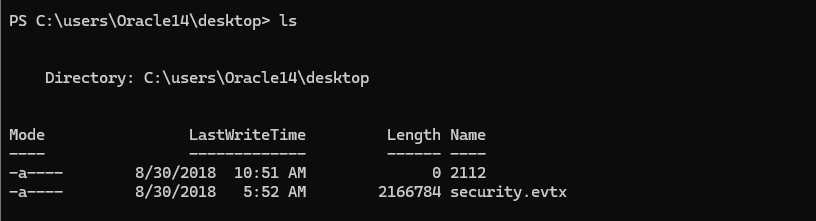
security.evtx is the target event log fileGet-WinEvent -Path .\security.evtx | Where-Object {$_.Message -like '*added*to*group*'}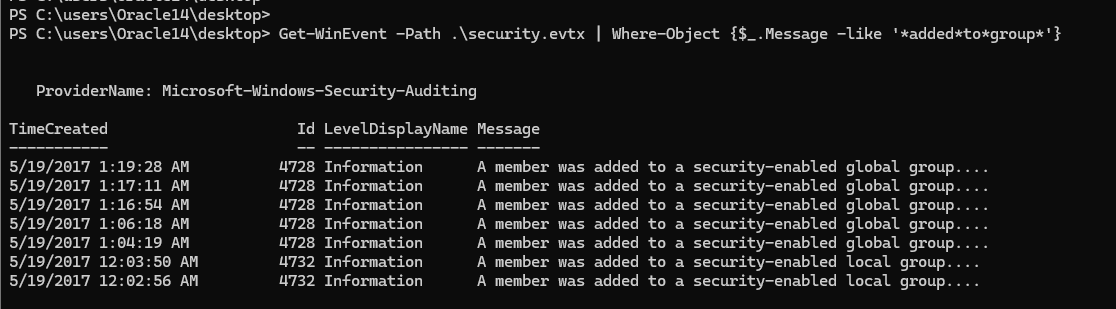
$evt = Get-WinEvent -Path .\security.evtx | Where-Object {$_.Message -like '*added*to*group*'}Store in variable for faster processing
$messages = $evt.Message$targetEvent = $messages | Where-Object {$_.Split("`n") -like '*bereet*'}Filter on the log message where the word bereet exists
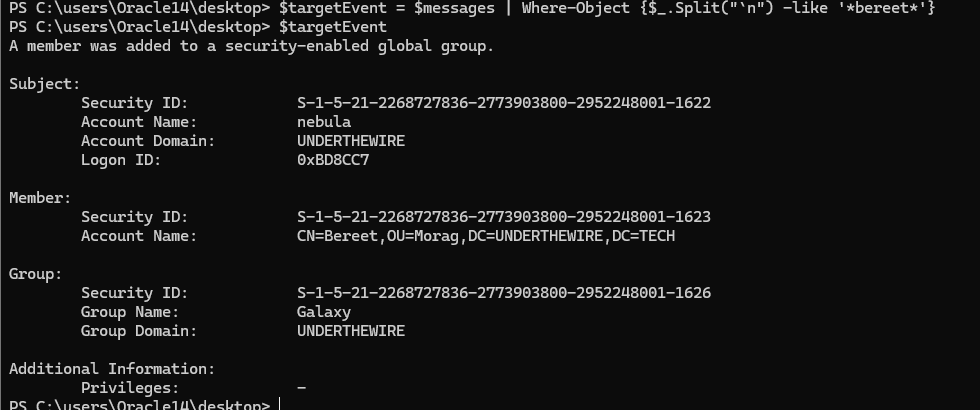
($targetEvent.Split("`n") -match '^\s+Account Name:' -notlike '*bereet*' -split ':' -replace '\s')[1].ToLower() + (ls -Exclude '*.evtx').Name.ToLower()One-liner to output password for oracle15

exit