

SSH Client
If you're running Windows 11 — the latest version of Windows at the time of writing — then, you already have access to the Windows Terminal app. If for some reason you do not, I recommend installing it, as you really don't need Putty to complete these exercises.
 Microsoft Corporation
Also, in most recent versions of Windows, the ssh.exe client and related binaries should already be installed and ready for use. Below, I've provided some examples of the most basic SSH syntax for connecting to the challenges.
ssh username@127.0.0.1SSH using IP address
ssh username@domain.tldSSH using FQDN
Cyborg 0 -> 1
cyborg1:cyborg1ssh -o 'StrictHostKeyChecking=no' cyborg1@cyborg.underthewire.techUse the StrictHostKeyChecking=no option to skip the key verification prompt
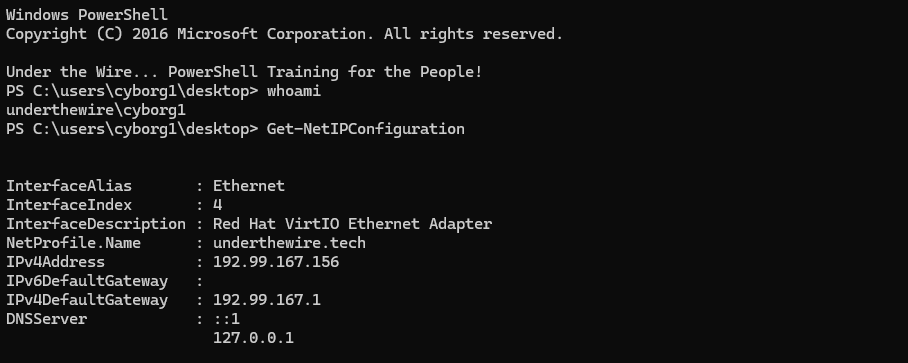
Cyborg 1 -> 2
The password for cyborg2 is the state that the user Chris Rogers is from as stated within Active Directory.
Get-ADUser -Filter 'GivenName -eq "Chris" -and Surname -eq "Rogers"' -Properties State | Select-Object State-Filter parameter where available, rather than pipe to Where-Object, as it's more efficient to have the filter apply at runtime, rather than piping all of the output to Where-Object.kansasPassword for cyborg2
exitExit the challenge
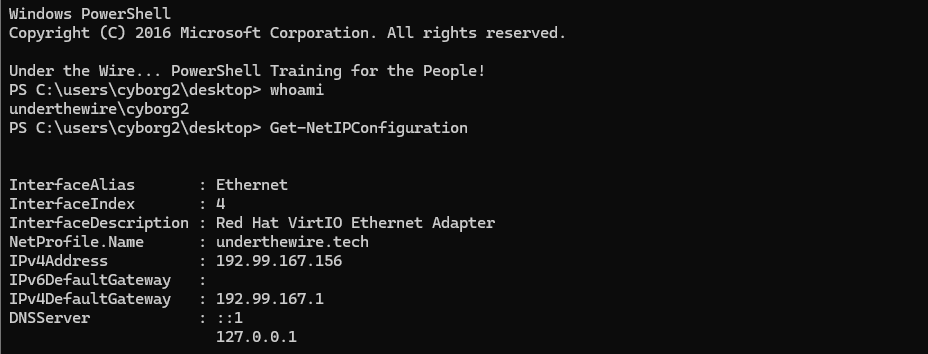
Cyborg 2 -> 3
The password for cyborg3 is the host A record IP address for CYBORG718W100N PLUS the name of the file on the desktop.
ssh cyborg2@cyborg.underthewire.techNo longer need the additional option, since the host key has already been added to the known hosts list
Resolve-DnsName 'CYBORG718W100N'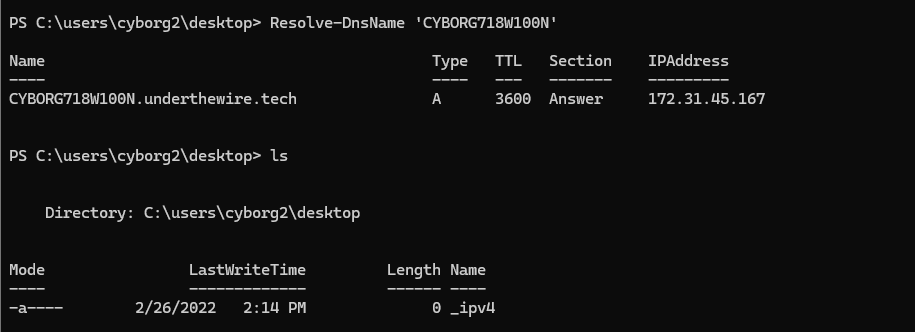
(Resolve-DnsName 'CYBORG718W100N').IPAddress.ToString() + (Get-ChildItem -File).NameOne-liner to output the password for cyborg3
172.31.45.167_ipv4Password for cyborg3
exitExit the challenge
Cyborg 3 -> 4
The password for cyborg4 is the number of users in the Cyborg group within Active Directory PLUS the name of the file on the desktop.
ssh cyborg3@cyborg.underthewire.tech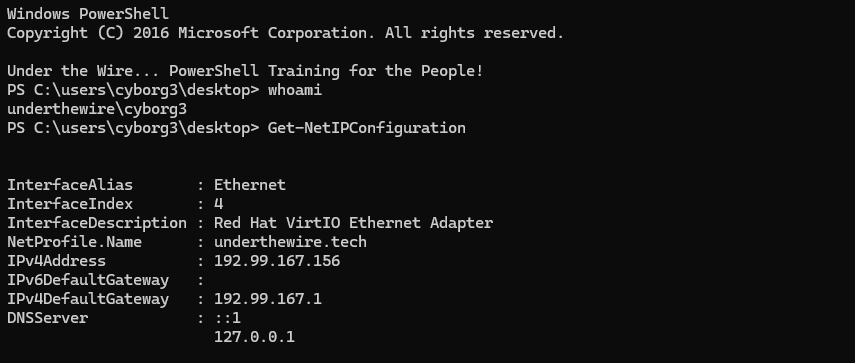
Get-ADGroup -Filter 'Name -like "Cyborg"'Get-ADGroup -Filter 'Name -like "Cyborg"' | Get-ADGroupMember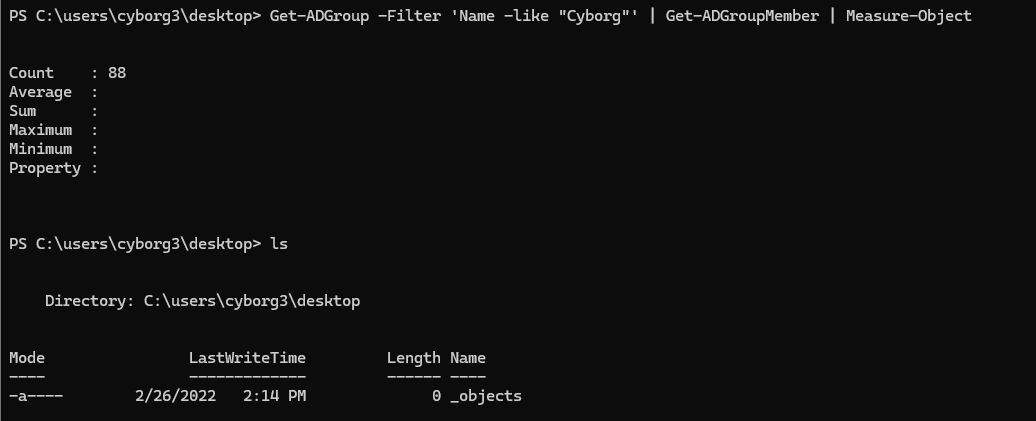
(Get-ADGroup -Filter 'Name -like "Cyborg"' | Get-ADGroupMember).Count.ToString() + (gci -File).NameOne-liner to get the password for cyborg4
88_objectsPassword for cyborg4
exitCyborg 4 -> 5
The password for cyborg5 is the PowerShell module name with a version number of 8.9.8.9 PLUS the name of the file on the desktop.
ssh cyborg4@cyborg.underthewire.tech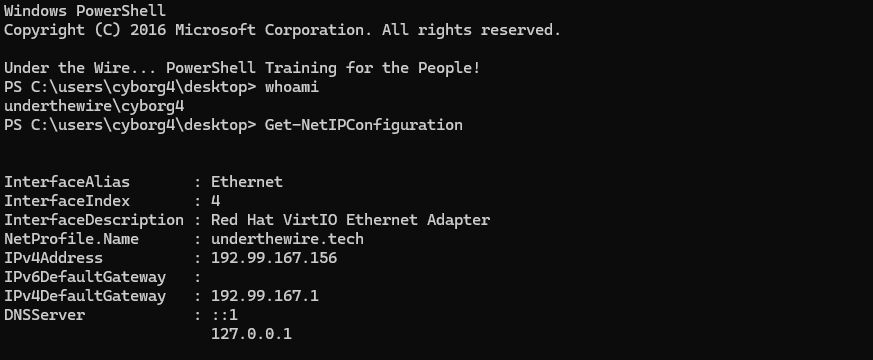
Get-Module -ListAvailable | Where-Object {$_.Version -like '8.9.8.9'}-ListAvailable switch, as the module is not currently imported in the session. And we must use the Where-Object filter, since the Get-Module cmdlet doesn't have a -Version parameter.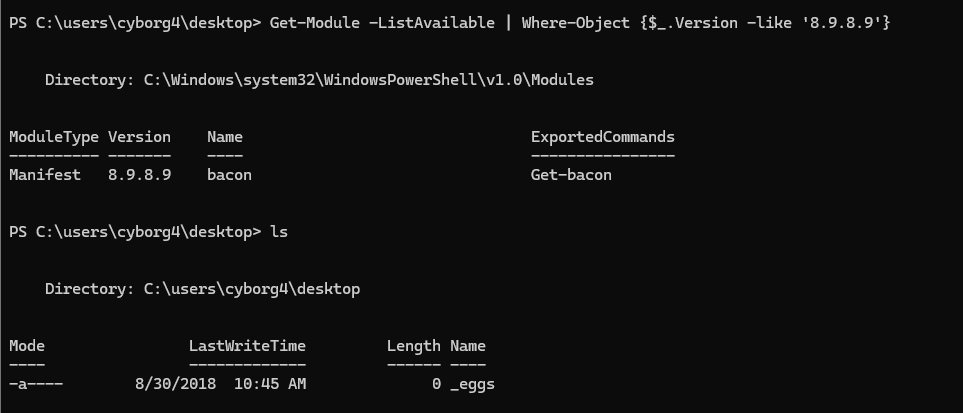
(Get-Module -ListAvailable | Where-Object {$_.Version -like '8.9.8.9'}).Name + (ls -File).NameOne-line to output the password for cyborg5
bacon_eggsPassword for cyborg5
exitCyborg 5 -> 6
The password for cyborg6 is the last name of the user who has logon hours set on their account PLUS the name of the file on the desktop.
ssh cyborg5@cyborg.underthewire.tech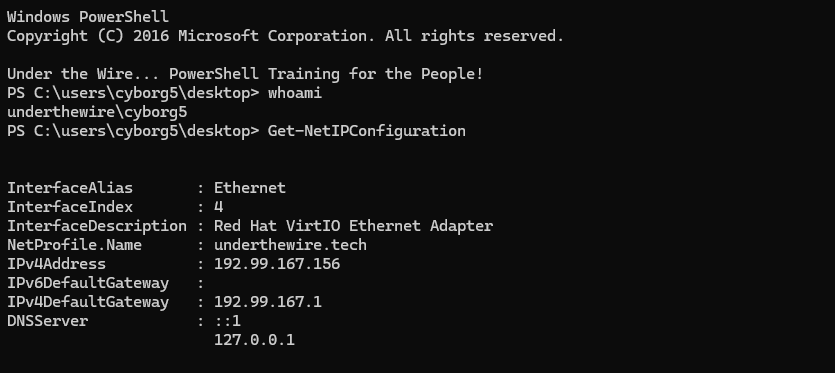
$allADUsers = Get-ADUser -Filter * -Properties *Get all of the users in AD, all of their properties, and store them in a variable
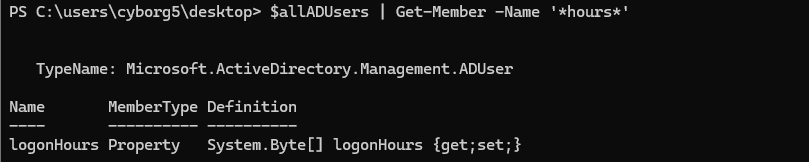
$allADUsers | Get-Member -Name '*hours*'Use the Get-Member cmdlet to inspect the AD user object properties where any property contains the word "hours"
$allADUsers | Where-Object {$_.logonHours} | Select Surname, logonHoursThe Where-Object {$_.logonHours} syntax means that the property has to contain data for the object to be returned in the output. Then select the last name and hours.
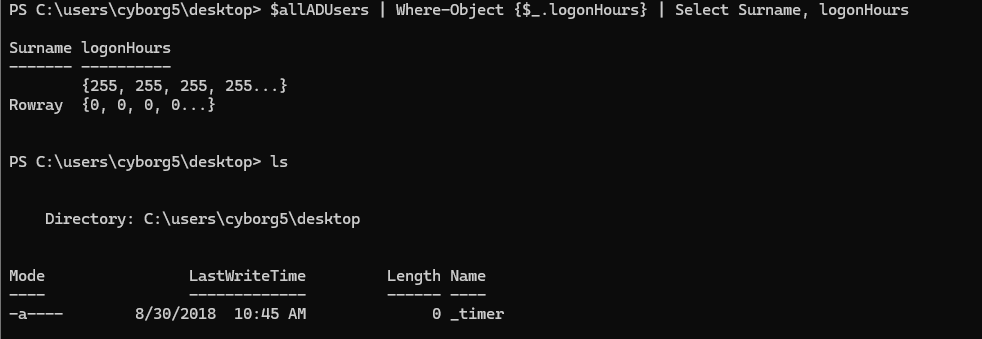
Rowray and the target file is _timer($allADUsers | Where-Object {$_.logonHours -and $_.Surname}).Surname.ToLower() + (ls -File).NameOne-liner to output the password for cyborg6
rowray_timerPassword for cyborg6
exitCyborg 6 -> 7
The password for cyborg7 is the decoded text of the string within the file on the desktop.
ssh cyborg6@cyborg.underthewire.tech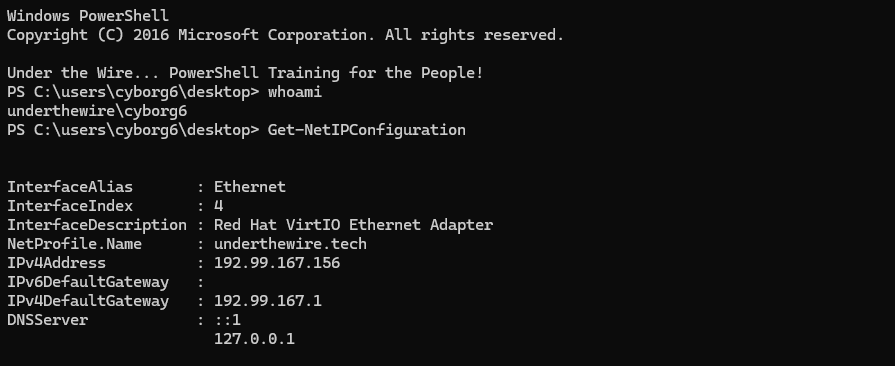
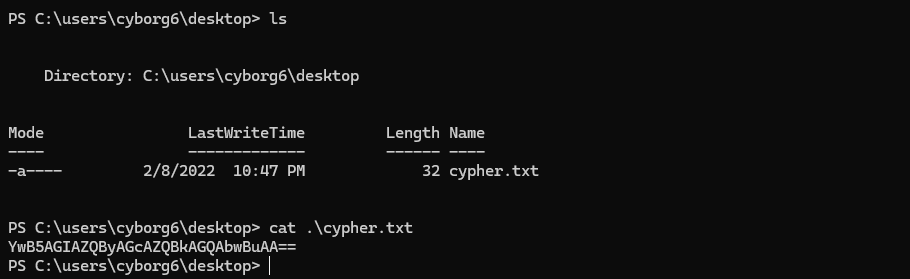
cypher.txt the encoding is base64= padding (in addition to the overall characters that comprise the encoded text). 0xBEN
0xBEN
There is no native cmdlet to convert from base64 in PowerShell, so I wrote a function that will take pipeline input and decode, but you can do it manually for the practice.
$base64Text = cat .\cypher.txt
$base64ToBytes = [System.Convert]::FromBase64String($base64Text)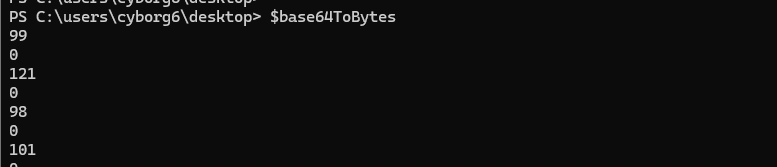
$decodedText = [System.Text.Encoding]::UTF8.GetString($base64ToBytes)
null bytes caused by the 0 bytes in the $base64ToBytes output as seen above. So, let's refactor just a bit.$base64ToBytes = $base64ToBytes | Where-Object {$_ -ne 0}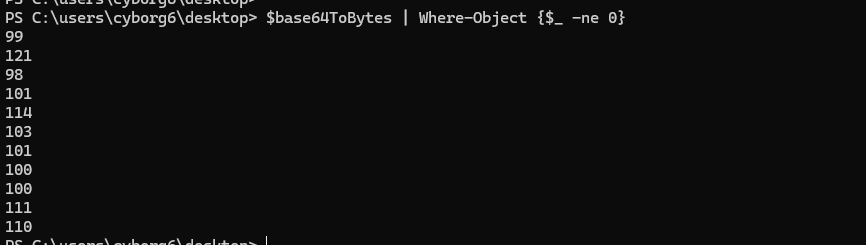
0 bytes removed
cybergeddonPassword for cyborg7
exitCyborg 7 -> 8
The password for cyborg8 is the executable name of a program that will start automatically when cyborg7 logs in.
ssh cyborg7@cyborg.underthewire.tech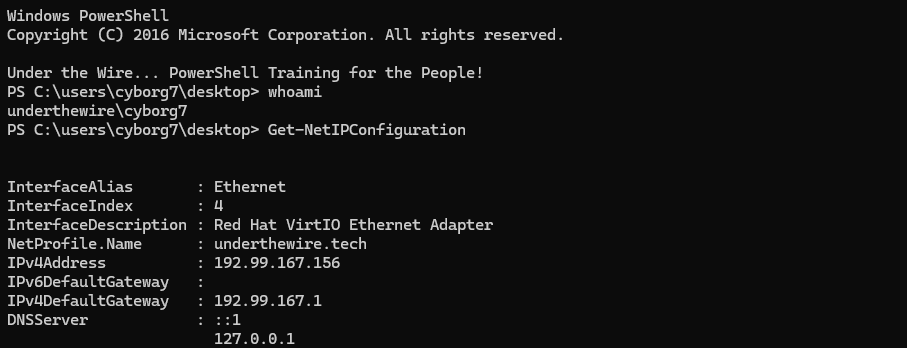
Get-CimInstance Win32_StartupCommand
skynetPassword for cyborg8
exitCyborg 8 -> 9
The password for cyborg9 is the Internet zone that the picture on the desktop was downloaded from.
ssh cyborg8@cyborg.underthewire.tech


Get-ChildItem -File | ForEach-Object {

  $file = $_
  # Get all data streams of the file
  $item = Get-Item $file.FullName -Stream *
  if ($item.Stream -contains 'Zone.Identifier') {
    # If the Zone.Identifier stream is present
    # Value  Setting
    # ------------------------------
    # 0      My Computer
    # 1      Local Intranet Zone
    # 2      Trusted sites Zone
    # 3      Internet Zone
    # 4      Restricted Sites Zone
    $streamContents = Get-Content -Raw -Stream 'Zone.Identifier' $item.FileName
    $streamContents = $streamContents.Split("`n")
    $zoneId = $streamContents[1].Split('=')[1] -replace '\s'

    if ($zoneId -in @('1','2','3','4')) {

      $hostUrl = $streamContents | Where-Object {$_ -match '^HostUrl'}
      $referrerUrl = $streamContents | Where-Object {$_ -match '^ReferrerUrl'}
      if ($hostUrl) { $hostUrl = $hostUrl.Split('=')[1] }
      if ($referrerUrl) { $referrerUrl = $referrerUrl.Split('=')[1] }

      [PSCustomObject]@{
        'ZoneId' = $zoneId
        'FileName' = $file.FullName
        'DownloadUrl' = $hostUrl
        'ReferrerUrl' = $referrerUrl
      }

    }

  }

} | Format-List *
4Password for cyborg9
exitCyborg 9 -> 10
The password for cyborg10 is the first name of the user with the phone number of 876-5309 listed in Active Directory PLUS the name of the file on the desktop.
ssh cyborg9@cyborg.underthewire.tech
$allADUsers = Get-ADUser -Filter * -Properties *Get-Member to find the object property that stores phone numbers.$allADUsers | Select-Object GivenName, *Phone | Select-String '876-5309'There are multiple "phone" properties, so use *Phone and filter using Select-String and the target phone number
$phoneProperties = $allADUsers | Get-Member -Name '*phone' | Select-Object -ExpandProperty Name
$phoneProperties | ForEach-Object {$phoneProp = $_ ; $allADUsers | Where-Object {$_.$phoneProp -eq '876-5309'}} | Select-Object GivenNameI'll explain this command in a series of bullet points:
- Go one-by-one —
ForEach-Object— through the list of phone properties used in AD user objects:HomePhoneMobilePhoneOfficePhone
- Then, use
Where-Objecton$allADUsersto see...- Is
876-5309in theHomePhoneproperty? - Is
876-5309in theMobilePhoneproperty? - Is
876-5309in theOfficePhoneproperty?
- Is
- If any of these are true, then the user is returned in the output
- Finally, select the user's first name
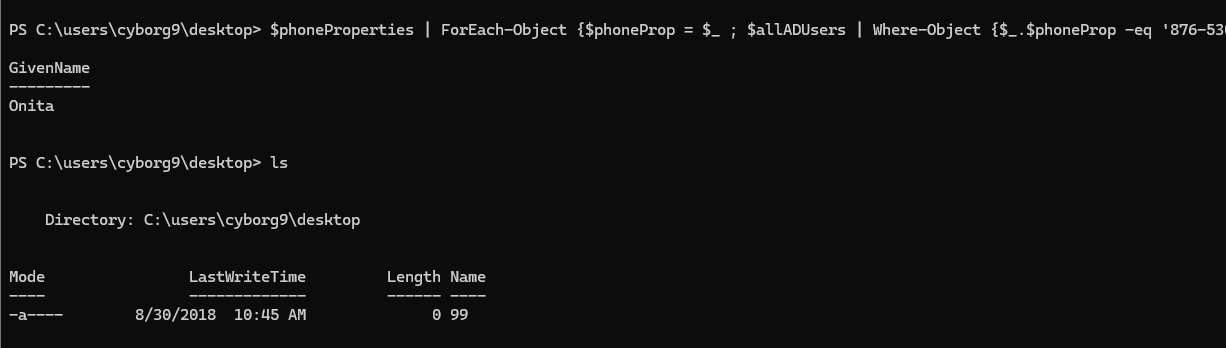
($phoneProperties | ForEach-Object {$phoneProp = $_ ; $allADUsers | Where-Object {$_.$phoneProp -eq '876-5309'}}).GivenName.ToLower() + (ls -File).NameOne-line to output the password for cyborg10
onita99Password for cyborg10
exitCyborg 10 -> 11
The password for cyborg11 is the description of the Applocker Executable deny policy for ill_be_back.exe PLUS the name of the file on the desktop.
ssh cyborg10@cyborg.underthewire.tech
Get-AppLockerPolicy -Effective | Select-Object -ExpandProperty RuleCollections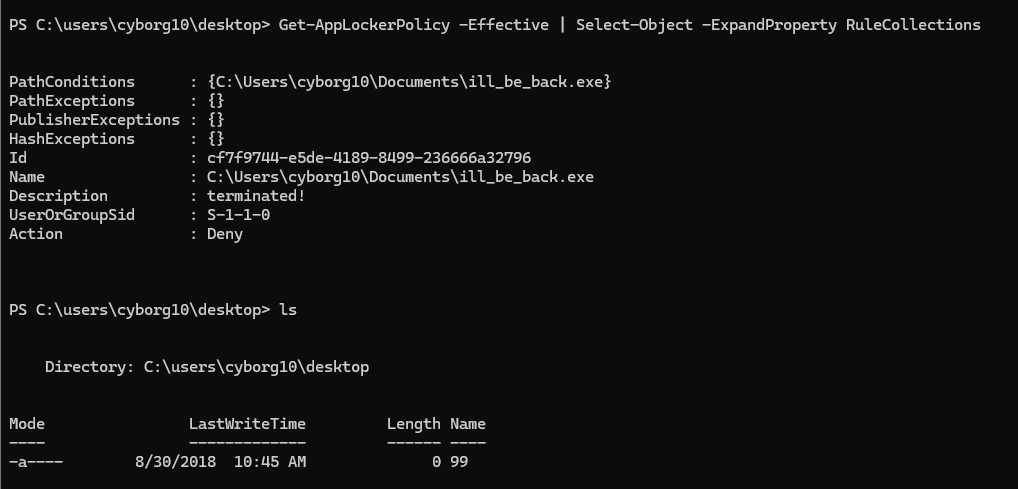
(Get-AppLockerPolicy -Effective | Select-Object -ExpandProperty RuleCollections).Description + (ls -File).NameOne-liner to output the password for cyborg11
terminated!99Password for cyborg11
exitCyborg 11 -> 12
The password for cyborg12 is located in the IIS log. The password is not Mozilla or Opera.
ssh cyborg11@cyborg.underthewire.tech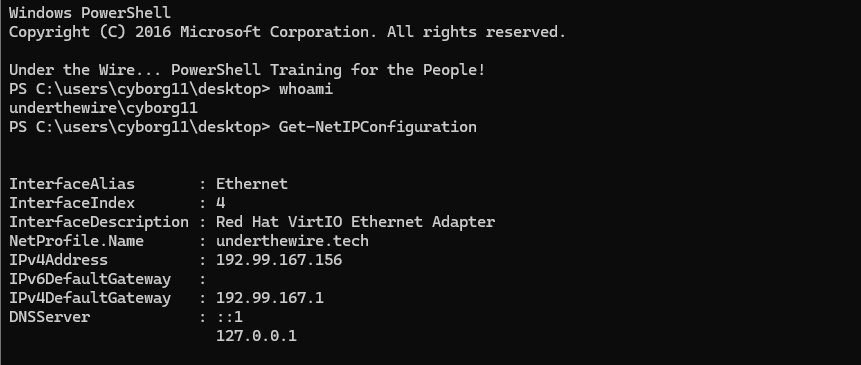
ls C:\inetpub\logs -Recurse -File | Select-Object FullName
cat C:\inetpub\logs\logfiles\w3svc1\u_ex160413.log | Where-Object {$_ -notlike '*mozilla*' -and $_ -notlike '*opera*'}
Mozilla and Opera logsspaceballsPassword for cyborg12
exitCyborg 12 -> 13
The password for cyborg13 is the first four characters of the base64 encoded full path to the file that started the i_heart_robots service PLUS the name of the file on the desktop.
ssh cyborg12@cyborg.underthewire.tech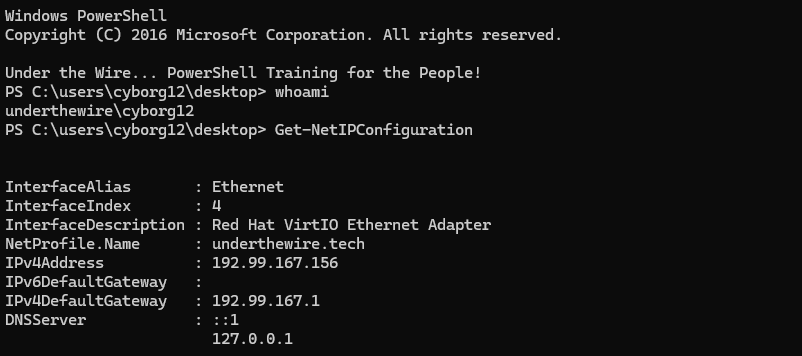
Get-CimInstance win32_service -Filter 'Name like "i_heart_robots"'
Get-CimInstance to provide more output than Get-Service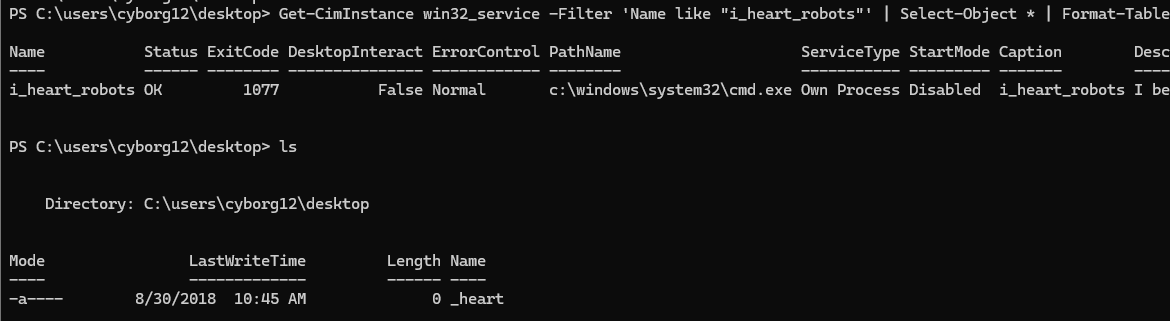
-join[Convert]::ToBase64String([System.Text.Encoding]::Unicode.GetBytes((Get-CimInstance win32_service -Filter 'Name like "i_heart_robots"').PathName)).ToLower()[0..3] + (ls -File).NameOne-liner to output password for cyborg13
I'll explain the one-liner in series of bullet points:
- We work our way inside-out of any brackets or enclosings
- The inner-most enclosing is
(Get-CimInstance win32_service -Filter 'Name like "i_heart_robots"').PathName— so get the path to the binary started by the service - The next enclosing is
[System.Text.Encoding]::Unicode.GetBytes()which converts thePathNameoutput to Unicode bytes - The final enclosing is
[Convert]::ToBase64String()which converts the Unicode bytes to a base64 string - We then use the
.ToLower()method on the string to convert it to lowercase and select the first four characters[0..3] - Finally, we
-jointhe character array back into a single string and+concatenate with the file name
ywa6_heartPassword for cyborg13
exitCyborg 13 -> 14
The password cyborg14 is the number of days the refresh interval is set to for DNS aging for the underthewire.tech zone PLUS the name of the file on the desktop.
ssh cyborg13@cyborg.underthewire.techGet-Command 'Get-*Dns*'
Get- verb and *Dns* in the cmdlet name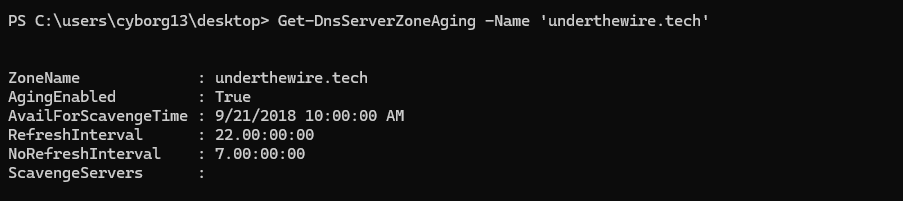
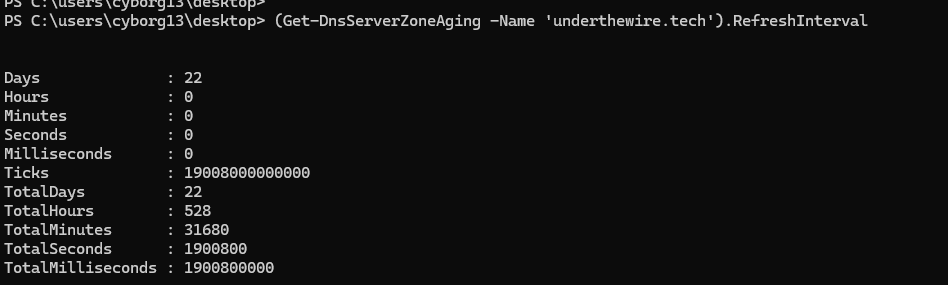
(Get-DnsServerZoneAging -Name 'underthewire.tech').RefreshInterval.TotalDays.ToString() + (gci -File).NameOne-liner to output password for cyborg14
22_daysPassword for cyborg14
exitCyborg 14 -> 15
The password for cyborg15 is the caption for the DCOM application setting for application ID {59B8AFA0-229E-46D9-B980-DDA2C817EC7E} PLUS the name of the file on the desktop.
ssh cyborg14@cyborg.underthewire.tech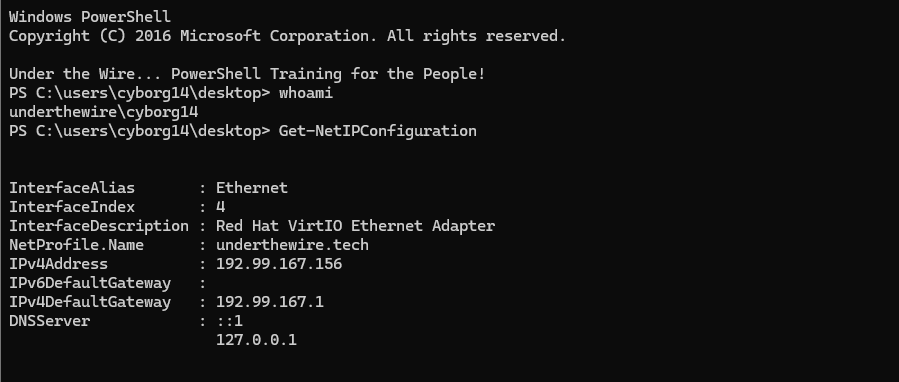
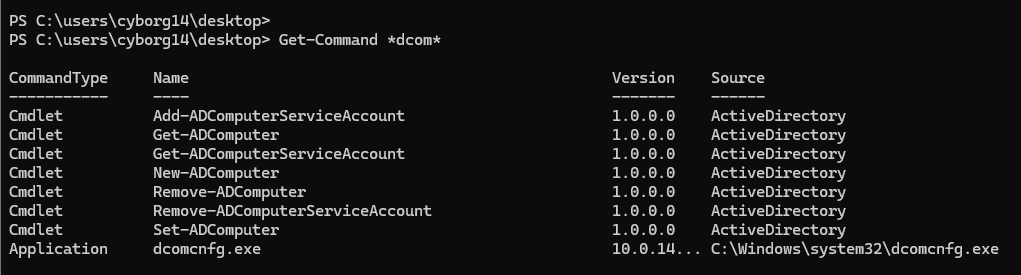
Get-CimClass -ClassName *dcom*
Win32_DCOMApplication looks promising.
Get-CimInstance -ClassName Win32_DCOMApplication -Filter 'AppID like "%59B8AFA0-229E-46D9-B980-DDA2C817EC7E%"' | Select-Object *Use % as a wildcard match
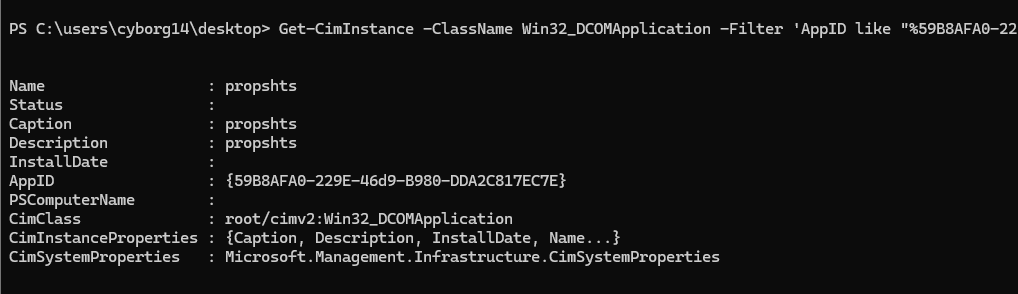
propshts(Get-CimInstance -ClassName Win32_DCOMApplication -Filter 'AppID like "%59B8AFA0-229E-46D9-B980-DDA2C817EC7E%"').Caption + (ls -File).NameOne-liner to output password for cyborg15
propshts_objectsPassword for cyborg15
exit