
Previous Step
 0xBEN
0xBEN
Quick Recap
In the previous module, we added onto the GitLab environment by:
- Defining a set of
Dockerfilefiles in therunner-imagesproject, specifically under thepacker/,terraform, andansible/directories - The purpose of the
Dockerfiledefinitions is to define how we want build a container to runpacker,terraform, andansible, as well as any dependencies we want to package in:- Our internal PKI Intermediate CA certificate
- Infisical CLI binary
- Additional binaries required for operations
- Then, use
docker buildanddocker pushto create and store the Docker containers in our GitLab Container Registry under therunner-imagesproject - Then, we tested OIDC authentication by:
- Downloading the
packerimage - Using the
infisicalCLI inside thepackerimage to ensure we could use our JWT to retrieve an access token
- Downloading the
- Finally, we set up a CI/CD pipeline —
.gitlab-ci.yml— inside therunner-imagesproject to ensure that any changes to theDockerfiledefinitions or theinternal-ca.crtfile would build and store thepacker,terraformand/oransibleimages using thelatestandx.xx.xverison tag in the container registry
Packer Overview
When IT teams want to deploy hosts, they want to ensure that it conforms to specific policies, configurations, and security best practices. In order to do this, they create what is known as Golden Images.
In the past, teams would create golden images manually for different environments using specific tools for the job. They might create an AWS AMI, Azure AMI, GCP Images, or even images for their on-premise platforms such as Proxmox. Images might experience "configuration drift' and keeping them updated was time-consuming.
By keeping the configurations in source control — such as GitLab — teams can track changes and ensure that images are built consistently from the same code base.
Pipeline Diagram
Click here to view this diagram in a new tab
Development Strategy
Local Iterative Refinement
Before we even git commit any code to the packer repository, we'll be spending most of the time locally performing iterative improvements on our build templates. The flow would go something like this.
git clonethepackerrepository- Add directory hierarchy
- Add files and source code
- Pull the docker image from GitLab Container Registry
- Start an ephemeral container and map the directory as a volume
- Run
packer initinside a build directory - Run
packer fmtto parse and normalize Packer files - Run
packer validateinside a build directory - Run
packer buildinside a build directory - Observe any errors, bugs, or other issues during the build process and continue refining the template
- Inspect the entire directory tree and plan a
.gitignorefile for things we do not want to commit to GitLab
Pipeline Builds in Production
The reason we packer build locally first before the pipeline is that we'll almost certainly be spending time fixing issues with boot_command parameters, boot_wait parameters, and other such things.
Once packer build runs successfully locally, we can let the pipeline run packer build and be the responsible party for production builds. With the pipeline doing packer build, we ensure build consistency by ensuring the production build environment is consistent and repeatable.
My Development Environment
Remote Development Box
To setup a consistent development environment, I did the following:
- Cloned my
cloud-initenabled Debian template VM - Put it on the correct VLAN and updated the
cloud-initconfig - Ensured my SSH key was working for authentication
The benefits to doing this is that I have a development environment where all of my tools are installed. I can access this box remotely via VPN as well.
Connect via SSH
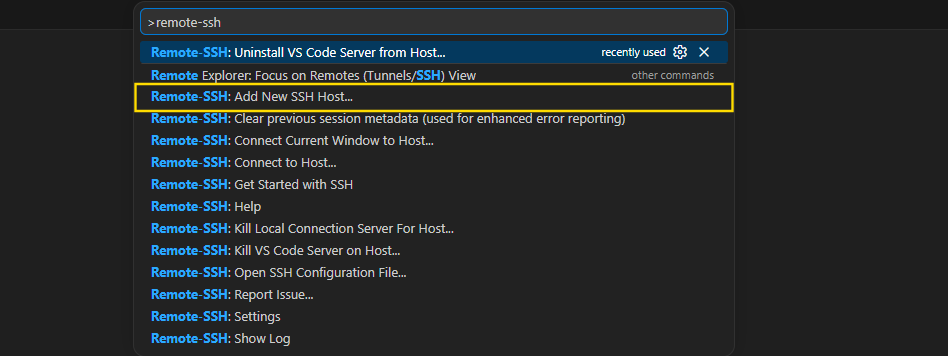


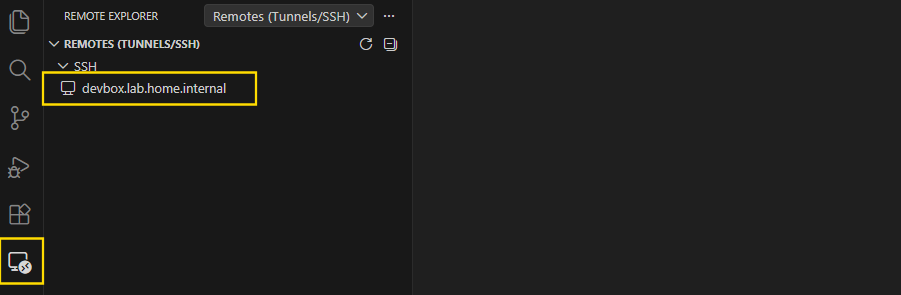



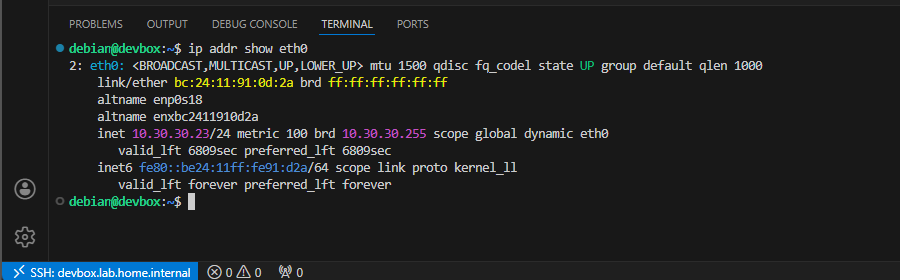
git, docker, and any other packages required for development.Clone the Packer Repository

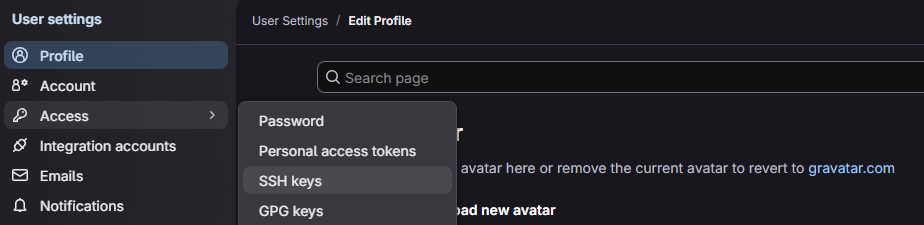
I'll be using my notes here to set up SSH authentication in Git on "devbox"
mkdir -p ~/Code/IaC_Projectcd ~/Code/IaC_Projectgit clone git@gitlab-ce.lab.home.internal:infrastructure/packer.gitClone the repository on "devbox" using the VS Code terminal
cd packerChange directory into the repository
Open the Packer Repository

git clone and pulling the packer repo, I can open the directoryCreate a Feature Branch for New Code
git checkout -b add-initial-filesRun this in your SSH terminal to start a new feature branch for your work
Developing Packer Templates
If you have a look around on your favorite search engine or GitHub, one thing you'll quickly realize is that there is no one uniform way to create a Packer template.
A good amount of thought has to go into the planning and continued upkeep of the code repository, but one thing is certain — don't aim for perfection on your first go through. Start with a good baseline and continue to iteratively improve.
Some basic things you'll want to start thinking about
- Which operating systems to template
- How to structure variables:
- Which variables will go in
.pkrvars.hclfile(s) - Which variables will be pulled from Infisical (or other secrets management)
- Will there be GitLab group / project variables
- Which variables will go in
- How to keep code DRY and create re-usable code where possible
General procedure for getting started
.iso — things such as time zone, language preferences, keyboard layout, package repositories, disk partitioning, network configuration, etc.- Download a target
.isofile of choice to your Proxmox VE node - Set up a code repository structure
- Directories for build templates
- Directories for scripts
- Etc
- Begin writing the Packer template and variables
- Develop an answer file for your target OS
- Debian:
preseed.cfg - Ubuntu:
autoinstall.yaml - RedHat:
ks.cfg— Kickstart - Windows:
autounattend.xml
- Debian:
- Begin writing any provisioning scripts
Repository Structure
packer/
|---- .gitlab-ci.yml                                                   # GitLab pipeline configuration
|---- .gitignore                                                       # List of directories and/or files to keep out of remote repository
'---- proxmox/
      |---- builds/
      |      |---- plugins.pkr.hcl                                     # Shared plugins for all builds
      |      |---- linux/
      |      |      |---- variables.pkr.hcl                            # Shared variables for Linux builds, define expected inputs
      |      |      |---- debian/
      |      |      |      |---- debian-13/
      |      |      |      |      |---- debian-13-vm.auto.pkrvars.hcl  # Populates variables defined in variables.pkr.hcl (Infisical will populate others)
      |      |      |      |      |---- debian-13-vm.pkr.hcl           # The actual infrastructure-as-code for the VM
      |      |      |      |      '---- preseed.pkrtpl.hcl             # Template for preseed.cfg file, allowing for variable substitution (no hard-coded values)
      |      |      |      |
      |      |      |      '---- debian-12/
      |      |      |             '---- .gitkeep                       # Empty file, but ensures the directory is committed to repo
      |      |      |
      |      |      '---- ubuntu/
      |      |             '---- ubuntu-2404/
      |      |                    '---- .gitkeep                       # Empty file, but ensures the directory is committed to repo
      |      |
      |      '---- windows/
      |             '---- 11-enterprise/
      |                     '---- .gitkeep
      |
      |---- files/                                                     # Directory to store any static files required for configuration
      |      '---- .gitkeep
      |
      '---- scripts/
             |---- powershell/
             |       '---- .gitkeep
             '---- bash/
                     |---- post_install_cleanup.sh
'---- post_install_dhcp_fix.shpacker init and packer build inside a build directory, any file ending in .pkr.hcl and .auto.pkrvars.hcl will be automatically processed.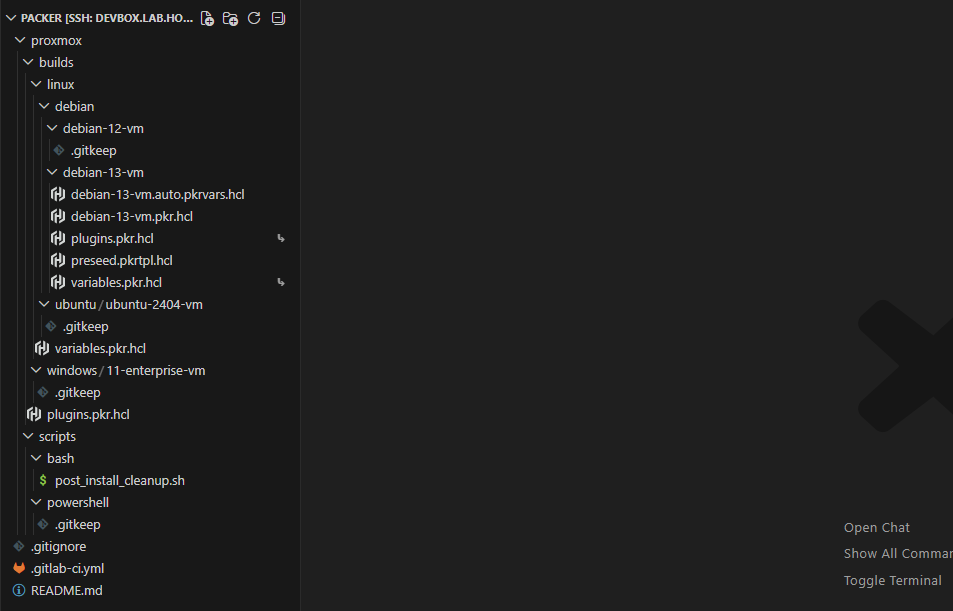
Create the Core Structure
cd ~/Code/IaC_Project/packerChange directory into your cloned repository
touch .gitignoretouch .gitlab-ci.ymlmkdir -p proxmox/builds/linux/debian/{debian-12-vm,debian-13-vm}mkdir -p proxmox/builds/linux/ubuntu/ubuntu-2404-vmmkdir -p proxmox/builds/windows/11-enterprise-vmmkdir -p proxmox/filesmkdir -p proxmox/scripts/{bash,powershell}touch proxmox/builds/plugins.pkr.hcltouch proxmox/builds/linux/variables.pkr.hcltouch proxmox/builds/linux/debian/debian-12-vm/.gitkeeptouch proxmox/builds/linux/debian/debian-13-vm/{debian-13-vm.auto.pkrvars.hcl,debian-13-vm.pkr.hcl,preseed.pkrtpl.hcl}touch proxmox/builds/linux/ubuntu/ubuntu-2404-vm/.gitkeeptouch proxmox/builds/windows/11-enterprise-vm/.gitkeeptouch proxmox/files/.gitkeeptouch proxmox/scripts/bash/{post_install_cleanup.sh,post_install_dhcp_fix.sh}touch proxmox/scripts/powershell/.gitkeepDebian 13 VM
Defining Expected Inputs
Recall that Packer will automatically process any .pkr.hcl file it finds in the working directory. You can name the file anything you'd like, but I'm naming it variable.pkr.hcl. This file serves the purpose of:
- Telling Packer what variable names to expect
- Telling Packer what kinds of input the variables should accept – e.g.
string,number, etc - Defining any
defaultvalues that should be assigned to those variables in the event none are supplied
cd ~/Code/IaC_Project/packer/proxmox/builds/linux/debian/debian-13-vmUse your SSH terminal in your IDE to run this command on the devbox
ln -s ../../variables.pkr.hcl .Use your SSH terminal in your IDE to run this command on the devbox
variables.pkr.hcl file in the linux/ directory or under debian-13-vm/ directory and the changes should track accordingly.variables.pkr.hcl (SHOW/HIDE)
# ----- Infisical Variables: Begin ----- #

/*
Infisical will inject authentication variables into environment
    - PROXMOX_USERNAME : Proxmox plugin automatically discovers this in environment variables
    - PROXMOX_TOKEN    : Proxmox plugin automatically discovers this in environment variables
        - Unprotected GitLab runner won't have access to Infisical
        - So, we'll set them as empty environment variables in the pipeline configuration
*/

# PROTECTED
variable "ssh_password" {
  # Injected by Infisical as "PKR_VAR_packer_build_password"
  # We will hash this on the fly using Packer bcrypt() function
  type        = string
  sensitive   = true
  description = "Password SSH login as template provisioning user during Packer builds"
  default     = ""
}

# UNPROTECTED
variable "ssh_username" {
  # Injected by Infisical as "PKR_VAR_ssh_username"
  # Default "placeholder" to pass validation in unprotected pipeline runner (no Infisical access)
  type        = string
  description = "Username injected into preseed.cfg for template provisioning"
  default     = "placeholder"
}

# ----- Infisical Variables: End ----- #

/* Local Variables: Begin
.-----------------------------------------------.
| Locally Sourced Variables: *.auto.pkrvars.hcl |
|     We can commit these to Git, cause         |
|     there are no protected variables          |
'-----------------------------------------------'
*/

# Node and Storage
variable "proxmox_node" {
  type        = string
  description = "The node to build the template on"
  default     = "pve"
}
variable "proxmox_node_domain" {
  type    = string
  default = "lab.home.internal"
}
variable "iso_storage_pool" {
  # Defaults to "local", which would match a default Proxmox VE installation
  type    = string
  default = "local"
}
variable "vm_disk_storage_pool" {
  # Defaults to "local-lvm", which would match a default Proxmox VE installation
  type    = string
  default = "local-lvm"
}
variable "vm_tags" {
  type        = string
  description = "Semicolon-separated list of tags to add to the VM"
  default     = ""
}
variable "resource_pool" {
  type        = string
  description = "The resource pool in Proxmox VE logical grouping of units"
  default     = ""
}

# Hardware
variable "vm_cpu" {
  # Per the documentation, the default CPU on the CLI is "kvm64", in the UI is "x86-64-v2-AES"
  # Requires a Proxmox VE node with recent chipsets, but shouldn't be a problem for most
  type        = string
  description = "The CPU type to use when creating a VM, will default to UI setting"
  default     = "x86-64-v2-aes"
}
variable "vm_id" {
  # 10000 -- 19999 for VM templates
  type        = number
  description = "The numerical ID to assign to the VM"
}
variable "vm_name" {
  type    = string
  default = "debian-13-template"
}
variable "cores" {
  type    = number
  default = 2
}
variable "memory" {
  type    = number
  default = 2048
}
variable "disk_size" {
  type    = string
  default = "20G"
}

# Network
variable "switch_name" {
  type        = string
  description = "The name of the network bridge to use"
  default     = "vmbr0"
}
variable "vlan_tag" {
  type    = number
  default = null
}
variable "dhcp_timeout_seconds" {
  type        = number
  description = "The number of seconds to wait before skipping DHCP"
  default     = 30
}

# Operating System
variable "iso_file_name" {
  type        = string
  description = "Example: debian-13-netinst.iso"
}

# Locale and Encoding
variable "system_keyboard" {
  type    = string
  default = "us"
}
variable "system_locale" {
  type    = string
  default = "en_US.UTF-8"
}
variable "system_time_zone" {
  type    = string
  default = "UTC"
}

# Packages
variable "packages_to_install" {
  type        = string
  description = "Space-separated list of packages to install"
  default     = "qemu-guest-agent cloud-init sudo curl"
}
Setting the Inputs
Recall that Packer will automatically process any .auto.pkrvars.hcl files it finds in the working directory. If discovered, it will use these key=value pairs to automatically assign values to any variables defined in configuration files (such as variables.pkr.hcl for example).
# Only define variables not exported by Infisical here
proxmox_node         = "proxmox" # Hostname of the target server
proxmox_node_domain  = "lab.home.internal"
iso_storage_pool     = "ISO"         # "local" is the default in most PVE installs
vm_disk_storage_pool = "Guest_Disks" # the default in most PVE installs
vm_id                = 10001         # 10000 -- 19999 for VM templates
vm_name              = "debian-13-packer-template"
vm_cpu               = "x86-64-v2-aes"
vm_tags              = "packer-template;vm;linux;debian;trixie"
resource_pool        = "packer-templates" # The resource pool as created in initial user / group script
cores                = 2
memory               = 2048
disk_size            = "20G"
iso_file_name        = "debian-13.4.0-amd64-netinst.iso"
system_keyboard      = "us"
system_locale        = "en_US.UTF-8"
system_time_zone     = "UTC"
switch_name          = "vmbr0"
vlan_tag             = 302 # You can delete this variable entirely if you don't use VLANs
dhcp_timeout_seconds = 30
packages_to_install  = "qemu-guest-agent cloud-init sudo curl binutils"
Build the Preseed Answer File
The .pkrtpl.hcl file extension allows the Packer templatefile() function to parse this file and do variable substitution on ${var_name} using any variables defined in variable files, environment variables, or variables defined using the -var switch at build time.
If you look to the source code below, you'll see examples of this such as:
${system_locale}— which comes from the.auto.pkrvars.hclfile${ssh_username}— which comes from Infisical-sourcedPKR_VAR_ssh_username
This keeps secrets out of the code, one less thing to worry about when we git commit.
preseed.pkrtpl.hcl (SHOW/HIDE)
# Disable scanning of additional installation media
# |--- 1. Force apt to ignore any CD-ROM as installation media
d-i apt-setup/disable-cdrom-entries boolean true
d-i apt-setup/cdrom/set-first       boolean false
d-i apt-setup/cdrom/set-next        boolean false
d-i apt-setup/cdrom/set-failed      boolean false
# '--- 2. partman/early_command runs at the opportune time to bring device offline
d-i partman/early_command string \
  echo offline > /sys/block/sr1/device/state || true

# Localization & Keyboard
d-i debian-installer/locale string ${system_locale}
d-i keyboard-configuration/xkb-keymap select ${system_keyboard}

# Network
d-i netcfg/choose_interface select auto
d-i netcfg/dhcp_timeout string ${dhcp_timeout_seconds}
d-i netcfg/get_hostname string unassigned-hostname
d-i netcfg/get_domain string unassigned-domain

# Mirror settings
d-i apt-setup/use_mirror boolean true
d-i mirror/country string manual
d-i mirror/http/hostname string deb.debian.org
d-i mirror/http/directory string /debian
d-i mirror/http/proxy string

# Account setup (Variables injected by Packer)
d-i passwd/root-login boolean false
d-i passwd/user-fullname string ${ssh_username}
d-i passwd/username string ${ssh_username}
d-i passwd/user-password-crypted password ${ssh_password_hash}

# Timezone and Clock Setup
d-i time/zone string ${system_time_zone}
d-i clock-setup/utc boolean true
d-i clock-setup/utc-auto boolean true

# Partitioning (Regular, no LVM, max out the disk)
d-i partman-auto/method string regular
d-i partman-auto/choose_recipe select atomic
d-i partman-partitioning/confirm_write_new_label boolean true
d-i partman/choose_partition select finish
d-i partman/confirm boolean true
d-i partman/confirm_nooverwrite boolean true

# Package selection (Standard system + SSH + Cloud-Init + Guest Agent)
tasksel tasksel/first multiselect standard, ssh-server
d-i pkgsel/include string ${packages_to_install}
popularity-contest popularity-contest/participate boolean false

# Boot loader
d-i grub-installer/only_debian boolean true
d-i grub-installer/with_other_os boolean true
d-i grub-installer/bootdev  string default

# Grant passwordless sudo to the packer user so provisioners can run
d-i preseed/late_command string \
    echo '${ssh_username} ALL=(ALL) NOPASSWD: ALL' > /target/etc/sudoers.d/${ssh_username}; \
    in-target chmod 440 /etc/sudoers.d/${ssh_username}

# Finish
d-i finish-install/reboot_in_progress note
Infrastructure-as-Code
This is the actual template file where we define the parameters that will be used to build the infrastructure — the virtual machine itself — in Proxmox VE using the proxmox-iso source.
additional_iso_files and a workaround in the boot_command to load preseed.cfg into the installation environment.I opted to do this over the
HTTP method, because the packer process is running inside docker, which is easy to bypass in the development environment, but is a nightmare to work with inside the GitLab Runner VM.Using
additional_iso_files also has the added benefit of not needing to open ports in the firewall to allow VMs to call back to the Packer HTTP server.boot_cmd doesn't just get pulled out of thin air. You can do some manual testing by spinning up a VM with your target .iso file and see which key sequence you want to use.Or, you can take a look at various examples on GitHub and other areas of the web (or ask your favorite AI).
Chef bento repository (Debian 13)
Proxmox Example (ajschroeder)
debian-13-vm.pkr.hcl (SHOW/HIDE)
source "proxmox-iso" "debian-13" {
  # Infisical will inject authentication variables into environment
  #     - PROXMOX_USERNAME : Proxmox plugin automatically discovers this in environment variables
  #     - PROXMOX_TOKEN    : Proxmox plugin automatically discovers this in environment variables

  # Connection
  proxmox_url              = "https://${var.proxmox_node}.${var.proxmox_node_domain}:8006/api2/json"
  insecure_skip_tls_verify = true
  node                     = var.proxmox_node

  # VM General
  vm_id                = var.vm_id
  vm_name              = var.vm_name
  cpu_type             = var.vm_cpu
  tags                 = var.vm_tags
  pool                 = var.resource_pool
  template_description = "Debian 13 Template. Built by Packer on ${formatdate("YYYY-MM-DD hh:mm", timestamp())}"

  # OS & Boot
  # Ensure you're targeting the correct PVE node where this .iso lives
  boot_iso {
    type     = "ide"
    index    = "0"
    iso_file = "${var.iso_storage_pool}:iso/${var.iso_file_name}"
    unmount  = true
  }
  os         = "l26"
  qemu_agent = true

  # Hardware
  cores           = var.cores
  memory          = var.memory
  sockets         = 1
  scsi_controller = "virtio-scsi-pci"

  disks {
    disk_size    = var.disk_size
    format       = "raw"
    storage_pool = var.vm_disk_storage_pool
    type         = "scsi"
  }

  network_adapters {
    bridge   = var.switch_name
    model    = "virtio"
    vlan_tag = var.vlan_tag
  }

  # Cloud-Init Drive Configuration
  cloud_init              = true
  cloud_init_storage_pool = var.vm_disk_storage_pool

  # Uses the "templatefile()" function to substitute variables in the ".pkrtpl.hcl" file
  additional_iso_files {
    type             = "ide"
    index            = "2"
    cd_label         = "PRESEED"
    iso_storage_pool = var.iso_storage_pool
    unmount          = true
    cd_content = {
      "preseed.cfg" = templatefile("${path.root}/preseed.pkrtpl.hcl", {
        system_locale        = var.system_locale
        system_keyboard      = var.system_keyboard
        dhcp_timeout_seconds = var.dhcp_timeout_seconds
        ssh_username         = var.ssh_username
        ssh_password_hash    = bcrypt(var.ssh_password, 10)
        system_time_zone     = var.system_time_zone
        packages_to_install  = var.packages_to_install
      })
    }
  }

  boot_wait = "5s"
  /*
  - Debian doesn't auto-mount the second .iso file containing the preseed.cfg file
  - So, we have to do some unfortunately hacky stuff to self-mount and copy the preseed.cfg file
  - This is also combined with some configurations in the preseed.pkrtpl.hcl file
  - See the top section of the file where we use some commands
    - d-i apt-setup -- ignores the second .iso file as installation media
    - d-i partman/eary_command -- brings /dev/sr1 offline to make in unavailable for scanning
  */
  boot_command = [
    "<esc><wait>",
    "install auto=true priority=critical ",
    format("preseed/early_command=\"%s\" ", join("; ", [
      "modprobe isofs",
      "mkdir -p /tmp/preseed",
      "mount /dev/sr1 /tmp/preseed",
      "cp /tmp/preseed/preseed.cfg /tmp/preseed.cfg",
      "umount -f /tmp/preseed"
    ])),
    "preseed/url=file:///tmp/preseed.cfg ",
    "locale=${var.system_locale} ",
    "keymap=${var.system_keyboard} ",
    "<enter>"
  ]

  # Provisioning Connection
  ssh_username = var.ssh_username
  ssh_password = var.ssh_password
  ssh_timeout  = "20m"
}

build {
  # Follows the source "proxmox-iso" "debian-13" declaration above
  sources = [
    "source.proxmox-iso.debian-13"
  ]

  provisioner "shell" {
    # The relative path walks up 4 directories to the root 'proxmox' folder,
    # then back down into 'scripts/bash'
    script          = "../../../../scripts/bash/post_install_dhcp_fix.sh"
    execute_command = "chmod +x {{ .Path }}; sudo bash -c '{{ .Vars }} {{ .Path }}'"
  }

  provisioner "shell" {
    script          = "../../../../scripts/bash/post_install_cleanup.sh"
    execute_command = "chmod +x {{ .Path }}; sudo bash -c '{{ .Vars }} {{ .Path }}'"
  }
}
Create Provisioning Scripts
For this part, we'll create a couple of bash scripts at packer/proxmox/scripts/bash/ to run some tasks as the final step.
echo 'Adding Systemd unit to restart networking service after cloud-init'

sudo tee /etc/systemd/system/dhcp-hostname-sync.service > /dev/null << EOF
[Unit]
Description=Restart DHCP discover after hostname set
After=cloud-init.service
Before=cloud-config.service

[Service]
Type=oneshot
ExecStart=/bin/sh -c 'systemctl restart networking.service'
RemainAfterExit=yes

[Install]
WantedBy=cloud-config.service
EOF

echo 'Enabling Systemd service: dhcp-hostname-sync'

sudo systemctl enable dhcp-hostname-sync.service
proxmox/scripts/post_install_dhcp_fix.sh
#!/bin/bash
set -e

echo 'Cleaning up Cloud-Init...'
sudo cloud-init clean --logs --machine-id --seed --configs all

echo 'Cleaning up the system...'
sudo apt-get clean
sudo rm -rf /var/lib/apt/lists/*

# The machine-id must be empty so it's regenerated on clone (crucial for DHCP)
sudo truncate -s 0 /etc/machine-id
[ -f /var/lib/dbus/machine-id ] && sudo rm /var/lib/dbus/machine-id
sudo ln -s /etc/machine-id /var/lib/dbus/machine-id

# Wipe SSH keys so the template doesn't share them
sudo rm -f /etc/ssh/ssh_host_*

# Clear logs
sudo find /var/log -type f -exec truncate -s 0 {} \;
proxmox/scripts/post_install_cleanup.sh
Linking the Shared Plugins
cd ~/Code/IaC_Project/packer/proxmox/builds/linux/debian/debian-13-vm/ln -s ../../../plugins.pkr.hcl .plugins.pkr.hcl will reflect in the link source as well.packer {
required_plugins {
proxmox = {
version = ">= 1.2.1"
source = "github.com/hashicorp/proxmox"
}
}
}plugins.pkr.hcl
Packer Build Testing
Segmenting Dev and Prod
Proxmox VE Setup
When we first set up Infisical, we created some resource pools, groups, service accounts, and API tokens in Proxmox VE. We then saved the API tokens in the prod environment in Infisical.
In the debian-13-vm.auto.pkrvars.hcl file above, we set the input for resource_pool to packer-templates, which will be evaluated to /pool/packer-templates. And, this is fine for packer build running in the pipeline. However, while testing, we should keep those test builds in a separate resource pool.
To accomplish this, we'll run another script in a Proxmox VE node to create:
- A new Proxmox VE group for testing
- A new Proxmox VE resource pool for testing
- A new Proxmox VE service account and assign to the test group
- A new Proxmox VE API token for this service account and store in
devinside Infisical
#!/bin/bash

REALM="pve"
GROUP="PackerTesting"
USERNAME="svc_devbox_packer@${REALM}"
TOKEN_NAME="packer-testing-token"
PACKER_TEST_POOL="packer-testing"
PACKER_TEST_POOL_PATH="/pool/${TF_TEST_POOL}"
ISO_STORAGE_POOL="local" # change according to your environment
DISK_STORAGE_POOL="local-lvm" # Change accordingly

# Create the resource pool
pveum pool add $PACKER_TEST_POOL --comment "Resource pool for testing Packer builds"

# Create the group
pveum group add $GROUP --comment "Group for any service accounts needing to test Packer builds"

# Create the service account
pveum user add $USERNAME --comment "Service account for devbox testing"

# Add the user to the group
pveum user modify $USERNAME --groups $GROUP

# ---- GROUP PERMISSIONS ----
# Full CRUD on its own pool
pveum aclmod $PACKER_TEST_POOL_PATH --group $GROUP --role PVEVMAdmin
pveum aclmod $PACKER_TEST_POOL_PATH --group $GROUP --role PVEPoolAdmin

# Packer needs to read the node state and find available VM IDs, but cannot modify anything outside its pool.
pveum aclmod /nodes --group $GROUP --role PVEAuditor

# Read-only on global storage configurations
pveum aclmod /storage --group $GROUP --role PVEAuditor

# Full permissions on required storage pools
pveum aclmod /storage/$ISO_STORAGE_POOL --group $GROUP --role PVEDatastoreAdmin
pveum aclmod /storage/$DISK_STORAGE_POOL --group $GROUP --role PVEDatastoreAdmin

# Network Permissions: Ability to attach the network interface
pveum aclmod /sdn/zones/localnetwork --group $GROUP --role PVESDNUser

# Create an API token for the user
# No privilege separation, since inheriting off the group's permissions
pveum user token add $USERNAME $TOKEN_NAME --privsep 0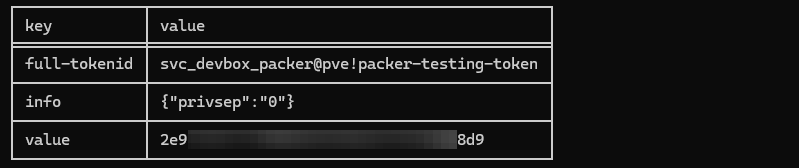
Store PVE Token in Infisical
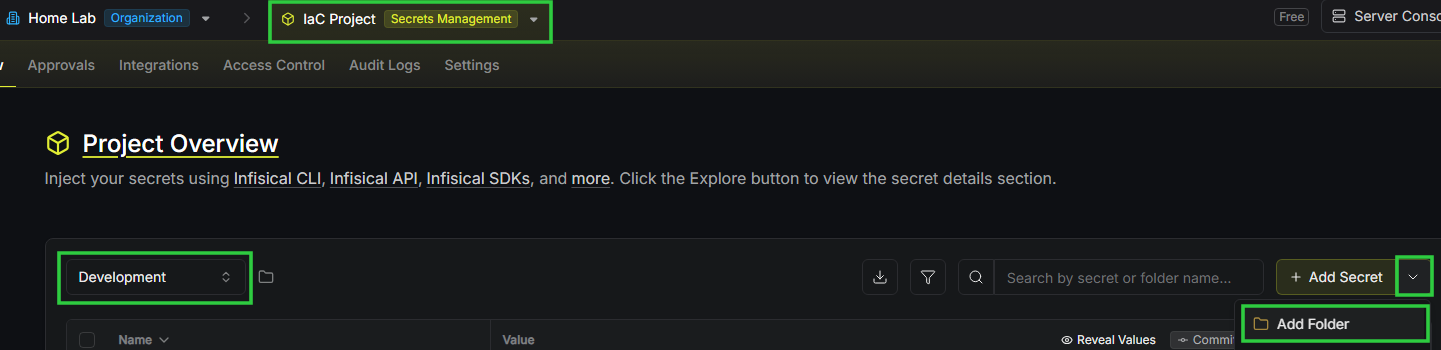
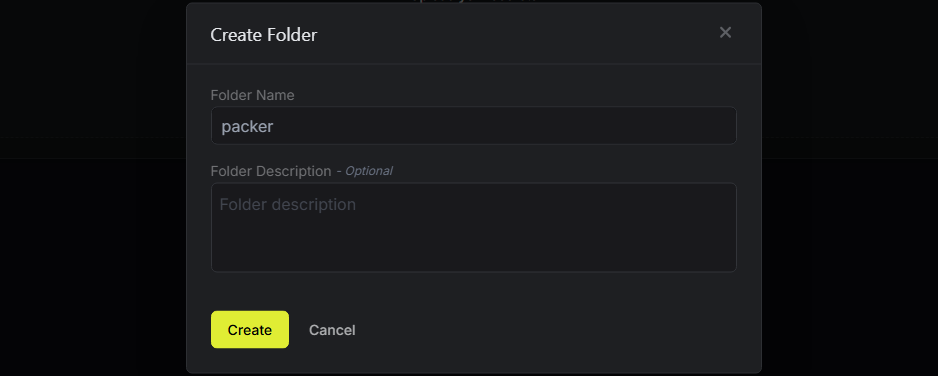


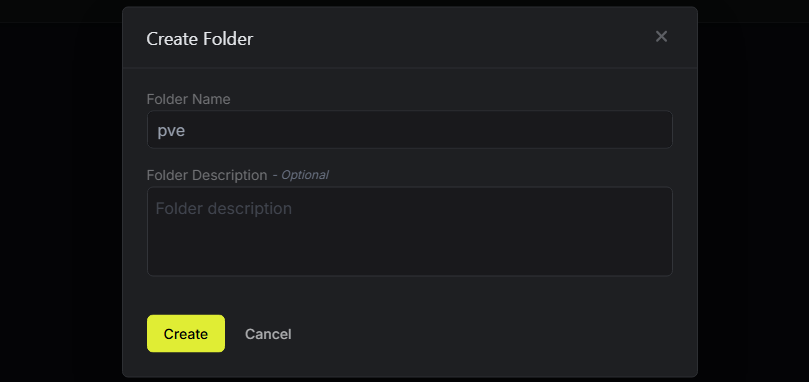
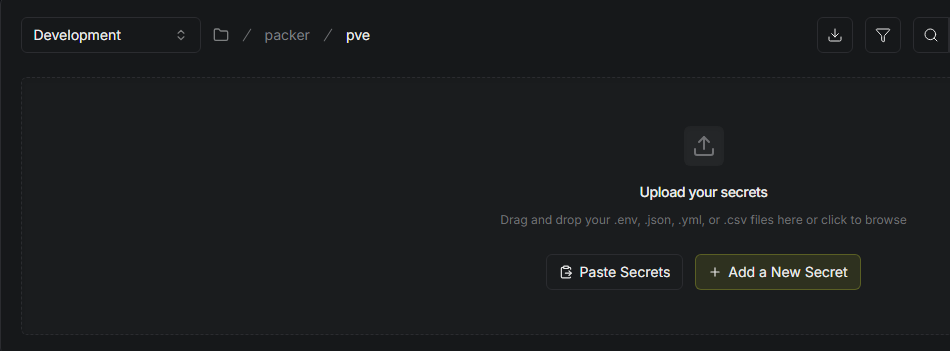
Secret 1
- Key:
PROXMOX_USERNAME - Value:
svc_devbox_packer@pve!packer-testing-token - Comment: Proxmox VE API token for testing Packer builds
Secret 2
- Key:
PROXMOX_TOKEN - Value:
2e9xxxxx-xxxx-xxxx-xxxx-xxxxxxxxx8d9 - Comment: Proxmox VE API token for testing Packer builds
Secret 3
- Key:
PKR_VAR_ssh_username - Value:
packertest - Comment: Username Packer uses when logging into test VM for provisioning
Secret 4
- Key:
PKR_VAR_ssh_password - Value: Generate a strong, random password and store it in here
- Comment: Password Packer uses when logging into test VMs for provisioning
Secret 5
- Key:
PKR_VAR_windows_admin_password - Value: Generate a strong, random password and store it in here
- Comment: Use this password for WinRM and RDP login on test VMs
Firewall Rules
Firewalls required for testing:
If you're operating on a flat network where all of your hosts are in the same subnet, this will most likely not apply to you, unless you're using host-based firewalls — e.g. iptables.
- Allow DevBox to reach PVE API
- Source: DevBox
Source Port: any - Destination: Proxmox Node(s)
Destination Port: 8006
- Source: DevBox
- Allow Packer to provision VMs over SSH
- Source: Developer Box
Source Port: any - Destination: Packer-provisioned VM VLAN
Destination Port: 22 — SSH provisioning
- Source: Developer Box
- Allow DevBox to Pull from Container Registry
- Source: Developer Box
Source Port: any - Destination: GitLab CE Server
Destination Port: 5050
- Source: Developer Box
Install Docker on DevBox (Debian)
 Docker Inc
sudo usermod -a -G docker $(whoami)Add yourself to the docker group, then logout and log back in
Pull the Packer Image from GitLab
Set up Credential Helper


Read and follow along to set up credential encryption with GPG
docker login gitlab-ce.lab.home.internal:5050Log in with your GitLab CE username and password
Pull the Packer Image
docker pull gitlab-ce.lab.home.internal:5050/infrastructure/runner-images/packer:latestTesting the Packer Container
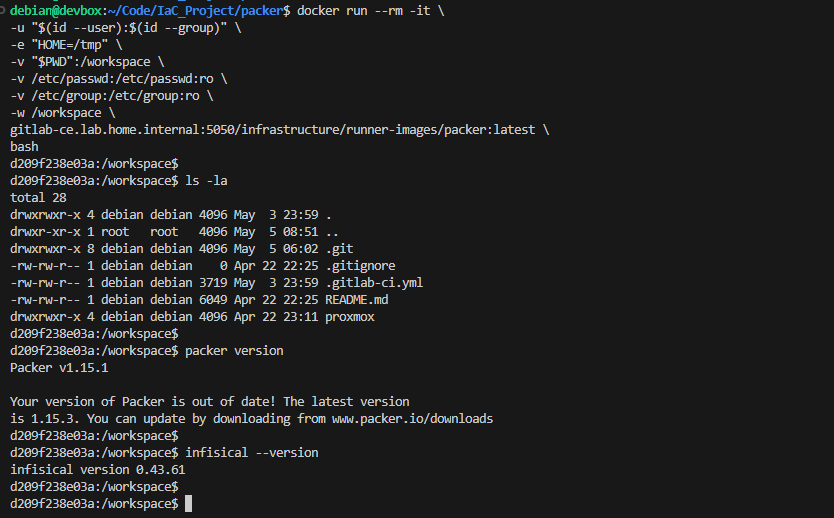
Now is an excellent opportunity to test out pulling packer from our Container Registry and making sure the containerized environment can build Packer templates without a hitch. It also has the infisical CLI installed, so we should be ready to go.
cd ~/Code/IaC_Project/packer/proxmoxdocker run --rm -it \
-u "$(id --user):$(id --group)" \
-e "HOME=/tmp" \
-v "$PWD":/workspace \
-v /etc/passwd:/etc/passwd:ro \
-v /etc/group:/etc/group:ro \
-w /workspace \
gitlab-ce.lab.home.internal:5050/infrastructure/runner-images/packer:latest \
bash- Mount
/etc/passwdand/etc/groupfrom the host to the container to force the container to acknowledge our UID / GID- These files are already read-only on the host anyway
- We want to launch the container with our UID and GID using the to ensure that any files created from within the container do not cause ownership issues inside the repository.
Infisical Access
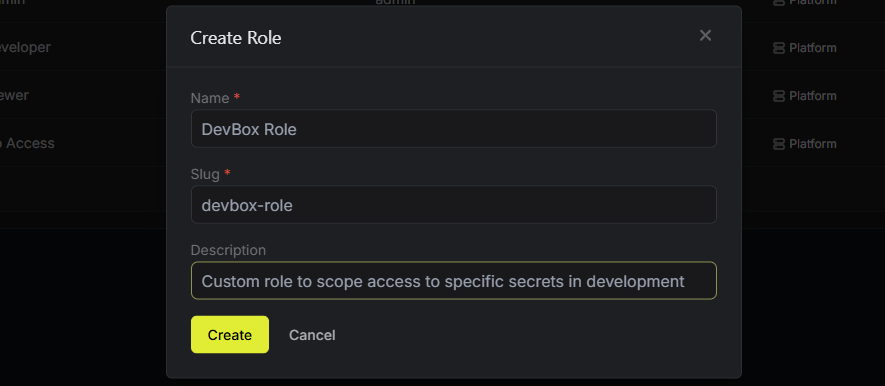
Add a Custom Role



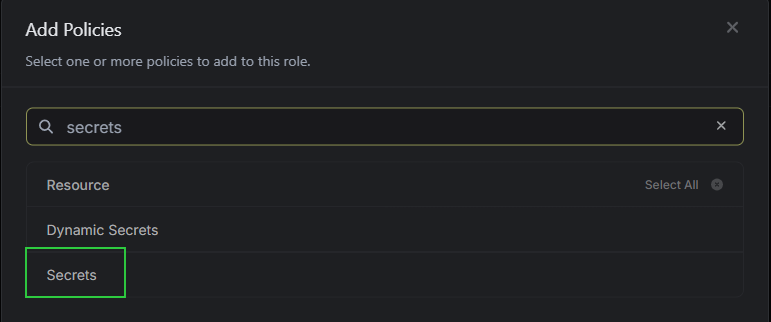
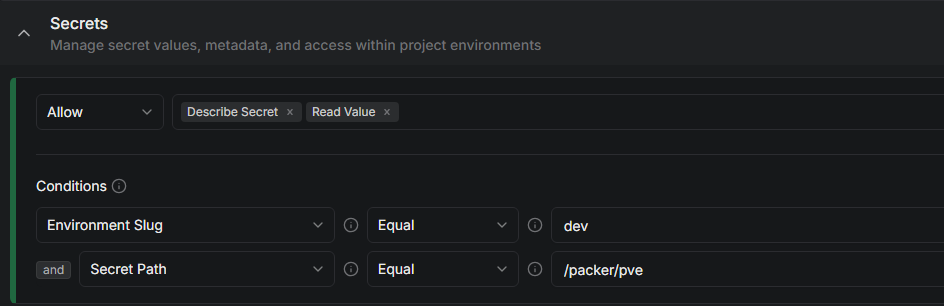

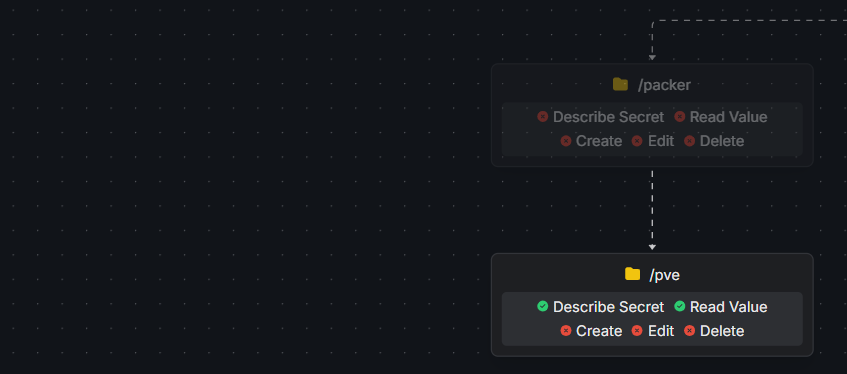
Add a Machine Identity
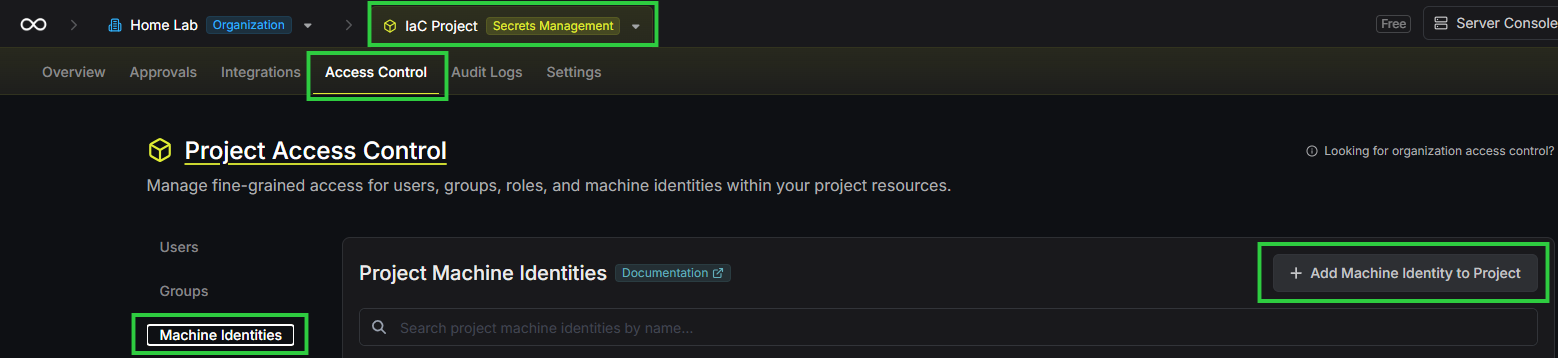
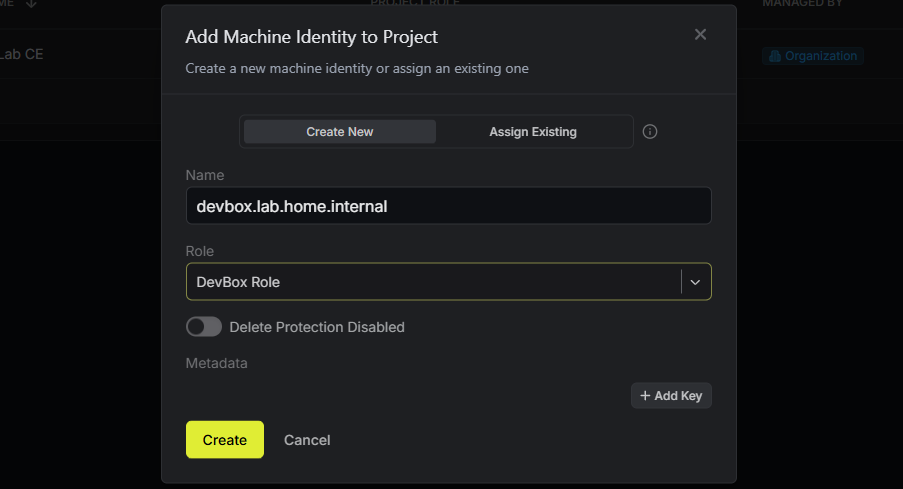
Set Universal Auth Token
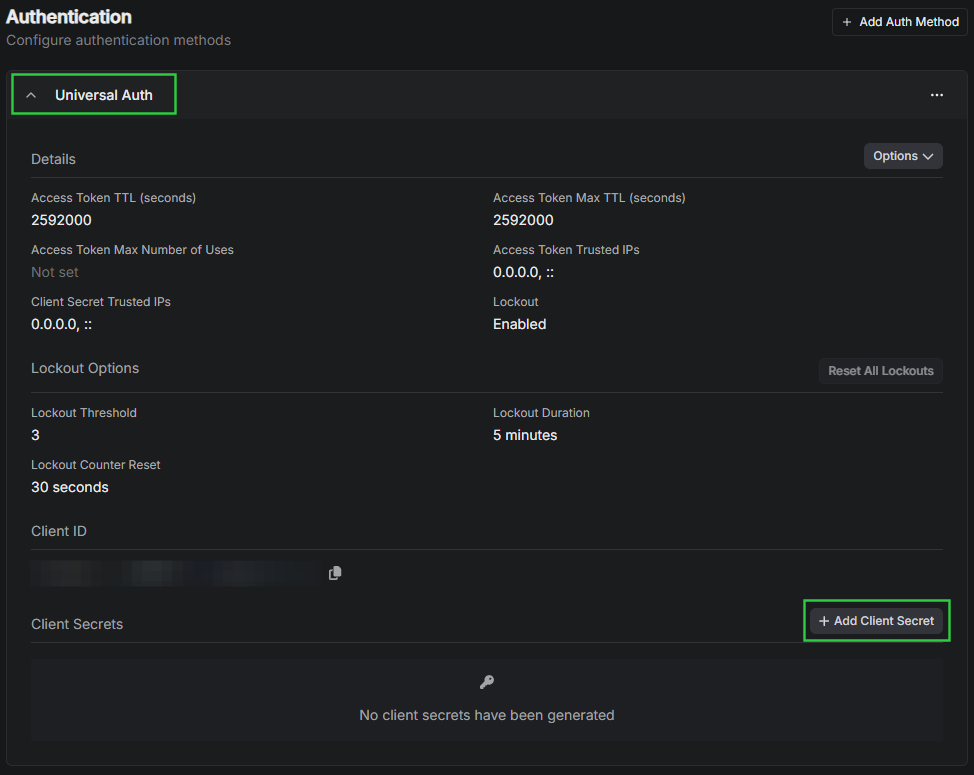
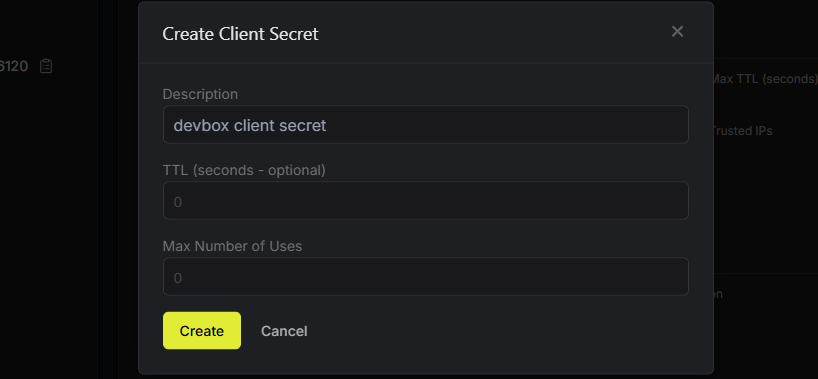
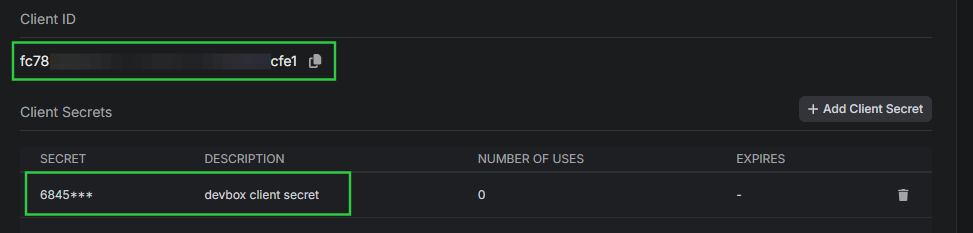
Authenticate and Import Secrets
read -e -s -p 'Enter your machine ID (input hidden): ' machine_id
export MACHINE_ID="$machine_id"
read -e -s -p 'Enter your machine secret (input hidden): ' machine_secret
export MACHINE_SECRET="$machine_secret"
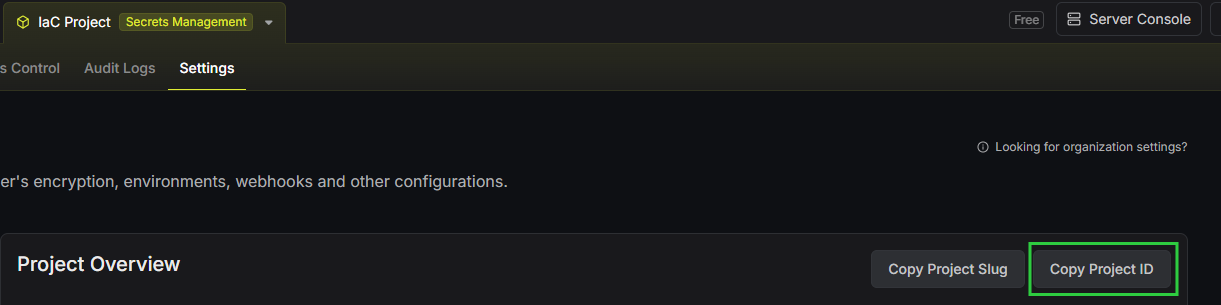
read -e -p 'Enter your Infisical project ID (input shown): ' infisical_project_id
export INFISICAL_PROJECT_ID="$infisical_project_id"
export INFISICAL_SECRET_PATH="/packer/pve"
INFISICAL_ACCESS_TOKEN=$(infisical login \
--domain="https://secrets.lab.home.internal" \
--method="universal-auth" \
--client-id="${MACHINE_ID}" \
--client-secret="${MACHINE_SECRET}" \
--silent \
--plain)Fetch an access token
eval $(infisical export \
--domain="https://secrets.lab.home.internal" \
--token="${INFISICAL_ACCESS_TOKEN}" \
--projectId="${INFISICAL_PROJECT_ID}" \
--env=dev \
--path="${INFISICAL_SECRET_PATH}" \
--format=dotenv-export \
--silent)
Export "/packer/pve" secrets from "dev"

PROXMOX_USERNAME and PROXMOX_TOKEN environment variables and use them to connect to the Proxmox VE API. PKR_VAR_ environment variables will act as inputs to those not already provided in .auto.pkrvars.hcl.Building the Proxmox VM Template
cd /workspace/builds/linux/debian/debian-13-vm/Running inside the packer docker container
packer init .packer fmt .packer validate .Carefully inspect any warning or error output here and re-run after fixing any issues
packer build \
-var 'resource_pool=packer-testing' \
-var 'vm_name=debian-13-test-build' \
-var 'vm_id=30000' .-var resource_pool=packer-testing, we override the default input we provided in the debian-13-vm.auto.pkrvars.hcl file, as the -var command line switch holds higher precedence.As for
vm_id, choose a VM number that's not already taken, perhaps within a range that's specifically reserved for testing.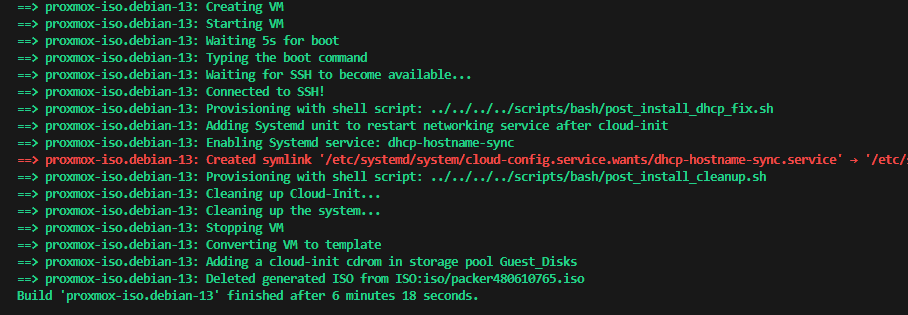
/pool/packer-testing, or set up a cron job to automatically clean up that pool at regular intervals.Prepare to Commit the Code
.gitignore
cd ~/Code/IaC_Project/packer/tree -a -I .git/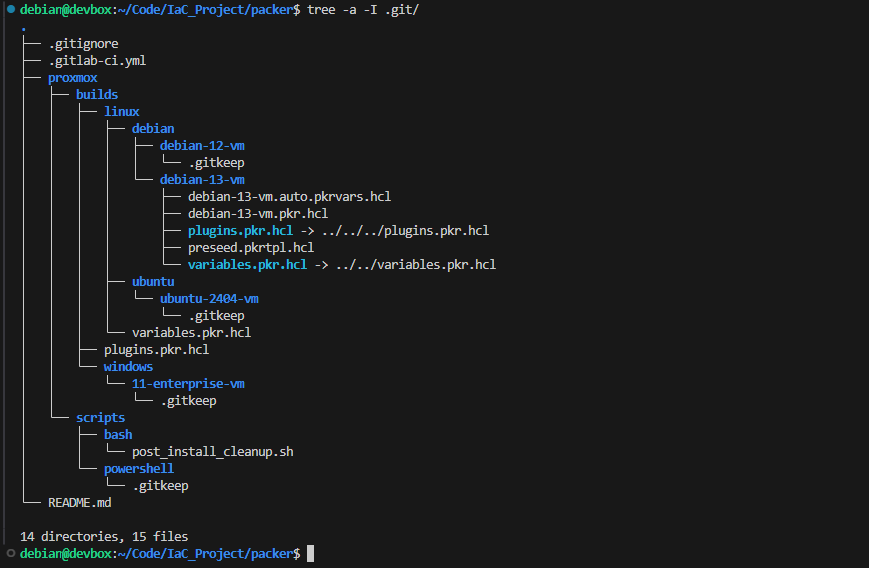
debian-13-vm.auto.pkrvars.hcl because it does not contain any sensitive secrets; nor does the post_install_cleanup.sh script.If you want to be proactive, you could reference some
.gitignore files from other projects and add some directories and / or files to be on the safe side.But, we need to commit
debian-13-vm.auto.pkrvars.hcl to the repo, because it contains variables that the GitLab runner will use in the build jobs..gitlab-ci.yml
This is where we define the pipeline configuration for our infrastructure/packer repository. Be sure to read the comments — which go into more detail about each section.
.gitlab-ci.yml (SHOW/HIDE)
# Source in the Infisical authentication helper
include:
  - project: 'infrastructure/ci-helpers'
    ref: main
    file: '/infisical.gitlab-ci.yml'
  - template: Security/Secret-Detection.gitlab-ci.yml
  - template: Security/SAST.gitlab-ci.yml

# Trigger pipeline in the web and on merge rquests to main (or other default)
workflow:
  rules:
    - if: $CI_PIPELINE_SOURCE == "web"
    - if: $CI_PIPELINE_SOURCE == "merge_request_event"
    - if: $CI_COMMIT_BRANCH == $CI_DEFAULT_BRANCH

# ----- SECRETS SCANNING START ----- #

sast:
  stage: validate

secret_detection:
  stage: validate

# Stages to break up pipeline jobs
stages:
  - validate
  - build

# ----- SECRETS SCANNING END ----- #

# Global pipeline variables
# Authentication to container registry to pull Dockerized packer
variables:
  SECRET_DETECTION_ENABLED: 'true'
  DOCKER_AUTH_CONFIG: >
    {
      "auths": {
        "$CI_REGISTRY": {
          "username": "$CI_REGISTRY_USER",
          "password": "$CI_JOB_TOKEN"
        }
      }
    }
  PACKER_IMAGE:           "$CI_REGISTRY/infrastructure/runner-images/packer:${PACKER_VERSION}" # References version variable from group CI/CD settings

# Hidden job (helper)
# Defines the helper script for running:
# 'packer fmt', 'packer init', and 'packer validate'
# PROXMOX_USERNAME and PROXMOX_TOKEN are empty placeholders
# Because we do not pull Infisical secrets in the unprotected runner
# And, these variables are required for 'packer validate' to pass
.validate-build:
  stage: validate
  image: $PACKER_IMAGE
  tags: [lint]
  variables:
    PROXMOX_USERNAME: "placeholder"
    PROXMOX_TOKEN:    "placeholder"
  script:
    - |
      set -e
      echo "[*] Checking format: ${BUILD_DIR}"
      cd "${BUILD_DIR}"
      packer fmt -check .

      echo "[*] Validating: ${BUILD_DIR}"
      packer init .

      packer validate .
      echo "[+] All validation tasks passed on: ${BUILD_DIR}."


# -- Hidden: base build job ---------------------------------------
# All PKR_VAR_* and provider-native variables are already in the
# environment before this script runs:
#   - Non-secrets: from GitLab project-level CI/CD variables
#   - Secrets: exported by .infisical-auth before_script
# Nothing to export. Just build.
.build-template:
  stage: build
  image: $PACKER_IMAGE
  tags: [packer]
  variables:
    INFISICAL_SECRET_PATH: "/packer/pve"
  extends: .infisical-auth
  script:
    - |
      set -e
      cd "${BUILD_DIR}"
      packer init .
      packer build --force .
  rules:
    # Triggers job any user creates a new pipeline in the web UI
    # Must be manually started
    - if: $CI_PIPELINE_SOURCE == "web"
      when: manual


# ----- Debian 13 VM ----- #

validate-debian-13-vm:
  extends: .validate-build
  variables:
    BUILD_DIR: "proxmox/builds/linux/debian/debian-13-vm"
  rules:
    # Triggers job when merge request created
    # But only if code changed inside the working directory
    - if: $CI_PIPELINE_SOURCE == "merge_request_event"
      changes:
        - proxmox/builds/linux/debian/debian-13-vm/**/*
        - proxmox/scripts/bash/**/*
    # Triggers job any time code is commited to default branch
    # But only if code changed inside the working directory
    - if: $CI_COMMIT_BRANCH == $CI_DEFAULT_BRANCH
      changes:
        - proxmox/builds/linux/debian/debian-13-vm/**/*
        - proxmox/scripts/bash/**/*

build-debian-13-vm:
  extends: .build-template
  variables:
    BUILD_DIR: "proxmox/builds/linux/debian/debian-13-vm"
  rules:
    # Rules are evaulated from top to bottom
    # Also, 'rules' here will override rules in '.build-template'
    # To include the rules from '.build-template', we use a '!reference'
    # We put it at the top, because "changes" always evaluates to "true" in the web
    - !reference [.build-template, rules]
    # Triggers job any time code is commited to default branch
    # But only if code changed inside the working directory
    - if: $CI_COMMIT_BRANCH == $CI_DEFAULT_BRANCH
      changes:
        - proxmox/builds/linux/debian/debian-13-vm/**/*
        - proxmox/scripts/bash/**/*
Merge Request
Firewall Rules for Production
If you're operating on a flat network where all of your hosts are in the same subnet, this will most likely not apply to you, unless you're using host-based firewalls — e.g. iptables.
- Allow Protected Runner to reach PVE API
- Source: Protected Runner VM
Source Port: any - Destination: Proxmox Node(s)
Destination Port: 8006
- Source: Protected Runner VM
- Allow Packer to provision VMs over SSH
- Source: Protected Runner VM
Source Port: any - Destination: Packer-provisioned VM VLAN
Destination Port: 22 — SSH provisioning
- Source: Protected Runner VM
Push Files to GitLab
git clone with our SSH key before, when we git add and git commit, it will continue to use SSH authentication.cd ~/Code/IaC_Project/packer/Change to the root of the repository
git statusgit add .git commit -m "Adds all packer files and pipeline config."git push -u origin add-initial-filesPublish the branch to GitLab
Create a Merge Request


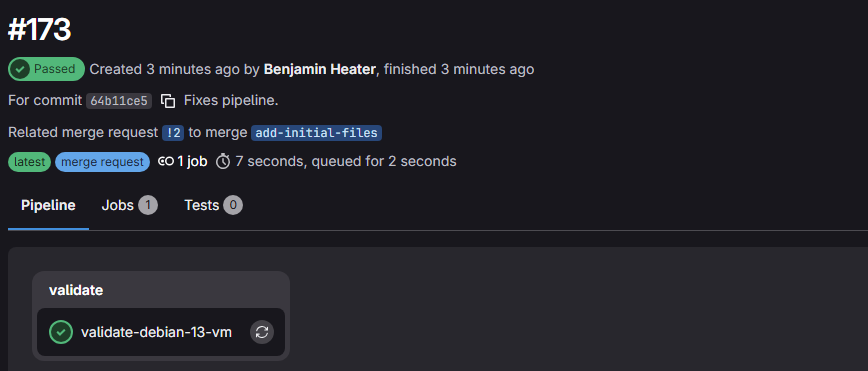
Inspect Validate Pipeline Job

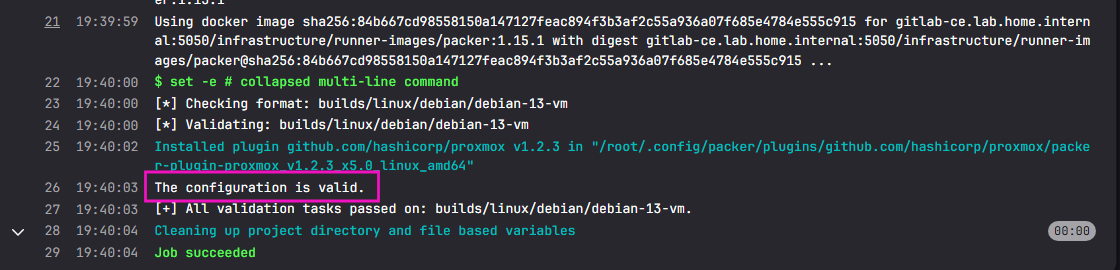
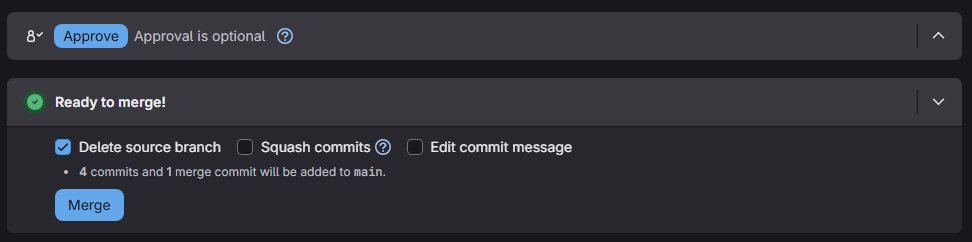
Trigger the Build Job



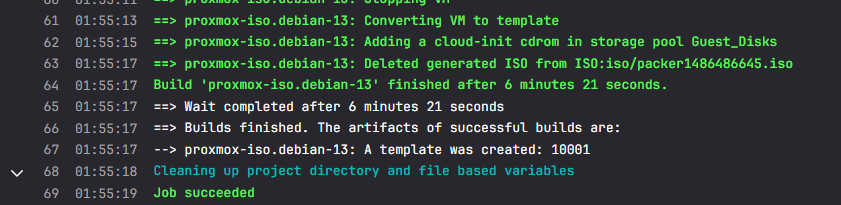
Clean up Feature Branch
git switch maingit pull --prunegit branch -d add-initial-filesPipeline Sanity Check
Code Change
Given how the pipeline is configured, you should be able to test the change detections by making a small cosmetic change.
cd ~/Code/IaC_Project/packergit checkout -b test-pipeline-logicvm_tags = "packer-template;vm;linux;debian;trixie"debian-13-vm.auto.pkrvars.hcl -- Before
vm_tags = "packer-template;vm;linux;debian;trixie;test"debian-13-vm.auto.pkrvars.hcl -- After
git add . && git commit -m "Adds test tag to template."Add and commit the changes
git push -u origin test-pipeline-logic -o merge_request.createPush to GitLab and open a merge request automatically
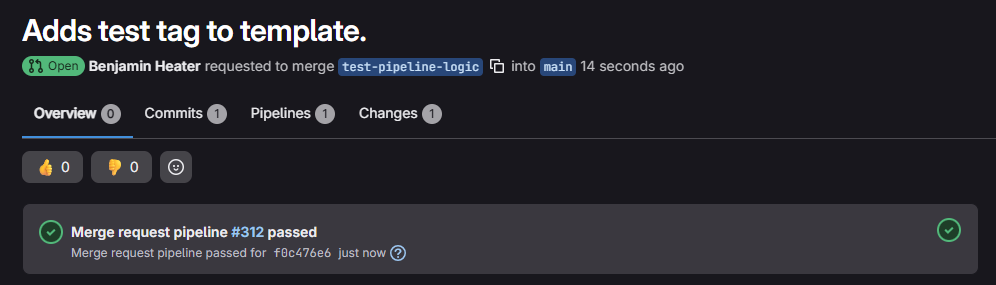

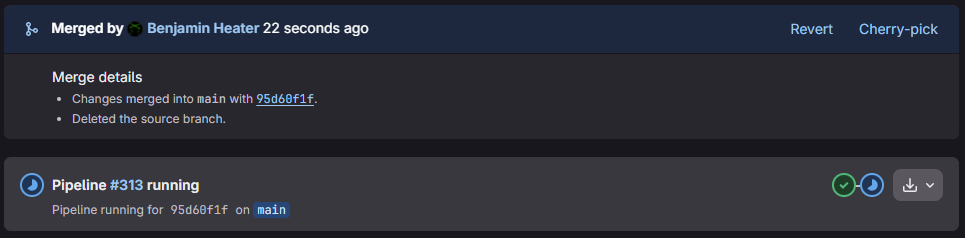
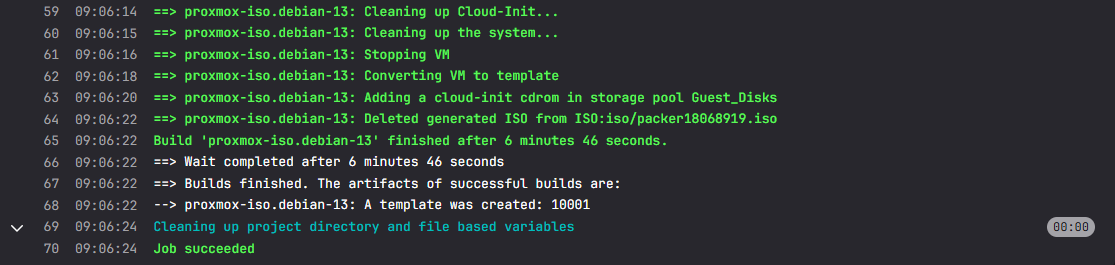

cd ~/Code/IaC_Project/terraformgit switch main && git pull --prunegit branch -d test-pipeline-logicClean up the feature branch after merge into main
Closing the Packer Module
Quick Review
Lessons Learned
- We established the model of local iterative refinement
- We don't want to troubleshoot
packer validateorpacker buildin the pipeline - We do want to run those locally in our development environment while we debug issues until a build successfully completes
- Then,
packer build --force .in the pipeline will create the final template
- We don't want to troubleshoot
- We identified the need to test
packer buildin a resource pool isolated from production- We created a separate Proxmox VE group, resource pool, user, and token and scoped permissions to write to the test pool
- We set up secrets in
devinside Infisical and scoped role for our DevBox to authenticate with universal auth and pull the secrets fromdev- The variable names match
prod, so are immediately ready for testing with the Packer files
- The variable names match
- We identified the need to run
packer buildwith a-var 'resource_pool=packer-testingflag during test builds
Moving Forward
- Our pipeline for
debian-13-vmshould now be stable enough that we can:- Start a new feature branch
- Make changes to the template or variables
git add .,git commit, andgit pushand let the pipeline handle future builds
- For new VM templates...
- You'll create your source code and repeat the local iterative refinement until you have a successful build
- Use your
packercontainer from the GitLab Container Registry - Log into Infisical and import secrets from
prod packer init .,packer fmt ., andpacker validate .- Then,
packer build -var 'resource_pool=packer-testing'.until a template build is successful
- Use your
- Then, you'll update
.gitlab-ci.ymlwith new job:validate-template-namebuild-template-name
git add,git commit, andgit pushyour new template and pipeline
- You'll create your source code and repeat the local iterative refinement until you have a successful build
- Updating your README.md
- At some point, you should update your
README.mdfile - In this file, you should outline the steps you (or other developers) should take when carrying out local development and testing and commits to production
- At some point, you should update your
Helpful Links


 chef
chef
These are primarily for "vagrant", but very useful for seeing how others make templates
Next Step
 0xBEN
0xBEN