

SSH Client
If you're running Windows 11 — the latest version of Windows at the time of writing — then, you already have access to the Windows Terminal app. If for some reason you do not, I recommend installing it, as you really don't need Putty to complete these exercises.
 Microsoft Corporation
Also, in most recent versions of Windows, the ssh.exe client and related binaries should already be installed and ready for use. Below, I've provided some examples of the most basic SSH syntax for connecting to the challenges.
ssh username@127.0.0.1SSH using IP address
ssh username@domain.tldSSH using FQDN
Century 0 -> 1
century1:century1ssh -o 'StrictHostKeyChecking=no' century1@century.underthewire.techUse the StrictHostKeyChecking=no option to skip the key verification prompt

Century 1 -> 2
The password for Century2 is the build version of the instance of PowerShell installed on this system.
$PSVersionTable.BuildVersion
[String]$PSVersionTable.BuildVersionUse .NET type casting
$PSVersionTable.BuildVersion.ToString()Or, use the ToString() method from the object
10.0.14393.7604Password for century2
exitExit the challenge
Century 2 -> 3
The password for Century3 is the name of the built-in cmdlet that performs the wget like function within PowerShell PLUS the name of the file on the desktop.
ssh century2@century.underthewire.techNo longer need the additional option, since the host key has already been added to the known hosts list
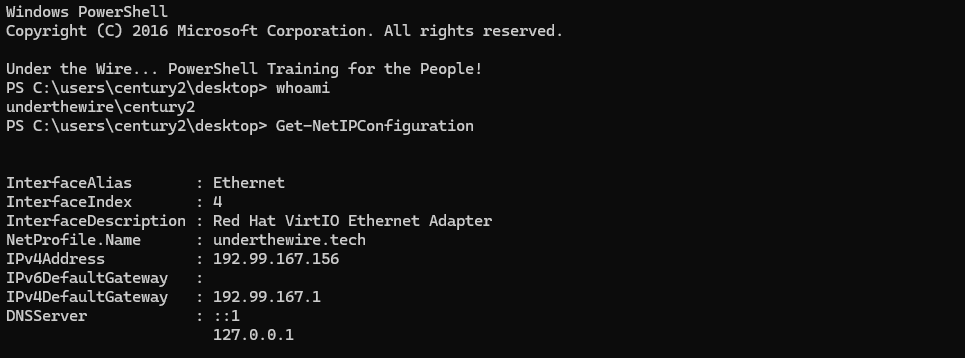
Get-ChildItemList the items in the Desktop directory
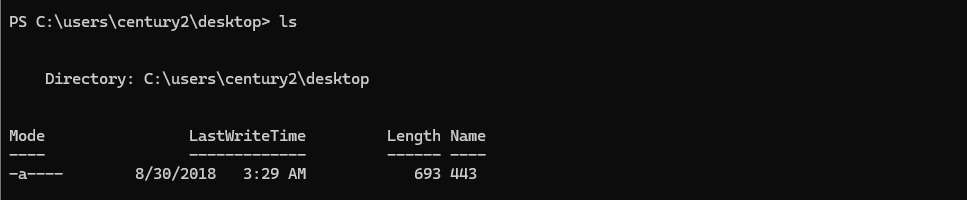
ls alias for the Get-ChildItem cmdlet. The name of the file is 443wget and the name of the file. And it will be lowercase.
Get-Command wget, we see it is aliased to Invoke-WebRequestPowerShell, like bash and other unix-like shells, supports the action of aliasing commands. We use aliases to create a short word that maps to an otherwise longer command. Invoke-WebRequest is a lot longer than typing wget, hence the alias makes it more convenient to run the target command.
(Get-Command Invoke-WebRequest).Name.ToLower() + (Get-ChildItem -File).NameOne-liner to output the password for the next challenge, use the .ToLower() method to make the letters lowercase
invoke-webrequest443The password for century3
exitExit the challenge
Century 3 -> 4
The password for Century4 is the number of files on the desktop.
ssh century3@century.underthewire.tech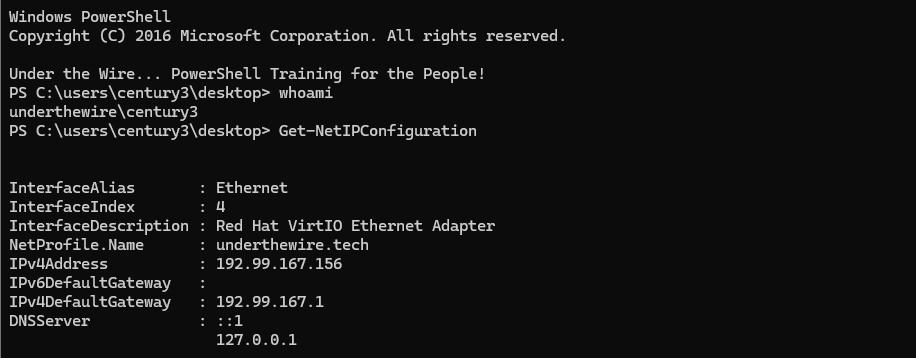
(Get-ChildItem -File).CountWrap the cmdlet in parentheses and call the .Count property
Get-ChildItem -File | Measure-Object Pipe the output to the Measure-Object cmdlet
123Password for century4
exitCentury 4 -> 5
The password for Century5 is the name of the file within a directory on the desktop that has spaces in its name.
ssh century4@century.underthewire.tech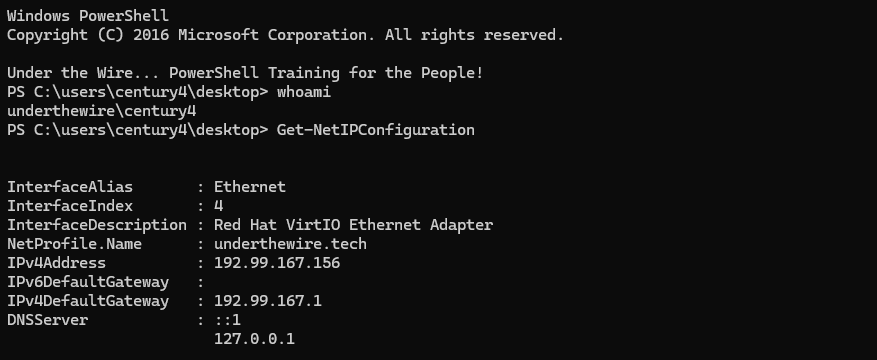
Get-ChildItem -Recurse -File | Where-Object {$_.Directory.Name -like '* *'}I'll break down the command in a series of bullet points:
-Recursemeans we drill down into each subdirectory underDesktop-Fileand select only files- Then,
| Where-Object {$_.Directory.Name -like '* *'}is a filter saying- Process each file we've discovered in the
Get-ChildItemcmdlet - Look at each file's parent directory name
- Use
* *to say that we'll match any character(s) separated by a space
- Process each file we've discovered in the

6265Password for century5
exitCentury 5 -> 6
The password for Century6 is the short name of the domain in which this system resides in PLUS the name of the file on the desktop.
ssh century5@century.underthewire.tech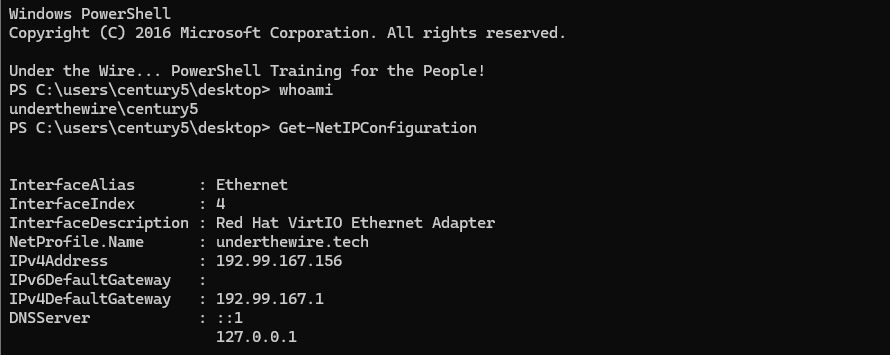
Get-ADDomain | Select-Object NameUse native Get-ADDomain cmdlet
[System.DirectoryServices.ActiveDirectory.Domain]::GetCurrentDomain().Name.Split('.')[0]Use .NET class to get the base name of the domain
.Split('.')[0] means that the text will be split into parts anywhere a . occurs. Therefore, underthewire.tech is split into two parts. And, in computing, counting starts from 0, because of the binary numbering system and transistor states, so we select the first of the two parts.(Get-ADDomain).Name + (Get-ChildItem -File).NameOne-liner to output the password for century6
underthewire3347password for century6
exitCentury 6 -> 7
The password for Century7 is the number of folders on the desktop.
ssh century6@century.underthewire.tech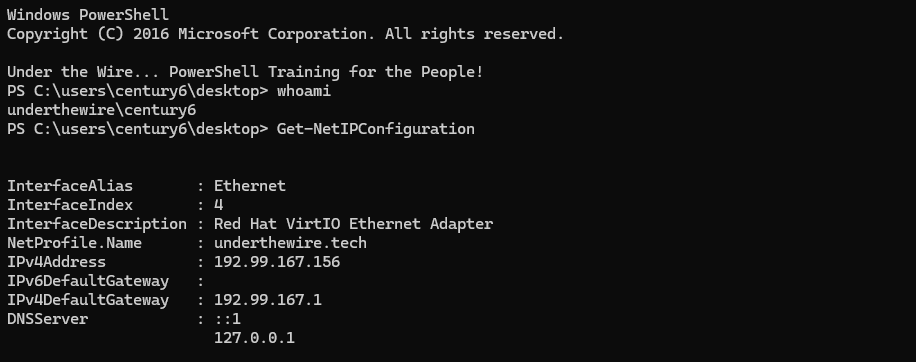
Get-ChildItem -Directory | Measure-ObjectPipe to Measure-Object
(Get-ChildItem -Directory).CountUse the .Count property
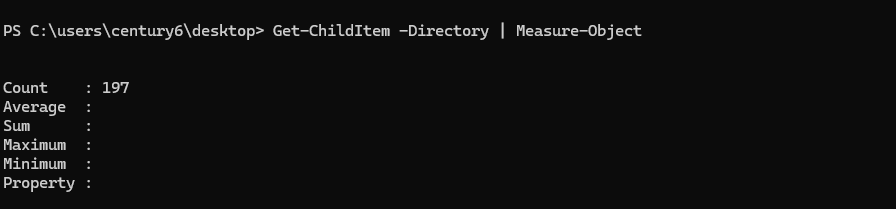
197Password for century7
exitCentury 7 -> 8
The password for Century8 is in a readme file somewhere within the contacts, desktop, documents, downloads, favorites, music, or videos folder in the user’s profile.
ssh century7@century.underthewire.tech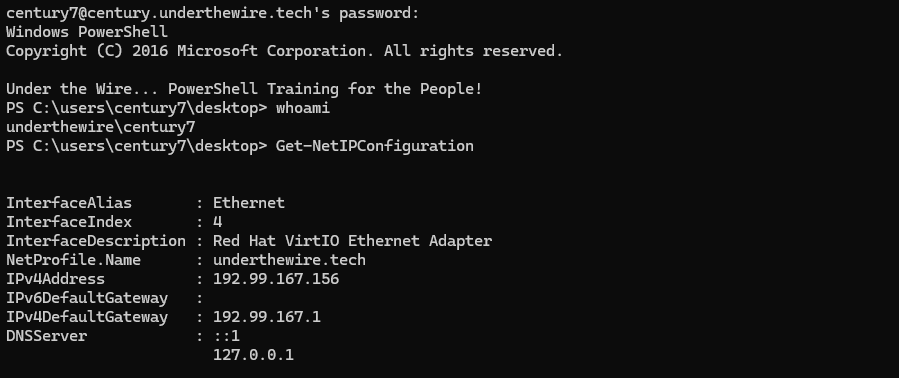
C:\users\century7\desktopGet-ChildItem -Recurse -File -Filter '*read*' .... indicates the directory above this one
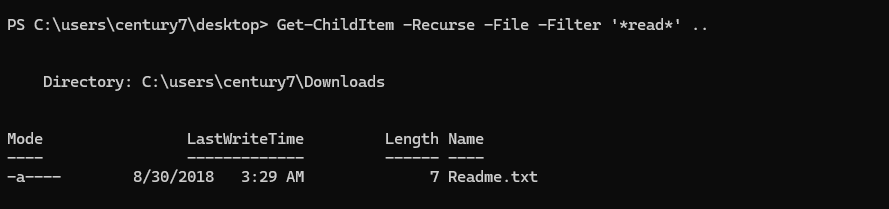
-Filter parameter as opposed to piping to Where-Object as you might see in some examples. This is because the filter happens at the cmdlet runtime, as opposed to collecting all files and then filtering using Where-Object. So, you'll experience better performance.Get-ChildItem -Recurse -File -Filter '*read*' .. | Get-ContentWe can pipe it to Get-Content to read the contents of the file
7pointsPassword for century8
exitCentury 8 -> 9
The password for Century9 is the number of unique entries within the file on the desktop.
ssh century8@century.underthewire.tech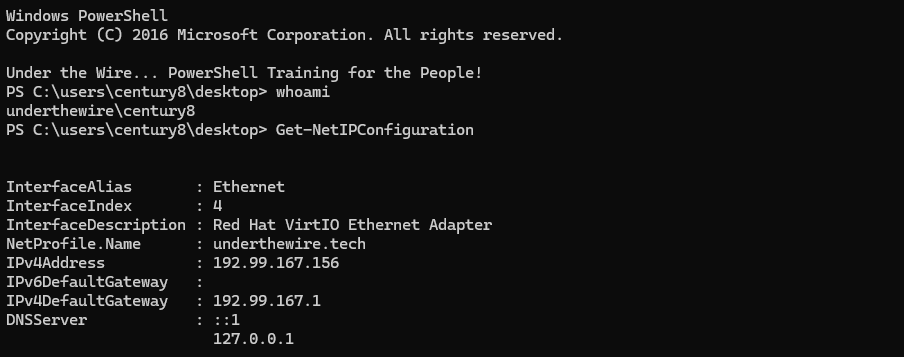
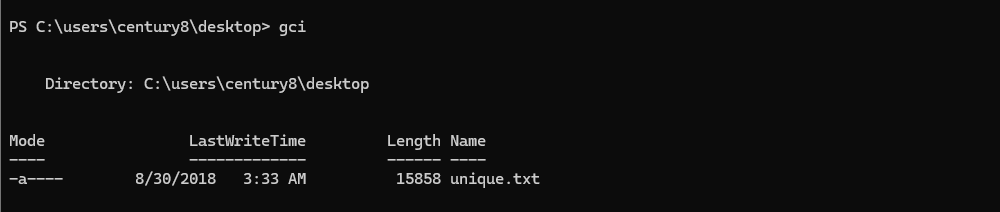
gci alias of Get-ChildItem to find target fileGet-Content .\unique.txt | Sort-Object -Unique | Measure-ObjectUse the -Unique switch with Sort-Object to filter on unique occurrences
| Select-Object -Unique | Measure-Object696Password for century9
exitCentury 9 -> 10
The password for Century10 is the 161st word within the file on the desktop.
ssh century9@century.underthewire.tech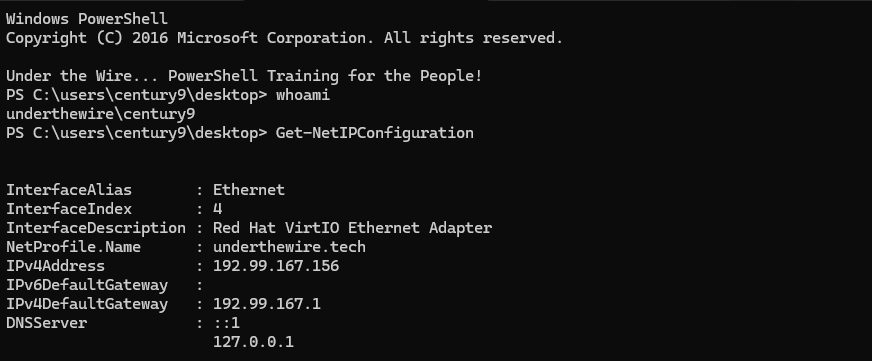
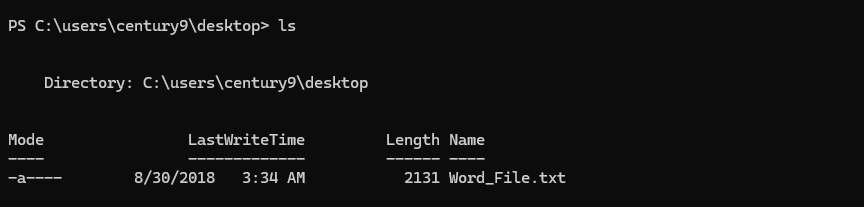
ls alias of Get-ChildItem to find the target file
cat alias of Get-Content to read the current contents of the fileIf we try and select any particular line of the file, this is going to fail. This is because the words of the file are all occurring on one long line and there's no way for PowerShell to distinguish where one word starts and ends.
(cat .\Word_File.txt) -split ' 'Split the text into multiple lines

Index 0 is the first word in the file. This is because in computing, a transistor can be on or off, so zero is a valid state. Therefore, we begin counting from 0.(cat .\Word_File.txt) -split ' ' | Select-Object -Index 160Select the 161st word from the file
0 in computing, we need to offset 161 - 1 to get the 161st word.pieridexitCentury 10 -> 11
The password for Century11 is the 10th and 8th word of the Windows Update service description combined PLUS the name of the file on the desktop.
ssh century10@century.underthewire.tech
(Get-CimInstance win32_service -Filter 'DisplayName like "Windows Update"').Description.Split(' ')[9,7].ToLower()Use the Get-CimInstance to query the win32_service class and filter on "Windows Update". Then, split the Description property by spaces and choose the 10th and 8th words.
Get-Service cmdlet does not include the Description property with the object output. Also, recall that we have to do 10 - 1 and 8 - 1 because of the words starting from 0. We also want to use ToLower() to ensure the password is lowercase.
-join(Get-CimInstance win32_service -Filter 'DisplayName like "Windows Update"').Description.Split(' ')[9,7].ToLower() + (ls -File).NameOne-liner to output the password for century11
windowsupdates110Password for century11
exitCentury 11 -> 12
The password for Century12 is the name of the hidden file within the contacts, desktop, documents, downloads, favorites, music, or videos folder in the user’s profile.
ssh century11@century.underthewire.tech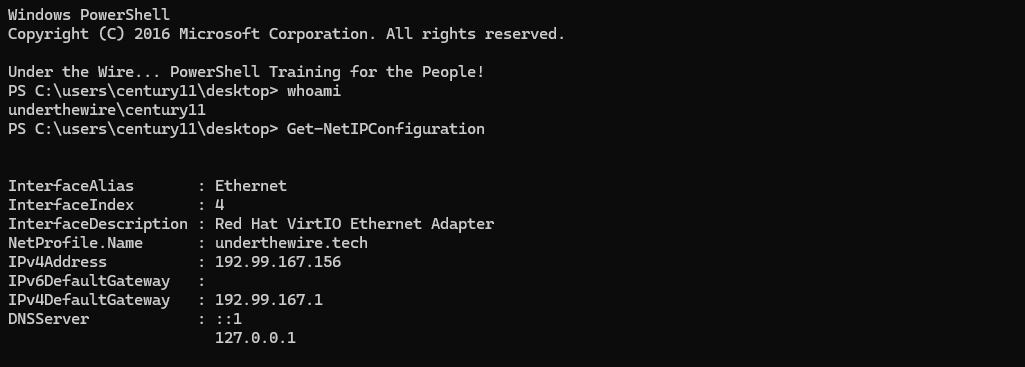
Desktop directory.cd ..Get-ChildItem -Hidden -Recurse -File -ErrorAction SilentlyContinue | Select-Object -Unique NameUse the -ErrorAction SilentlyContinue parameter to suppress error output and select only unique hidden file names
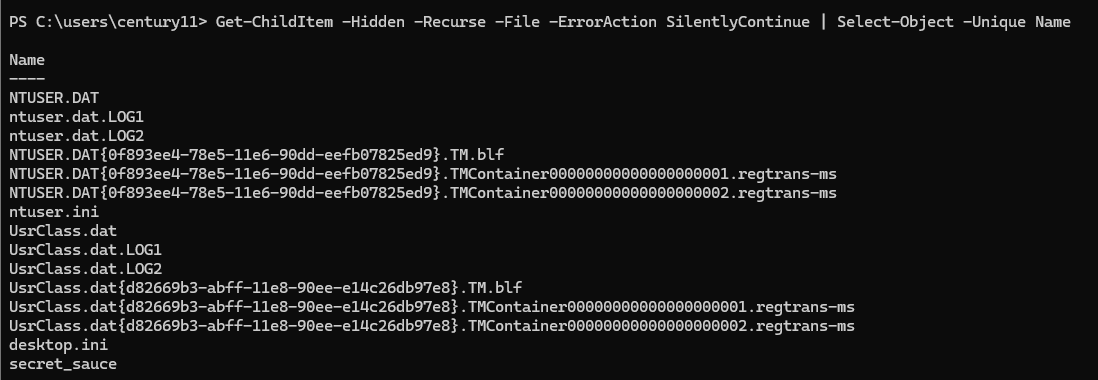
secret_saucePassword for century12
exitCentury 12 -> 13
The password for Century13 is the description of the computer designated as a Domain Controller within this domain PLUS the name of the file on the desktop.
ssh century12@century.underthewire.tech
Get-ADDomainController | Select-Object -ExpandProperty NameUse ActiveDirectory cmdlet to get the domain controller name
[System.DirectoryServices.ActiveDirectory.Domain]::GetCurrentDomain().DomainControllers.NameUse .NET reflection to get the domain controller name
Get-ADComputer -Filter 'Name -like "UTW"' -Properties Description | Select-Object -ExpandProperty DescriptionUse the PowerShell -Filter to filter on the domain computer using the name found before
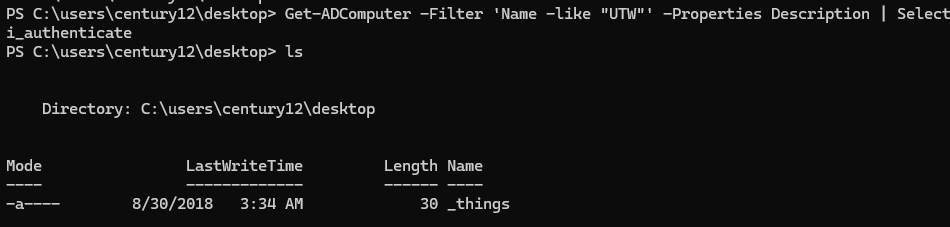
(Get-ADComputer -Filter 'Name -like "UTW"' -Properties Description).Description.ToLower() + (ls -File).Name.ToLower()One-liner to output the password for century13
i_authenticate_thingsPassword for century13
exitCentury 13 -> 14
The password for Century14 is the number of words within the file on the desktop.
ssh century13@century.underthewire.tech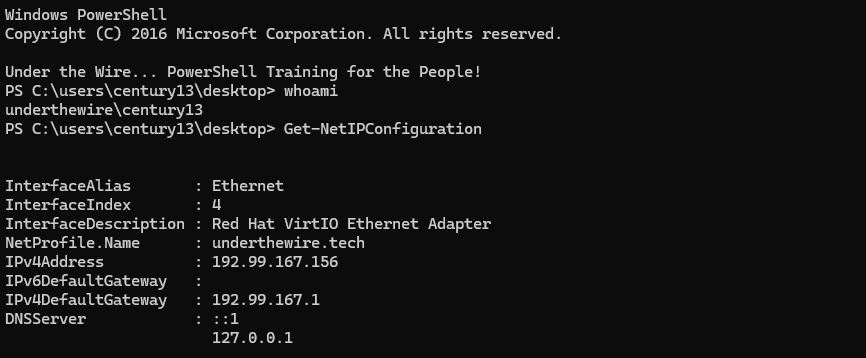
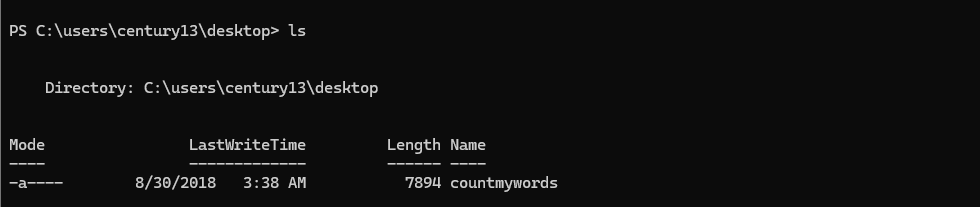
(-split(cat .\countmywords)).CountUse the -split operator to split the file into lines and an outer layer of parentheses and the .Count property to find the number of words
755Password for century14
exitCentury 14 -> 15
The password for Century15 is the number of times the word “polo” appears within the file on the desktop.
ssh century14@century.underthewire.tech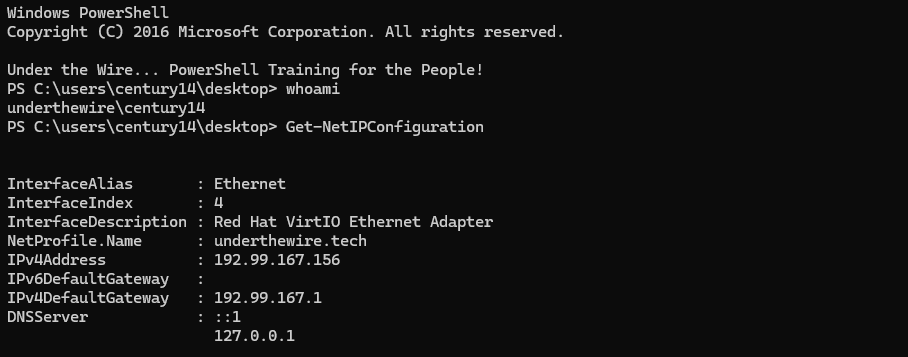
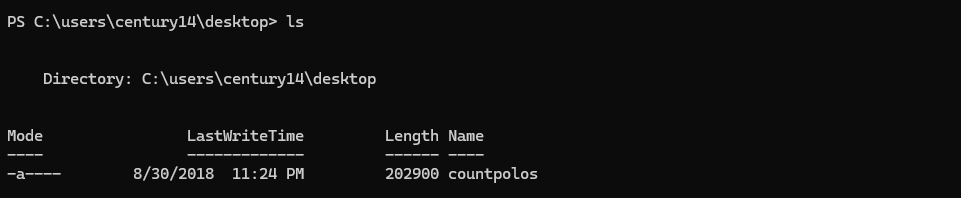
(cat .\countpolos) -split ' ' -like 'polo' | Measure-ObjectSplit on spaces to output words on new lines, then use -like 'polo' to filter on exact matches and finally, pipe to Measure-Object
153Password for century 15
exit