
Previous Step
 0xBEN
0xBEN
Quality of Life Improvements
Better Bash Prompts in Container
Create the DockerHelpers Repository
- Log into GitLab and open the Infrastructure Project
- Add a new project called DockerHelpers
- Initialize with a
README.mdfile
- Initialize with a
- Disable Auto Devops
- Log into your DevBox — or wherever you are doing your Infrastructure-as-Code development
Add the Source Code
git clone git@gitlab-ce.lab.home.internal:infrastructure/dockerhelpersAssumes you're using Git SSH keys to clone the repo
git checkout -b initial-committouch docker.bashrc
touch launch-packer-docker.sh
touch launch-terraform-docker.sh
touch launch-ansible-docker.sh
touch write-help.sh
touch docker-auth-helper.sh
chmod 754 *.shwrite-help.sh (SHOW/HIDE)
RESTORE=$(echo -en '\033[0m')
RED=$(echo -en '\033[00;31m')
GREEN=$(echo -en '\033[00;32m')
YELLOW=$(echo -en '\033[00;33m')
BLUE=$(echo -en '\033[00;34m')
MAGENTA=$(echo -en '\033[00;35m')
PURPLE=$(echo -en '\033[00;35m')
CYAN=$(echo -en '\033[00;36m')
LIGHTGRAY=$(echo -en '\033[00;37m')
LRED=$(echo -en '\033[01;31m')
LGREEN=$(echo -en '\033[01;32m')
LYELLOW=$(echo -en '\033[01;33m')
LBLUE=$(echo -en '\033[01;34m')
LMAGENTA=$(echo -en '\033[01;35m')
LPURPLE=$(echo -en '\033[01;35m')
LCYAN=$(echo -en '\033[01;36m')
WHITE=$(echo -en '\033[01;37m')

function write_help() {

    if [ "$1" == "helpmsg" ] ; then
        PROGRAM_NAME=$2

        if [[ "$PROGRAM_NAME" =~ "packer" ]] ; then
            CONTAINER_NAME="HashiCorp Packer"
        elif [[ "$PROGRAM_NAME" =~ "terraform" ]] ; then
            CONTAINER_NAME="HashiCorp Terraform"
        else
            CONTAINER_NAME="Ansible"
        fi

        echo -e "\n${GREEN}Usage:${RESTORE} ${LMAGENTA}${PROGRAM_NAME}${RESTORE} [<DIRECTORY>] [--help|-h]\n"
        echo "This script will launch ${GREEN}${CONTAINER_NAME}${RESTORE} in a Docker container"
        echo -e "inside a directory of your choosing\n"
        echo -e "${YELLOW}Example:${RESTORE} ${LMAGENTA}${PROGRAM_NAME}${RESTORE} ~/Code/IaC_Project/project-name\n"
    else
        INPUTDIR=$1
        echo -e "\n${RED}Directory:${RESTORE} ${INPUTDIR} ${RED}does not exist.${RESTORE}"
        echo -e "${YELLOW}Please specify a valid working directory and try again.${RESTORE}\n"
    fi
}
docker-auth-helper.sh (SHOW/HIDE)
function docker-auth-helper() {

    CONTAINER_REGISTRY_HOST=$1
    CONTAINER_IMAGE_FULL=$2
    IMAGE_EXISTS=$(docker image ls --format table --quiet "$CONTAINER_IMAGE_FULL")
    GPG_BACKEND=$(grep '"credsStore": "pass"' ~/.docker/config.json)

    # Image has not been downloaded
    if [ -z "$IMAGE_EXISTS" ] ; then

        echo -e "\n${RED}Image not pulled:${RESTORE}: ${CONTAINER_IMAGE_FULL}"
        echo -e "Executing ${GREEN}'docker login ${CONTAINER_REGISTRY_HOST}'${RESTORE}"
        echo -e "Then if login successful, ${GREEN}'docker pull ${CONTAINER_IMAGE_FULL}'${RESTORE}\n"

        if [ -z "$GPG_BACKEND" ] ; then

            echo -e "\n${YELLOW}WARNING!${RESTORE}"
            echo -e "It is strongly recommended to use the GPG-encrypted ${GREEN}'pass'${RESTORE}"
            echo -e "credential store for ${GREEN}docker login${RESTORE}. However this does not appear to be set in ${GREEN}${HOME}/.docker/config.json${RESTORE}"
            echo -e "If you choose to proceed with ${GREEN}'docker login'${RESTORE} as-is, your credentials will be stored"
            echo -e "as a ${YELLOW}base64-encoded string${RESTORE} at ${GREEN}${HOME}/.docker/config.json${RESTORE}"
            echo -e "This makes it ${RED}trivial${RESTORE} to decode your credentials to cleartext in the event of system compromise\n"

            read -p "Continue with ${GREEN}docker login${RESTORE} as-is [y/n]: " USER_RESPONSE
            USER_RESPONSE=$(echo "$USER_RESPONSE" | tr '[:upper:]' '[:lower:]')

            if [ "$USER_RESPONSE" == 'y' ] ; then
                docker login "$CONTAINER_REGISTRY_HOST" &&
                docker pull "$CONTAINER_REPO_IMAGE" || return 1
            else
                echo -e "\n${RED}Cancelling...${RESTORE}"
                echo -e "${GREEN}Some notes on settings up the pass backend:${RESTORE}"
                echo -e "https://notes.benheater.com/books/linux-administration/page/docker-credential-helper-on-headless-linux\n"
                return 1
            fi

        else
            docker login "$CONTAINER_REGISTRY_HOST" &&
            docker pull "$CONTAINER_REPO_IMAGE" || return 1
        fi

    fi

    echo -e "\n${GREEN}Launching image:${RESTORE} ${CONTAINER_REPO_IMAGE}\n"
}
launch-packer-docker.sh (SHOW/HIDE)
#!/usr/bin/env bash

CONTAINER_REGISTRY="gitlab-ce.lab.home.internal:5050"
CONTAINER_REPO_IMAGE="${CONTAINER_REGISTRY}/infrastructure/runner-images/packer:latest"
SCRIPT_ROOT="$(dirname "$(readlink -f "${BASH_SOURCE[0]}")")"
THIS_SCRIPT=$0
APP_NAME="packer-docker"

source "${SCRIPT_ROOT}/write-help.sh"
source "${SCRIPT_ROOT}/docker-auth-helper.sh"

if [ $# -lt 1 ] || [ "$1" == "--help" ] || [ "$1" == "-h" ] || ! [ -d "$1" ] ; then

    if [ $# -lt 1 ] || [ "$1" == "--help" ] || [ "$1" == "-h" ] ; then
        write_help helpmsg "$THIS_SCRIPT" "$CONTAINER_NAME"
        exit
    else
        write_help $1
        exit 1
    fi

fi

docker-auth-helper "$CONTAINER_REGISTRY" "$CONTAINER_REPO_IMAGE"
if ! [ $? -eq 0 ] ; then
    exit 1
fi

PROJECT_DIR=$1

docker run --rm -it \
--name "${APP_NAME}" \
--hostname "${APP_NAME}" \
-u "$(id --user):$(id --group)" \
-e "HOME=/tmp" \
-v "$PROJECT_DIR":/workspace \
-v "${SCRIPT_ROOT}/docker.bashrc":"/tmp/.bashrc":ro \
-v /etc/passwd:/etc/passwd:ro \
-v /etc/group:/etc/group:ro \
-w /workspace \
"$CONTAINER_REPO_IMAGE" \
bash
launch-terraform-docker.sh (SHOW/HIDE)
#!/usr/bin/env bash

CONTAINER_REGISTRY="gitlab-ce.lab.home.internal:5050"
CONTAINER_REPO_IMAGE="${CONTAINER_REGISTRY}/infrastructure/runner-images/terraform:latest"
SCRIPT_ROOT="$(dirname "$(readlink -f "${BASH_SOURCE[0]}")")"
THIS_SCRIPT=$0
APP_NAME="terraform-docker"

source "${SCRIPT_ROOT}/write-help.sh"
source "${SCRIPT_ROOT}/docker-auth-helper.sh"

if [ $# -lt 1 ] || [ "$1" == "--help" ] || [ "$1" == "-h" ] || ! [ -d "$1" ] ; then

    if [ $# -lt 1 ] || [ "$1" == "--help" ] || [ "$1" == "-h" ] ; then
        write_help helpmsg "$THIS_SCRIPT" "$CONTAINER_NAME"
        exit
    else
        write_help $1
        exit 1
    fi

fi

docker-auth-helper "$CONTAINER_REGISTRY" "$CONTAINER_REPO_IMAGE"
if ! [ $? -eq 0 ] ; then
    exit 1
fi

PROJECT_DIR=$1

docker run --rm -it \
--name "${APP_NAME}" \
--hostname "${APP_NAME}" \
-u "$(id --user):$(id --group)" \
-e "HOME=/tmp" \
-v "$PROJECT_DIR":/workspace \
-v "${SCRIPT_ROOT}/docker.bashrc":"/tmp/.bashrc":ro \
-v /etc/passwd:/etc/passwd:ro \
-v /etc/group:/etc/group:ro \
-w /workspace \
"$CONTAINER_REPO_IMAGE" \
bash
launch-ansible-docker.sh (SHOW/HIDE)
#!/usr/bin/env bash

CONTAINER_REGISTRY="gitlab-ce.lab.home.internal:5050"
CONTAINER_REPO_IMAGE="${CONTAINER_REGISTRY}/infrastructure/runner-images/ansible:latest"
SCRIPT_ROOT="$(dirname "$(readlink -f "${BASH_SOURCE[0]}")")"
THIS_SCRIPT=$0
APP_NAME="ansible-docker"

source "${SCRIPT_ROOT}/write-help.sh"
source "${SCRIPT_ROOT}/docker-auth-helper.sh"

if [ $# -lt 1 ] || [ "$1" == "--help" ] || [ "$1" == "-h" ] || ! [ -d "$1" ] ; then

    if [ $# -lt 1 ] || [ "$1" == "--help" ] || [ "$1" == "-h" ] ; then
        write_help helpmsg "$THIS_SCRIPT" "$CONTAINER_NAME"
        exit
    else
        write_help $1
        exit 1
    fi

fi

docker-auth-helper "$CONTAINER_REGISTRY" "$CONTAINER_REPO_IMAGE"
if ! [ $? -eq 0 ] ; then
    exit 1
fi

PROJECT_DIR=$1

docker run --rm -it \
--name "${APP_NAME}" \
--hostname "${APP_NAME}" \
-u "$(id --user):$(id --group)" \
-e "HOME=/tmp" \
-e "ANSIBLE_HOME=/tmp/.ansible" \
-e "XDG_CACHE_HOME=/tmp/.cache" \
-v "$PROJECT_DIR":/workspace \
-v "${SCRIPT_ROOT}/docker.bashrc":"/tmp/.bashrc":ro \
-v /etc/passwd:/etc/passwd:ro \
-v /etc/group:/etc/group:ro \
-w /workspace/ \
"$CONTAINER_REPO_IMAGE" \
bash
docker.bashrc (SHOW/HIDE)
# ~/.bashrc: executed by bash(1) for non-login shells.
# see /usr/share/doc/bash/examples/startup-files (in the package bash-doc)
# for examples

# If not running interactively, don't do anything
case $- in
    *i*) ;;
      *) return;;
esac

# don't put duplicate lines or lines starting with space in the history.
# See bash(1) for more options
HISTCONTROL=ignoreboth

# append to the history file, don't overwrite it
shopt -s histappend

# for setting history length see HISTSIZE and HISTFILESIZE in bash(1)
HISTSIZE=1000
HISTFILESIZE=2000

# check the window size after each command and, if necessary,
# update the values of LINES and COLUMNS.
shopt -s checkwinsize

# If set, the pattern "**" used in a pathname expansion context will
# match all files and zero or more directories and subdirectories.
#shopt -s globstar

# make less more friendly for non-text input files, see lesspipe(1)
#[ -x /usr/bin/lesspipe ] && eval "$(SHELL=/bin/sh lesspipe)"

# set variable identifying the chroot you work in (used in the prompt below)
if [ -z "${debian_chroot:-}" ] && [ -r /etc/debian_chroot ]; then
    debian_chroot=$(cat /etc/debian_chroot)
fi

# set a fancy prompt (non-color, unless we know we "want" color)
case "$TERM" in
    xterm-color|*-256color) color_prompt=yes;;
esac

# uncomment for a colored prompt, if the terminal has the capability; turned
# off by default to not distract the user: the focus in a terminal window
# should be on the output of commands, not on the prompt
#force_color_prompt=yes

if [ -n "$force_color_prompt" ]; then
    if [ -x /usr/bin/tput ] && tput setaf 1 >&/dev/null; then
        # We have color support; assume it's compliant with Ecma-48
        # (ISO/IEC-6429). (Lack of such support is extremely rare, and such
        # a case would tend to support setf rather than setaf.)
        color_prompt=yes
    else
        color_prompt=
    fi
fi

if [ "$color_prompt" = yes ]; then
    PS1='${debian_chroot:+($debian_chroot)}\[\033[01;32m\]\u@\h\[\033[00m\]:\[\033[01;34m\]\w\[\033[00m\]\$ '
else
    PS1='${debian_chroot:+($debian_chroot)}\u@\h:\w\$ '
fi
unset color_prompt force_color_prompt

# If this is an xterm set the title to user@host:dir
case "$TERM" in
xterm*|rxvt*)
    PS1="\[\e]0;${debian_chroot:+($debian_chroot)}\u@\h: \w\a\]$PS1"
    ;;
*)
    ;;
esac

# enable color support of ls and also add handy aliases
if [ -x /usr/bin/dircolors ]; then
    test -r ~/.dircolors && eval "$(dircolors -b ~/.dircolors)" || eval "$(dircolors -b)"
    alias ls='ls --color=auto'
    #alias dir='dir --color=auto'
    #alias vdir='vdir --color=auto'

    #alias grep='grep --color=auto'
    #alias fgrep='fgrep --color=auto'
    #alias egrep='egrep --color=auto'
fi

# colored GCC warnings and errors
#export GCC_COLORS='error=01;31:warning=01;35:note=01;36:caret=01;32:locus=01:quote=01'

# some more ls aliases
#alias ll='ls -l'
#alias la='ls -A'
#alias l='ls -CF'

# Alias definitions.
# You may want to put all your additions into a separate file like
# ~/.bash_aliases, instead of adding them here directly.
# See /usr/share/doc/bash-doc/examples in the bash-doc package.

if [ -f ~/.bash_aliases ]; then
    . ~/.bash_aliases
fi

# enable programmable completion features (you don't need to enable
# this, if it's already enabled in /etc/bash.bashrc and /etc/profile
# sources /etc/bash.bashrc).
if ! shopt -oq posix; then
  if [ -f /usr/share/bash-completion/bash_completion ]; then
    . /usr/share/bash-completion/bash_completion
  elif [ -f /etc/bash_completion ]; then
    . /etc/bash_completion
  fi
fi

###################
### Environment ###
###################

export RESTORE=$(echo -en '\033[0m')
export RED=$(echo -en '\033[00;31m')
export GREEN=$(echo -en '\033[00;32m')
export YELLOW=$(echo -en '\033[00;33m')
export BLUE=$(echo -en '\033[00;34m')
export MAGENTA=$(echo -en '\033[00;35m')
export PURPLE=$(echo -en '\033[00;35m')
export CYAN=$(echo -en '\033[00;36m')
export LIGHTGRAY=$(echo -en '\033[00;37m')
export LRED=$(echo -en '\033[01;31m')
export LGREEN=$(echo -en '\033[01;32m')
export LYELLOW=$(echo -en '\033[01;33m')
export LBLUE=$(echo -en '\033[01;34m')
export LMAGENTA=$(echo -en '\033[01;35m')
export LPURPLE=$(echo -en '\033[01;35m')
export LCYAN=$(echo -en '\033[01;36m')
export WHITE=$(echo -en '\033[01;37m')

alias ls='ls --color=auto'
alias dir='dir --color=auto'
alias vdir='vdir --color=auto'
alias grep='grep --color=auto'
alias fgrep='fgrep --color=auto'
alias egrep='egrep --color=auto'
alias diff='diff --color=auto'

export PS1='\e[92m\u\e[0m@\e[94m\h\e[0m:\e[35m\w\e[0m# '
export TERM="xterm-256color"
bind 'set bell-style none'
# DockerHelpers

## Docker container launchers

* `launch-packer-docker.sh`
* `launch-terraform-docker.sh`
* `launch-ansible-docker.sh`

## Docker Bashrc

* `docker.bashrc` should be in the same path as the `launch-{XYZ}-docker.sh` script being called
* Will reference a dynamic `$SCRIPT_ROOT` variable and discover the `docker.bashrc` file here
Stage and Commit the Code
git add .git commit -m "Initial commit"git push -u origin initial-commit -o merge_request.create- Open GitLab and navigate to the DockerHelpers project
- Approve the merge request and merge into
main
git switch main && git pull --prune && git branch -d initial-commit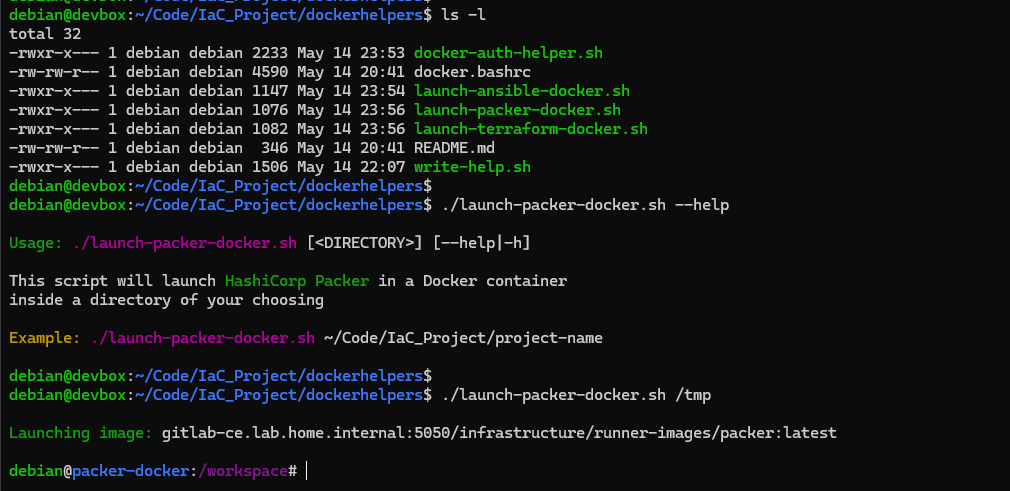
README.md Files
Whether you took care of this before, or this is still a lingering to-do item, you'll want to update your README.md files in each of your projects. The README.md files are important, as they will help you (and others if this is a team project) with things like:
- Setting up the development environment
- Establishing naming conventions for things like feature branches
- Establishing coding and style guidelines
- Establishing the procedure for creating issues
- Establishing points of contact
- And more
I'll give you some examples below:
runner-images/README.md
infrastructure/runner-images/README.md
# **runner-images**

## **Development Environment**
1. Open Visual Studio Code locally
2. Set up remote SSH connection with `devbox.lab.home.internal`
3. Set up GitLab SSH authentication using SSH agent and `~/.ssh/config` on DevBox
4. Clone this repository: `git clone git@gitlab-ce.lab.home.internal:infrastructure/runner-images.git`
5. Select / Start a branch for feature development: `git checkout -b <branch-name>`

<br>

## **Updating Docker Images**
### **Version Numbers**
> [!NOTE]
> Tool versions are controlled via ***group variables*** in the Infrastructure group
1. Navigate to the **Infrastructure group**
2. Go to **Settings > CI/CD**
3. Expand Variables and click the ✏️icon next to your variable
4. Update the version number for your specific tool(s)
5. Then, trigger a **manual pipeline** and run the build for your updated tool(s)
6. For example, if updating the `packer` version, trigger the Packer build job. If updating the `infisical` version, trigger ***ALL*** build jobs.

### **Dockerfile Changes**
Changes to any `Dockerfile` will cause a build for the respective tool(s) based on the `rules` conditions in `.gitlab-ci.yml`

No need to trigger any builds here, as this will be automatically handled by the **lint** > **build** pipeline.

### **CA Certificate**
If your CA certificate has been updated, replace the file in `certs/` and the new certificate will be baked into all images, since the `rules` conditions track `certs/**/*` for all jobs.

> [!NOTE]
> Remember to update your CA certificate on the runners themselves and any other host that requires a trusted TLS connection

### **Merge Code into Main**
When finished, commit and merge your code:
  - `git add .`
  - `git commit -m "Commit message here."`
  - `git push -u origin <branch-name> -o merge_request.create`
  - `git switch main`
  - `git pull --prune`
  - `git branch -d <branch-name>`
packer/README.md
infrastructure/packer/README.md
# **Packer**

# **Development Environment**
1. Open Visual Studio Code locally
2. Set up remote SSH connection with `devbox.lab.home.internal`
3. Set up GitLab SSH authentication using SSH agent and `~/.ssh/config` on DevBox
4. `mkdir -p "$HOME/Code/IaC_Project"`
5. `cd "$HOME/Code/IaC_Project"`
6. Clone the `dockerhelpers` repository: `git clone git@gitlab-ce.lab.home.internal:infrastructure/dockerhelpers`
7. Clone this repository: `git clone git@gitlab-ce.lab.home.internal:infrastructure/packer.git`
8. `cd packer`
9. Select / Start a branch for feature development: `git checkout -b <branch-name>`

<br>

## **Categorizing Templates**
Templates for `proxmox` are nested in the `proxmox/builds/` directory and categorized by **operating system** (e.g. Linux and Windows).

## **Shared Plugins**
The Packer plugins for `proxmox` are defined at `proxmox/builds/plugins.pkr.hcl`. This file will be ***symbolically linked*** into the target template's build directory.

## **Shared Variables**
Since operating systems will have many of the same expected inputs, variables are stored ***per-operating system***. For example, `proxmox/builds/linux/variables.pkr.hcl` exists as the common variables shared between Linux templates.

This file will be ***symbolically linked*** into the target template's build directory.

<br>

## **Updating an Existing Template**
Any existing template should have all of the core files and linked files already present. As an example, `proxmox/builds/linux/debian/debian-13-vm/` has been tested in dev and built in production.

> [!NOTE]
> \
> It should now be stable enough that you can update files such as `debian-13-vm.pkr.hcl` or `debian-13-vm.auto.pkrvars.hcl` and ***let the pipeline handle the build based on the changes***

The pipeline should already have a `validate-` and `build-` job for the target template.

<br>

## **Adding a New Template**

> [!IMPORTANT]
> \
> In this example, we create a directory for templating an Ubuntu 26.04 VM. \
> This is strictly serving as an ***EXAMPLE***. Adjust according to your needs.

### **Create the Build Directory**
```bash
OLDPWD=$PWD
OS_VARIANT="linux"
VENDOR="ubuntu"
VERSION="2604"
mkdir -p proxmox/builds/${OS_VARIANT}/${VENDOR}/${VENDOR}-${VERSION}-vm
touch proxmox/builds/${OS_VARIANT}/${VENDOR}/${VENDOR}-${VERSION}-vm/${VENDOR}-${VERSION}-vm.auto.pkrvars.hcl
touch proxmox/builds/${OS_VARIANT}/${VENDOR}/${VENDOR}-${VERSION}-vm/${VENDOR}-${VERSION}-vm.pkr.hcl
touch proxmox/builds/${OS_VARIANT}/${VENDOR}/${VENDOR}-${VERSION}-vm/{user-data.pkrtpl.hcl,meta-data.pkrtpl.hcl}
cd proxmox/builds/${OS_VARIANT}/${VENDOR}/${VENDOR}-${VERSION}-vm/
ln -s ../../variables.pkr.hcl .
ln -s ../../../plugins.pkr.hcl .
cd $OLDPWD
```

<br>

### **Add the Source Code**
Where needed, define or update any variables. Fill in your template, your `.auto.pkrvars.hcl`, and use those variables in the `.pkrtpl.hcl` files.

> [!NOTE]
> \
> Don't forget that some variables will come from `infisical`

<br>

### **Test Template in Dev**
#### **Launch the Packer Docker Container**

> [!NOTE]
> \
> Just an example \
> Change the path, as needed, of the `dockerhelpers` script \
> Launches the `packer` container setting the working directory as `"$HOME/Code/IaC_Project/packer/proxmox"`

```bash
bash \
"$HOME/Code/IaC_Project/dockerhelpers/launch-packer-docker.sh" \
"$HOME/Code/IaC_Project/packer/proxmox"
```

```bash
docker pull gitlab-ce.lab.home.internal:5050/infrastructure/runner-images/packer:latest
```
```bash
cd ~/Code/IaC_Project/packer/proxmox
```
```bash
docker run --rm -it \
-u "$(id --user):$(id --group)" \
-e "HOME=/tmp" \
-v "$PWD":/workspace \
-v /etc/passwd:/etc/passwd:ro \
-v /etc/group:/etc/group:ro \
-w /workspace \
gitlab-ce.lab.home.internal:5050/infrastructure/runner-images/packer:latest \
bash
```

<br>

#### **Infisical Dev Secrets**

> [!NOTE]
> \
> Running these commands inside the Docker container

```bash
read -e -s -p 'Enter your machine ID (input hidden): ' machine_id
export MACHINE_ID="$machine_id"
read -e -s -p 'Enter your machine secret (input hidden): ' machine_secret
export MACHINE_SECRET="$machine_secret"
read -e -p 'Enter your Infisical project ID (input shown): ' infisical_project_id
export INFISICAL_PROJECT_ID="$infisical_project_id"
export INFISICAL_SECRET_PATH="/packer/pve"
```
```bash
INFISICAL_ACCESS_TOKEN=$(infisical login \
--domain="https://secrets.lab.home.internal" \
--method="universal-auth" \
--client-id="${MACHINE_ID}" \
--client-secret="${MACHINE_SECRET}" \
--silent \
--plain)
```
```bash
eval $(infisical export \
--domain="https://secrets.lab.home.internal" \
--token="${INFISICAL_ACCESS_TOKEN}" \
--projectId="${INFISICAL_PROJECT_ID}" \
--env=dev \
--path="${INFISICAL_SECRET_PATH}" \
--format=dotenv-export \
--silent)
```

<br>

#### **Do a Test Build of the Image**

> [!NOTE]
> \
> Running these commands in the Docker container

```bash
cd /workspace/builds/linux/ubuntu/ubuntu-2604-vm/
```
```bash
packer init .
packer fmt .
packer validate .
packer build \
-var 'resource_pool=packer-testing' \
-var 'vm_name=ubuntu-2604-test-build' \
-var 'vm_id=30000' .
```

<br>

### **Add the Jobs to the Pipeline**
Once a test build successfully runs to completion, prepare the environment for production builds in the pipeline.

Add the `validate-` and `build-` jobs for the new template, using existing jobs as a reference point for your new jobs.

<br>

## **Review Git Repo for Any New .gitignore**

> [!NOTE]
> \
> This must be done before you `git add`

Always check the state of your repo after testing for any directories or files that should be added to the `.gitignore` file.

<br>

## **Merge Code into Main**
When finished, commit and merge your code:
  - `git add .`
  - `git commit -m "Commit message here."`
  - `git push -u origin  -o merge_request.create`
  - `git switch main`
  - `git pull --prune`
  - `git branch -d <branch-name>`
terraform/README.md
infrastructure/terraform/README.md
# **Terraform**

# **Development Environment**
1. Open Visual Studio Code locally
2. Set up remote SSH connection with `devbox.lab.home.internal`
3. Set up GitLab SSH authentication using SSH agent and `~/.ssh/config` on DevBox
4. `mkdir -p "$HOME/Code/IaC_Project"`
5. `cd "$HOME/Code/IaC_Project"`
6. Clone the `dockerhelpers` repository: `git clone git@gitlab-ce.lab.home.internal:infrastructure/dockerhelpers`
7. Clone this repository: `git clone git@gitlab-ce.lab.home.internal:infrastructure/terraform.git`
8. `cd terraform`
9. Select / Start a branch for feature development: `git checkout -b <branch-name>`

<br>

## **Helper Functions**
There are core hidden jobs in the `ci-helpers/` directory. Most likely, you won't be touch files in here, unless it's to update the core workflow with respcet to applying Terraform plans.

## **Categorizing Plans**
Plans for `proxmox` are nested in the `proxmox/deploy/` directory and categorized by **operating system** (e.g. Linux and Windows).

## **Shared Providers**
The Terraform providers for `proxmox` are defined at `proxmox/deploy/providers.tf`. This file will be ***symbolically linked*** into the target plan directory.

## **Shared Variables**
Since operating systems will have many of the same expected inputs, variables are stored ***per-operating system***. For example, `proxmox/deploy/linux/variables.tf` exists as the common variables shared between Linux plans.

This file will be ***symbolically linked*** into the target plan directory.

<br>

## **Updating an Existing Plan**
Any existing Terraform plans should have all of the core files and linked files already present. As an example, `proxmox/deploy/linux/debian/debian-13-vm/` has been tested in dev and built in production.

> [!NOTE]
> \
> It should now be stable enough that you can update files such as `debian-13-vm-main.tf` or `debian-13-vm.auto.tfvars` and ***let the pipeline handle the plan based on the changes***

The pipeline should already have existing `-plan`, `-apply`, `-test`, `-show-state`, and `-destroy` jobs for the target plans.

<br>

## **Adding a New Plan**

> [!IMPORTANT]
> \
> In this example, we create a plan directory for an Ubuntu 26.04 VM. \
> This is striclty an ***EXAMPLE*** adjust according to your needs.

### **Create the Plan Directory**
```bash
OLDPWD=$PWD
OS_VARIANT="linux"
VENDOR="ubuntu"
VERSION="2604"
mkdir -p proxmox/deploy/${OS_VARIANT}/${VENDOR}/${VENDOR}-${VERSION}-vm
touch proxmox/deploy/${OS_VARIANT}/${VENDOR}/${VENDOR}-${VERSION}-vm/backend.tf
touch proxmox/deploy/${OS_VARIANT}/${VENDOR}/${VENDOR}-${VERSION}-vm/${VENDOR}-${VERSION}-vm-main.tf
touch proxmox/deploy/${OS_VARIANT}/${VENDOR}/${VENDOR}-${VERSION}-vm/${VENDOR}-${VERSION}-vm.auto.tfvars
cd proxmox/deploy/${OS_VARIANT}/${VENDOR}/${VENDOR}-${VERSION}-vm/
ln -s ../../variables.pkr.hcl .
ln -s ../../../providers.tf .
cd $OLDPWD
```

<br>

### **Add the Source Code**
Where needed, define or update any variables. Fill in your `backend.tf`, your plan, and your `.auto.tfvars` files.

> [!NOTE]
> \
> Don't forget that some variables will come from `infisical`

<br>

### **Test Plan in Dev**
#### **Launch the Terraform Docker Container**

> [!NOTE]
> \
> Just an example \
> Change the path, as needed, of the `dockerhelpers` script \
> Launches the `terraform` container setting the working directory as `"$HOME/Code/IaC_Project/terraform/proxmox"`

```bash
bash \
"$HOME/Code/IaC_Project/dockerhelpers/launch-terraform-docker.sh" \
"$HOME/Code/IaC_Project/terraform/proxmox"
```

<br>

#### **Infisical Dev Secrets**

> [!NOTE]
> \
> Running these commands inside the Docker container

```bash
read -e -s -p 'Enter your machine ID (input hidden): ' machine_id
export MACHINE_ID="$machine_id"
read -e -s -p 'Enter your machine secret (input hidden): ' machine_secret
export MACHINE_SECRET="$machine_secret"
read -e -p 'Enter your Infisical project ID (input shown): ' infisical_project_id
export INFISICAL_PROJECT_ID="$infisical_project_id"
```
```bash
INFISICAL_ACCESS_TOKEN=$(infisical login \
--domain="https://secrets.lab.home.internal" \
--method="universal-auth" \
--client-id="${MACHINE_ID}" \
--client-secret="${MACHINE_SECRET}" \
--silent \
--plain)
```
```bash
eval $(infisical export \
--domain="https://secrets.lab.home.internal" \
--token="${INFISICAL_ACCESS_TOKEN}" \
--projectId="${INFISICAL_PROJECT_ID}" \
--env=dev \
--path="/terraform/gitlab" \
--format=dotenv-export \
--silent)
```
```bash
eval $(infisical export \
--domain="https://secrets.lab.home.internal" \
--token="${INFISICAL_ACCESS_TOKEN}" \
--projectId="${INFISICAL_PROJECT_ID}" \
--env=dev \
--path="/terraform/pve" \
--format=dotenv-export \
--silent)
```

<br>

#### **Do a Test of the Terraform Plan**

> [!NOTE]
> \
> Running these commands in the Docker container \
> Many of the variables referenced below are sourced from Infisical

```bash
cd /workspace/deploy/linux/ubuntu/ubuntu-2604-vm/
```
```bash
GITLAB_URL='https://gitlab-ce.lab.home.internal'
PROJECT_ID='9'
STATE_BASE_URL="${GITLAB_URL}/api/v4/projects/${PROJECT_ID}/terraform/state"
export TF_STATE_NAME="ubuntu-2604-vm-dev"
export TF_HTTP_ADDRESS="${STATE_BASE_URL}/${TF_STATE_NAME}"
export TF_HTTP_LOCK_ADDRESS="${STATE_BASE_URL}/${TF_STATE_NAME}/lock"
export TF_HTTP_UNLOCK_ADDRESS="${STATE_BASE_URL}/${TF_STATE_NAME}/lock"
export TF_HTTP_LOCK_METHOD="POST"
export TF_HTTP_UNLOCK_METHOD="DELETE"
export TF_HTTP_RETRY_WAIT_MIN="5"
```
```bash
terraform init
```
```bash
terraform fmt .
terraform validate .
```
```bash
terraform plan \
-var "resource_pool=terraform-testing" \
-var "vm_name=ubuntu-2604-tf-test" \
-out "ubuntu-2604-vm-dev.tfplan"
```
```bash
terraform apply ubuntu-2604-vm-dev.tfplan
```

<br>


#### **Test SSH Credentials**
```bash
eval $(ssh-agent)
echo -e "$TERRAFORM_SSH_PRIVATE_KEY" | ssh-add -
ssh -o "UserKnownHostsFile=/dev/null" ansible@ubuntu-2604-tf-test.lab.home.internal
```

<br>

#### **Destroy Test Resources**
```bash
terraform plan -destroy -out "ubuntu-2604-vm-dev.tfplan"
terraform apply "ubuntu-2604-vm-dev.tfplan"
```

<br>

### **Add the Jobs to the Pipeline**
Once a test build successfully runs to completion, prepare the environment for production builds in the pipeline.

Add the `-validate`, `-plan`, `-apply`, `-ssh-test`, `-show-state`, and `-destroy` jobs for the new Terraform plan, using existing jobs as a reference point for your new jobs.

<br>

## **Review Git Repo for Any New .gitignore**

> [!NOTE]
> \
> This must be done before you `git add`

Always check the state of your repo after testing for any directories or files that should be added to the `.gitignore` file.

<br>

## **Merge Code into Main**
When finished, commit and merge your code:
  - `git add .`
  - `git commit -m "Commit message here."`
  - `git push -u origin  -o merge_request.create`
  - `git switch main`
  - `git pull --prune`
  - `git branch -d <branch-name>`
ansible/README.md
infrastructure/ansible/README.md
# **Ansible**

## **Development Environment**
1. Open Visual Studio Code locally
2. Set up remote SSH connection with `devbox.lab.home.internal`
3. Set up GitLab SSH authentication using SSH agent and `~/.ssh/config` on DevBox
4. `mkdir -p "$HOME/Code/IaC_Project"`
5. `cd "$HOME/Code/IaC_Project"`
6. Clone the `dockerhelpers` repository: `git clone git@gitlab-ce.lab.home.internal:infrastructure/dockerhelpers`
7. Clone this repository: `git clone git@gitlab-ce.lab.home.internal:infrastructure/ansible.git`
8. `cd ansible`
9. Select / Start a branch for feature development: `git checkout -b <branch-name>`

<br>

## **Dynamic Inventory**
### **Inventory File**

The dynamic inventory file for `proxmox` is at `proxmox/inventory/dynamic.proxmox.yml`.

> [!NOTE]
> \
> The Proxmox dynamic inventory file must end in either `.proxmox.yml` or `proxmox.yaml`

### **Group "Variables**

> [!NOTE]
> \
> Ansible dynamic inventory for Proxmox automatically categorizes hosts into pools, so there is no **keyed group** necessary for resource pools

Ansible will also look for the `group_vars/` directory relative to the inventory file provided. Accordingly, the group variables are stored in `proxmox/inventory/group_vars/`.

Inspecting `dynamic.proxmox.yml`, note the `keyed_groups` config. However you decide to parse the output from the Proxmox VE API is up to you.

```yaml
keyed_groups:
  - key: proxmox_tags_parsed # group hosts by tag
    prefix: tag # keyword before the group name
    separator: "_" # character to add after the prefix
```

This tells to organize hosts into groups ***based on their tags*** in Proxmox VE. Therefore, group names will be `tag_{tag_name}` and we need to create `inventory/group_vars/tag_{tag_name}/` as a directory to hold the group variables file.

<br>

## **Categorizing Playbooks**
Playbooks for `proxmox` are nested in the `proxmox/playbooks/` directory and categorized by intended purpose.

## **Shared Variables**
Since operating systems will have many of the same variables used for things such as **ansible authentication**, this repo stores those variables at `common/shared_variables/iac_group_vars.yml`

> [!NOTE]
> \
> Don't forget that some variables will come from `infisical` \
> For example, the `iac_group_vars.yml` file does an environment variable lookup for `SSH_USERNAME`

This file will be ***symbolically linked*** into the target group's directory.

<br>

## **Updating an Existing Playbook**
Any existing Ansible playbooks should have all of the core files and linked files already present. As an example, `proxmox/playbooks/debian-13-vm/` has been tested in dev and production.

> [!NOTE]
> \
> It should now be stable enough that you can update files such as `debian-13-baseline.yml` or `variables.yml` and ***let the pipeline handle the playbook based on the changes***

The pipeline should already have existing `check-` and `run-` jobs for the playbook.

<br>

## **Adding a New Playbook**

> [!IMPORTANT]
> \
> In this example, we create a directory for configuring a group of hosts identified by keyed group `tag_ubuntu_2604`. \
> Additionally, we create a playbook file with a `-baseline` suffix after the VM name. \
> All of this is strictly serving as an ***EXAMPLE***. Adjust according to your needs.

### **Create the Directories and Files**
```bash
OLDPWD=$PWD
VENDOR="ubuntu"
VERSION="2604"
TARGET_TAG="ubuntu-2604" # Tag in PVE
TARGET_TAG_SAFE=$(echo "$TARGET_TAG | tr '-' '_') # Must replace hyphens with underscores
mkdir -p proxmox/inventory/group_vars/tag_${TARGET_TAG_SAFE}
mkdir -p proxmox/playbooks/${VENDOR}-${VERSION}
touch proxmox/playbooks/${VENDOR}-${VERSION}/${VENDOR}-${VERSION}-baseline.yml
cd proxmox/inventory/group_vars/tag_${TARGET_TAG_SAFE}/
ln -s ../../../common/shared_variables/iac_group_vars.yml ./variables.yml
cd $OLDPWD
```

<br>

### **Add the Source Code**
Begin building out your playbook and be sure to update the `hosts:` block to use the `tag_ubuntu_2604` group ***or whichever keyed group*** you're going to target.

<br>

### **Test Playbook in Dev**
#### **Make a Working Directory**
```bash
mkdir ~/Code/IaC_Project/AnsibleTesting
cd ~/Code/IaC_Project/AnsibleTesting
```

<br>

#### **Spin up a Test Target**
##### **Modify the Infrastructure-as-Code for Test**
```bash
git clone git@gitlab-ce.lab.home.internal:infrastructure/terraform.git
cd terraform
rm -rf .git/ ci-helpers/ .gitignore .gitlab-ci.yml README.md
cd proxmox/deploy/linux/ubuntu/
cp -r ubuntu-2604-vm/ ubuntu-2604-test
cd ~/Code/IaC_Project/AnsibleTesting/terraform/proxmox/deploy/linux/ubuntu/ubuntu-2604-test
rm backend.tf
nano ubuntu-2604-vm.auto.tfvars
```

> [!NOTE]
> \
> The test VM in this case is using the same `ubuntu-2604` tag as hosts intended for production. The only difference being that we're deploying to `/pool/terraform-testing` and our PVE API key in development has been scoped to only allow pulling hosts from this pool. \
> \
> So even if there are other VMs using this tag, the PVE API key won't be able to fetch them.

```hcl
vm_name                  = "ubuntu-2604-test-ansible"
vm_description           = "Ubuntu 26.04 VM for testing Ansible playbook"
vm_tags                  = ["ubuntu-2604"]
resource_pool            = "terraform-testing"
```

<br>

##### **Launch the Terraform Docker Container**

> [!NOTE]
> \
> Just an example \
> Change the path, as needed, of the `dockerhelpers` script \
> Launches the `terraform` container setting the working directory as `"$HOME/Code/IaC_Project/AnsibleTesting/terraform/proxmox"`

```bash
bash \
"$HOME/Code/IaC_Project/dockerhelpers/launch-terraform-docker.sh" \
"$HOME/Code/IaC_Project/AnsibleTesting/terraform/proxmox"
```

<br>

##### **Prepare the Terraform Environment**

> [!NOTE]
> \
> Running these commands inside the Terraform Docker container

```bash
cd deploy/linux/ubuntu/ubuntu-2604-test/
```
```bash
read -e -s -p 'Enter your machine ID (input hidden): ' machine_id
export MACHINE_ID="$machine_id"
read -e -s -p 'Enter your machine secret (input hidden): ' machine_secret
export MACHINE_SECRET="$machine_secret"
read -e -p 'Enter your Infisical project ID (input shown): ' infisical_project_id
export INFISICAL_PROJECT_ID="$infisical_project_id"
```
```bash
eval $(infisical export \
--domain="https://secrets.lab.home.internal" \
--token="${INFISICAL_ACCESS_TOKEN}" \
--projectId="${INFISICAL_PROJECT_ID}" \
--env=dev \
--path="/terraform/pve" \
--format=dotenv-export \
--silent)
```

> [!NOTE]
> \
> No `TF_HTTP_` variables defined, because we're not using the GitLab HTTP backend during the testing. Using file system backend instead.

```bash
terraform init
terraform fmt .
terraform validate .
terraform plan -out=test-vm.tfplan
terraform apply "test-vm.tfplan"
```

<br>

#### **Test the Ansible Playbook**
##### **Launch the Ansible Docker container**

> [!NOTE]
> \
> Back on the DevBox for a moment, preparing the Ansible environment

> [!NOTE]
> \
> Just an example \
> Change the path, as needed, of the `dockerhelpers` script \
> Launches the `ansible` container setting the working directory as `"$HOME/Code/IaC_Project/ansible/proxmox"`

```bash
bash \
"$HOME/Code/IaC_Project/dockerhelpers/launch-ansible-docker.sh" \
"$HOME/Code/IaC_Project/ansible/proxmox"
```

<br>

##### **Prepare the Ansible Environment**

> [!NOTE]
> \
> Running these commands in side the Ansible container

```
read -e -s -p 'Enter your machine ID (input hidden): ' machine_id
export MACHINE_ID="$machine_id"
read -e -s -p 'Enter your machine secret (input hidden): ' machine_secret
export MACHINE_SECRET="$machine_secret"
read -e -p 'Enter your Infisical project ID (input shown): ' infisical_project_id
export INFISICAL_PROJECT_ID="$infisical_project_id"
```
```bash
INFISICAL_ACCESS_TOKEN=$(infisical login \
--domain="https://secrets.lab.home.internal" \
--method="universal-auth" \
--client-id="${MACHINE_ID}" \
--client-secret="${MACHINE_SECRET}" \
--silent \
--plain)
```
```bash
eval $(infisical export \
--domain="https://secrets.lab.home.internal" \
--token="${INFISICAL_ACCESS_TOKEN}" \
--projectId="${INFISICAL_PROJECT_ID}" \
--env=dev \
--path="/ansible/pve" \
--format=dotenv-export \
--silent)
```
```bash
export SSH_PRIVATE_KEY=$(infisical secrets get TERRAFORM_SSH_PRIVATE_KEY \
--domain="https://secrets.lab.home.internal" \
--token="${INFISICAL_ACCESS_TOKEN}" \
--projectId="${INFISICAL_PROJECT_ID}" \
--env=dev \
--path="/terraform/pve" \
--output=dotenv \
--silent | sed ':a; N; $! ba; s/\n/\\n/g' | cut -d '=' -f 2-)
```
```bash
export SSH_USERNAME=$(infisical secrets get TF_VAR_ssh_username \
--domain="https://secrets.lab.home.internal" \
--token="${INFISICAL_ACCESS_TOKEN}" \
--projectId="${INFISICAL_PROJECT_ID}" \
--env=dev \
--path="/terraform/pve" \
--output=dotenv \
--silent | cut -d '=' -f 2-)
```

> [!NOTE]
> \
> The test target should be using the same tag as the intended produciton hosts. The only difference is that the PVE API key we're using in Development is scoped to pull hosts from a different PVE resource pool.

```bash
cd /workspace/
ansible-lint --project-dir /workspace/
eval $(ssh-agent)
echo -e "$SSH_PRIVATE_KEY" | ssh-add -
ansible-playbook \
--inventory ./inventory/dynamic.proxmox.yml \
./playbooks/ubuntu/ubuntu-2604-baseline.yml
```

<br>

#### **Destory the Test Target**

> [!NOTE]
> \
> Operating back inside the Terraform container

```bash
terraform plan -destroy -out=test-vm.tfplan
terraform apply test-vm.tfplan
exit # Leave the Terraform container
```

<br>

#### Clean up Terraform Repo Files

> [!NOTE]
> \
> Repeat the process next time by cloning the Terraform repo and preparing a fresh environment

```bash
cd ../../
rm -rf terraform
```

<br>

### **Add the Jobs to the Pipeline**
Once a test build successfully runs to completion, prepare the environment for production builds in the pipeline.

Add the `check-` and `run-` jobs for the new Ansible playbook plan, using existing jobs as a reference point for your new jobs.

<br>

## **Review Git Repo for Any New .gitignore**

> [!NOTE]
> \
> This must be done before you `git add`

Always check the state of your repo after testing for any directories or files that should be added to the `.gitignore` file.

<br>

## **Merge Code into Main**
When finished, commit and merge your code:
  - `git add .`
  - `git commit -m "Commit message here."`
  - `git push -u origin  -o merge_request.create`
  - `git switch main`
  - `git pull --prune`
  - `git branch -d <branch-name>`
Other Ideas for the Lab
Webhooks
You could consider setting up a new Discord or Slack server — or using an existing one — and create a channel where you can post webhooks from various services.
For example, GitLab has a webhooks feature that you can set up in your project pipelines, where it can send notifications about the statuses of certain tasks.
Technical Debt
DHCP Dynamic DNS
It is common with many large-scale and fast-moving projects to incur some technical debt in favor of reaching a minimum viable product. There has to be accountability for this, and you must work to whittle it down as cycles allow.
At the moment, DHCP Dynamic DNS configurations are not available in Kea DHCP settings in pfSense as of this writing. So, ISC DHCP remains deployed, as it's the only viable option until I can implement something better.
Right now, the plan looks something like:
- Add a dedicated
/29VLAN for the DHCP server - Migrate each VLAN's DHCP reservations using
giaddr - Generate a Dynamic DNS key for the DHCP server — if no integrated DNS
- Migrate each VLAN's DHCP Dynamic DNS settings to the DHCP server
- Configure firewall rules to allow the DHCP server to reach the BIND server — if no integrated DNS
- Completely disable DHCP on pfSense
- Configure DHCP relay to the dedicated DHCP server using
giaddr - Each device will receive new leases from this server when they auto-renew
Continuous Improvement
Writing this entire series was as much a learning experience for me as I hope it is / was / will be for you. There is still much to learn about the tooling covered in this series.
I'd like to continue building out Packer templates and write up more complex Terraform plans for deploying two (or more) VMs simultaneously. Then, write an Ansible playbook that would configure one as a primary server (of some kind) and the other as a failover server.
There's certainly room for improvement with the GitLab pipelines as well. I'm sure there ways to implement caching to optimize startup and execution times. There are probably more elegant ways to write the pipeline as well.
As much as I'd like to try, I can't document everything in this Infrastructure-as-Code series. Writing this much has already been months in the making. So, it's as much a challenge to you as it is to me to keep finding ways to get better.
Thank You
If you've read — or even followed along — with all or part of this series, or if you've just landed on this page, thank you for taking some time to read some of my thoughts.
Some of this series was "learning in public", and some of it was based on professional knowledge I've accrued over the years. I tried very hard to make it as professional and accurate as possible. A lot of the content was re-written multiple times, so there could be editorial mistakes. If you see something that needs fixing, get in touch with me, and provide respectful, constructive feedback.
Creating this project — all of the diagrams, documentation, source code, testing, breaking, and fixing — took an incredible amount of time and commitment.
If you feel my work has helped you, please consider making a contribution. Your generosity is very much appreciated.
Project Home
 0xBEN
0xBEN